


Slide Editor | Transitions & Animations
The Transitions and Animations tabs. Both are written the way PowerPoint writes them, round-trip untouched, and play in the editor’s own slide show.
Transitions
Section titled “Transitions”| Kinds | None, Fade, Push, Wipe, Split, Reveal, Cover, Zoom and Morph |
| Options | Duration, direction (where the kind has one) |
| Apply to all | Copies this slide’s transition onto every slide |
| Advance | On click and/or after N seconds |
| Preview | Plays the transition on the editing surface |
Written as mc:AlternateContent with the p14 duration, the form PowerPoint itself uses.
var c = editor.Controller!;
c.SetTransitionKind(SlideTransitionKind.Push);c.SetTransition(transition, applyToAll: false);   // a SlideTransition with duration, direction, advancec.UpdateTransition(...);c.ApplyTransitionToAll();
Animations
Section titled “Animations”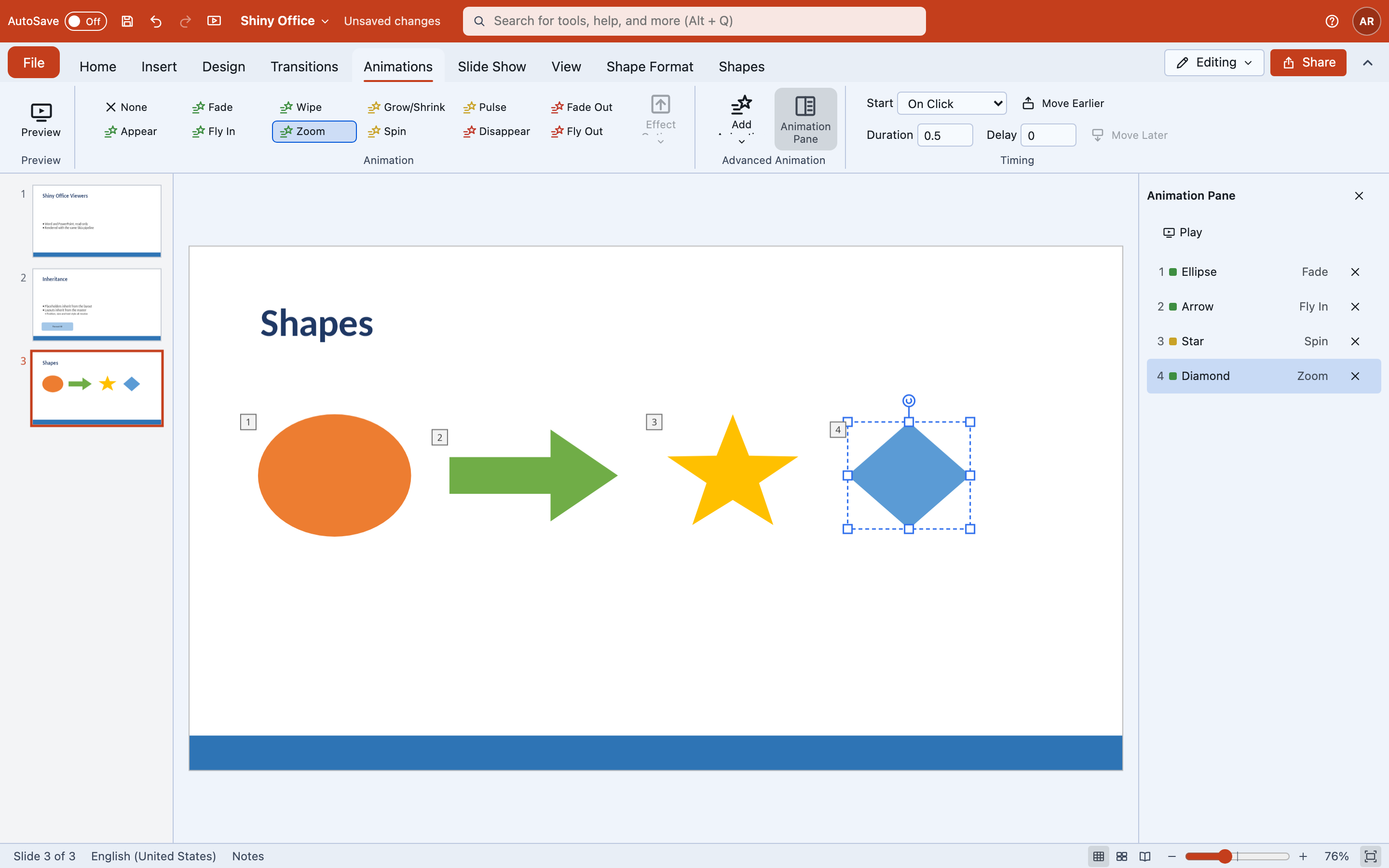
| Group | Effects |
|---|---|
| Entrance | Appear, Fade, Fly In, Wipe, Zoom |
| Emphasis | Grow/Shrink, Spin, Pulse |
| Exit | Disappear, Fade Out, Fly Out |
Each effect has a trigger — on click, with previous, or after previous — plus a duration and a delay. The animation pane lists the slide’s sequence to reorder or remove, and numbered markers show on the slide while the Animations tab is open.
c.Animate(SlideAnimationEffect.FlyIn, add: true); // add another, or replace the shape's effectc.UpdateAnimation(...); // trigger, duration, delayc.MoveAnimation(...); c.RemoveAnimation(...);c.ShowAnimationMarkers = true;Triggers are SlideAnimationTrigger.OnClick, WithPrevious and AfterPrevious. Animations are stored in
p:timing (with p:bldLst) and round-tripped. Deleting a shape prunes its animations, so no timing entry
is left pointing at nothing.