


Scheduler | Getting Started
A .NET MAUI scheduling and calendar component library providing three views: a monthly calendar, an agenda timeline, and a vertically scrolling event list. All views are AOT-safe, fully programmatic (no XAML internals), and share a single ISchedulerEventProvider interface for data.
| GitHub |  |
| MAUI |  |
| Blazor |  |
Screenshots
Section titled “Screenshots”MAUI
| Calendar | Agenda | Event List |
|---|---|---|
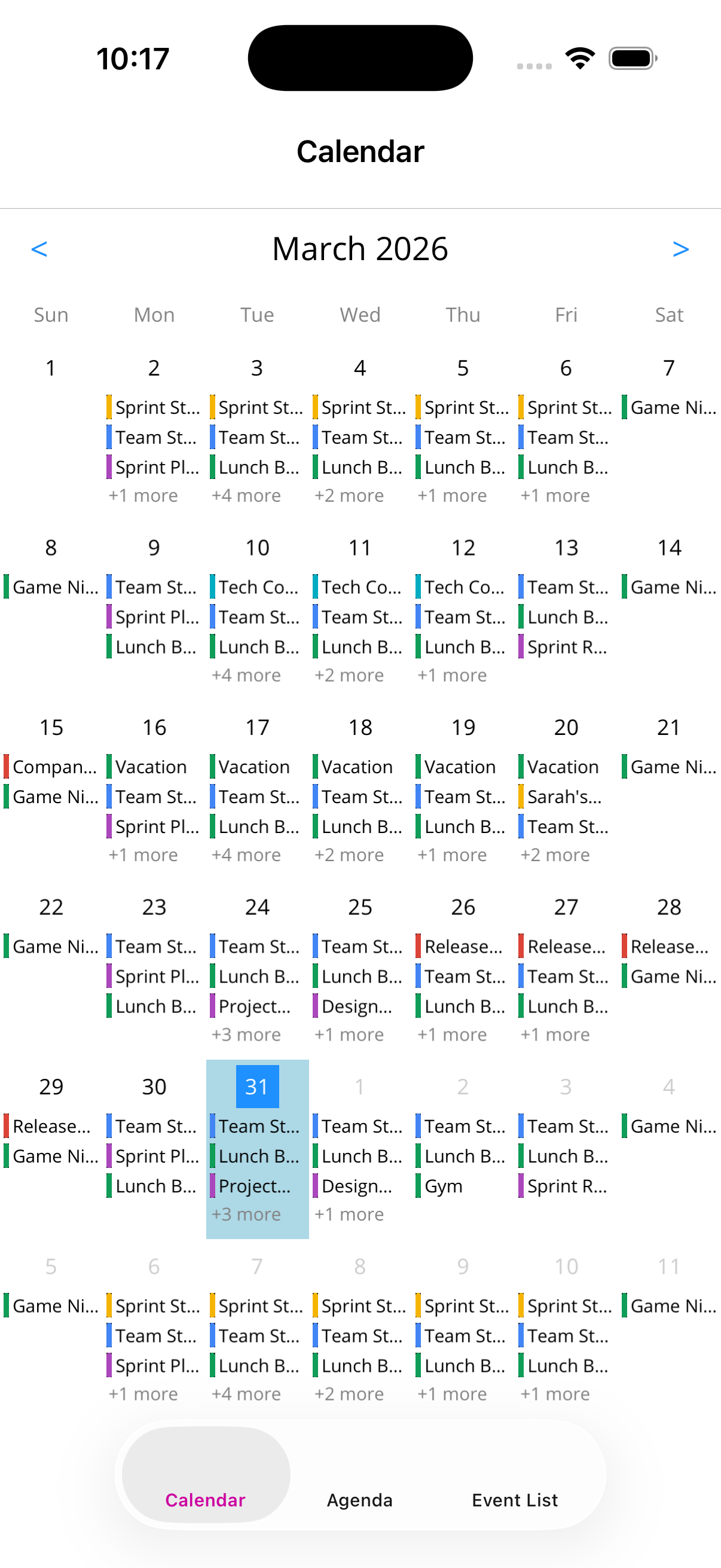 |
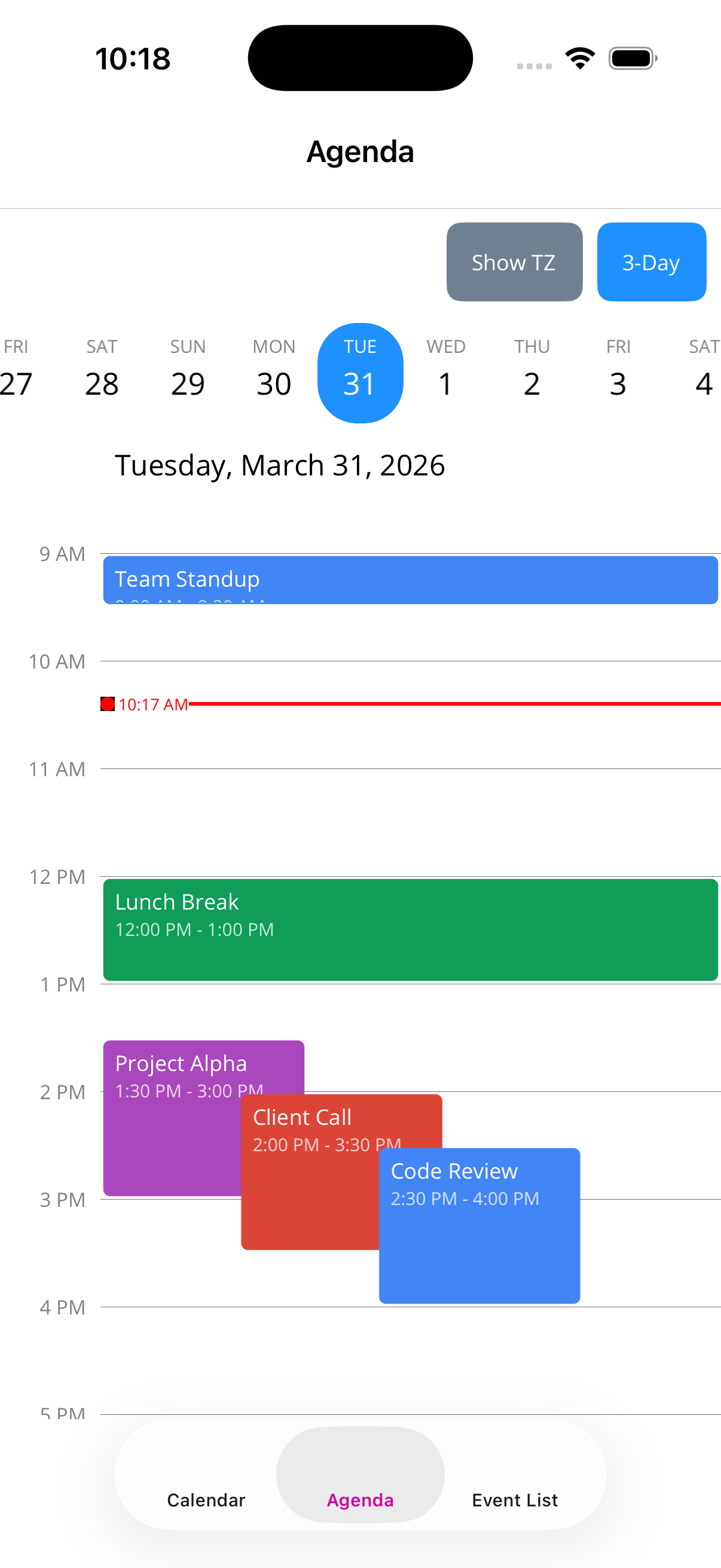 |
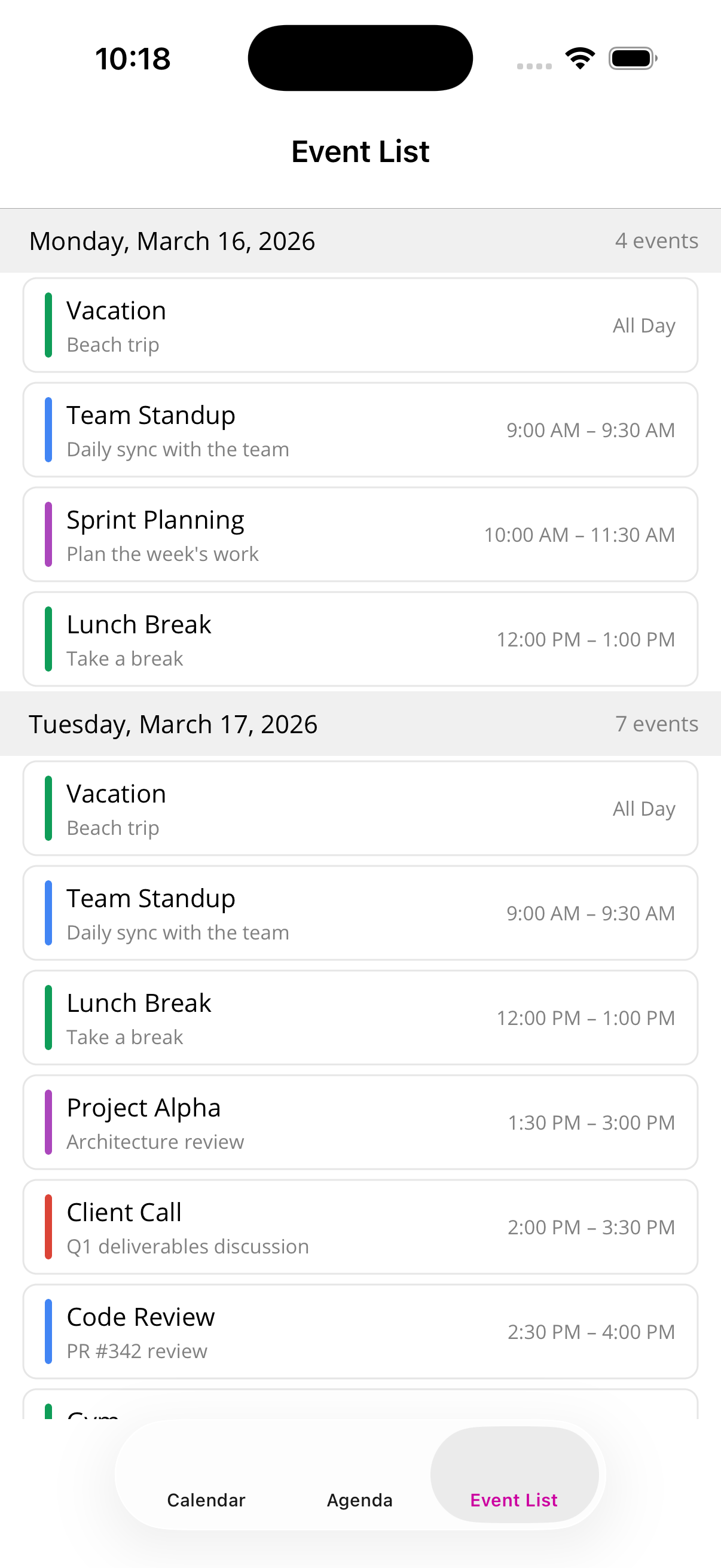 |
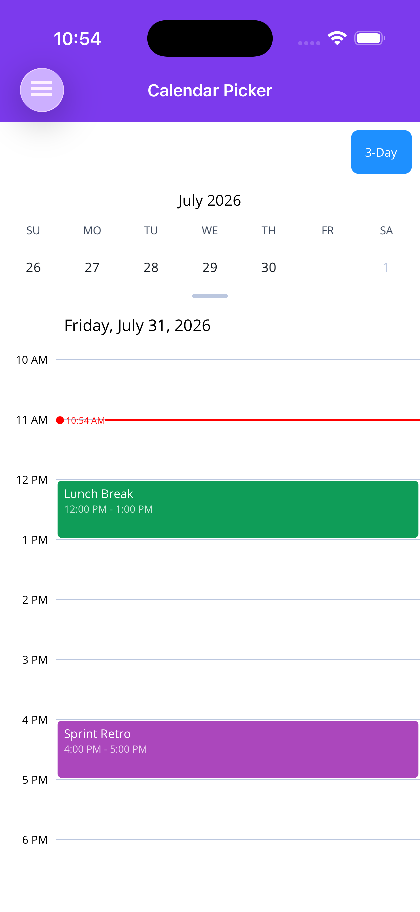 |
Blazor
| Calendar view | Agenda view | Event list |
|---|---|---|
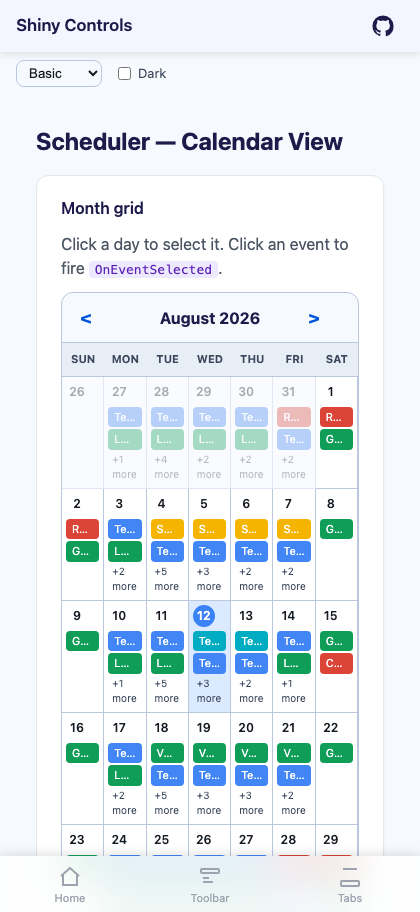 |
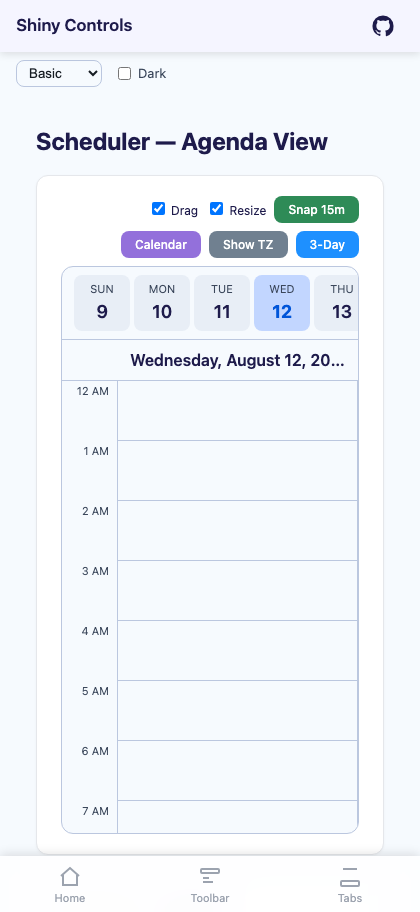 |
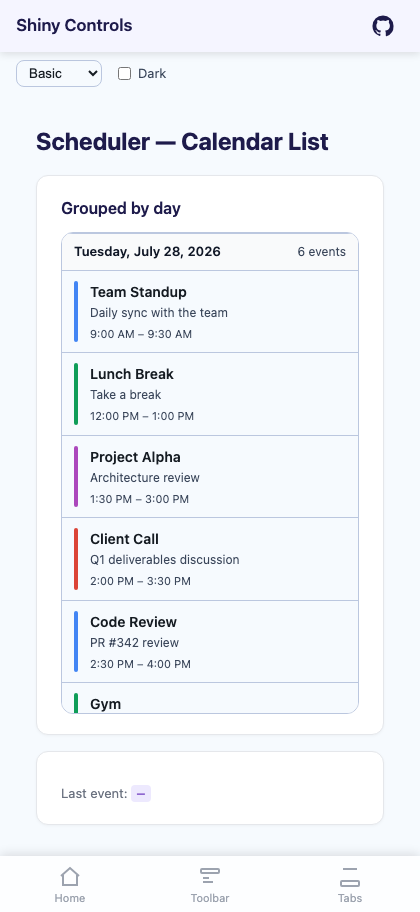 |
Features
Section titled “Features”| Feature | Description |
|---|---|
| Three views | Monthly calendar grid, day/multi-day agenda timeline, and vertically scrolling event list |
| Shared data interface | All views consume ISchedulerEventProvider so you write your data layer once |
| AOT-safe | All bindings use static lambda overloads, no string-based reflection |
| Custom templates | Every visual element (events, headers, loaders, day pickers) is replaceable via DataTemplate |
| Multi-day events | Events spanning multiple days are handled automatically across all views |
| Gesture support | Swipe/pan navigation and pinch-to-zoom on all views |
| Date constraints | MinDate/MaxDate on all views to limit navigation and selection |
| Multiple timezones | Agenda view supports additional timezone columns with sticky headers |
| Infinite scroll | Event list loads more data as you scroll in both directions |
| Current time marker | Agenda displays a live time indicator that updates every minute |
- MyApp/
1#if PLATFORM2using Shiny;3using MyApp.Services;45namespace MyApp;67public static class MauiProgram8{9 public static MauiApp CreateMauiApp()10 {11 var builder = MauiApp.CreateBuilder();1213 builder 14 .UseMauiApp<App>()15 .UseShiny()16 .UseShinyControls(cfg =>17 {18 cfg.AddDefaultMauiControlFeedback();19 })20 .ConfigureFonts(fonts =>21 {22 fonts.AddFont("OpenSans-Regular.ttf", "OpenSansRegular");23 fonts.AddFont("OpenSans-Semibold.ttf", "OpenSansSemibold");24 });2526 // TODO: once you have localization, add these27 //builder.Services.AddLocalization();28 //builder.Services.AddStronglyTypedLocalizations();29 builder.Services.AddSingleton(TimeProvider.System);30#if DEBUG31 builder.Logging.SetMinimumLevel(LogLevel.Trace);32 builder.Logging.AddDebug();33#endif3435 // source generated by Shiny.Extensions.DependencyInjection - registers every class marked [Singleton], [Scoped] or [Transient]36 builder.Services.AddGeneratedServices();37 // builder.Services.AddGeneratedAITools(); // https://shinylib.net/di/ai-tools/38 var app = builder.Build();3940 return app;41 }42}43#endif-
Implement
ISchedulerEventProviderpublic class MyEventProvider : ISchedulerEventProvider{public async Task<IReadOnlyList<SchedulerEvent>> GetEvents(DateTimeOffset start, DateTimeOffset end){return await myService.GetEventsAsync(start, end);}public void OnEventSelected(SchedulerEvent selectedEvent){// Handle event tap — navigate to detail, show dialog, etc.}public bool CanCalendarSelect(DateOnly selectedDate) => true;public void OnCalendarDateSelected(DateOnly selectedDate) { }public void OnAgendaTimeSelected(DateTimeOffset selectedTime) { }public bool CanSelectAgendaTime(DateTimeOffset selectedTime) => true;} -
Add a view to your page
<ContentPage xmlns:scheduler="clr-namespace:Shiny.Maui.Scheduler;assembly=Shiny.Maui.Scheduler"><scheduler:SchedulerCalendarViewProvider="{Binding Provider}"SelectedDate="{Binding SelectedDate}" /></ContentPage>
Core Models
Section titled “Core Models”SchedulerEvent
Section titled “SchedulerEvent”public class SchedulerEvent{ public string Identifier { get; set; } // Default: new Guid public string Title { get; set; } public string? Description { get; set; } public Color? Color { get; set; } public bool IsAllDay { get; set; } public DateTimeOffset Start { get; set; } public DateTimeOffset End { get; set; }}ISchedulerEventProvider
Section titled “ISchedulerEventProvider”public interface ISchedulerEventProvider{ Task<IReadOnlyList<SchedulerEvent>> GetEvents(DateTimeOffset start, DateTimeOffset end); void OnEventSelected(SchedulerEvent selectedEvent); bool CanCalendarSelect(DateOnly selectedDate); void OnCalendarDateSelected(DateOnly selectedDate); void OnAgendaTimeSelected(DateTimeOffset selectedTime); bool CanSelectAgendaTime(DateTimeOffset selectedTime);
// Agenda drag/resize - default interface methods, so existing providers need no changes. // See Drag & Drop Editing. bool CanChangeEvent(SchedulerEvent evt) => false; bool CanChangeEventTo(SchedulerEventChange change) => true; Task<bool> OnEventChanged(SchedulerEventChange change) => Task.FromResult(false);}The provider is not resolved from DI — you pass any implementation directly to the view via the Provider bindable property (from XAML binding or code-behind). This means you can use different providers for different views, or swap providers at runtime.
AI Coding Assistant
Section titled “AI Coding Assistant”Step 1 — Add the marketplace:
claude plugin marketplace add shinyorg/skillsStep 2 — Install the plugin:
claude plugin install shiny@shinyOne plugin installs all 48 Shiny skills. Your agent loads only the skill relevant to what you're building, so there's no cost to having them all available.
Step 1 — Add the marketplace:
copilot plugin marketplace add https://github.com/shinyorg/skillsStep 2 — Install the plugin:
copilot plugin install shiny@shinyOne plugin installs all 48 Shiny skills. Your agent loads only the skill relevant to what you're building, so there's no cost to having them all available.
Next Steps
Section titled “Next Steps”- Calendar View — Monthly calendar grid with event indicators
- Agenda View — Day/multi-day timeline with overlap detection
- Drag & Drop Editing — Move and resize agenda events by dragging
- Event List — Vertically scrolling event list grouped by day
- Custom Templates — Override any visual element with custom DataTemplates
- Release Notes