


AutoCompleteEntry
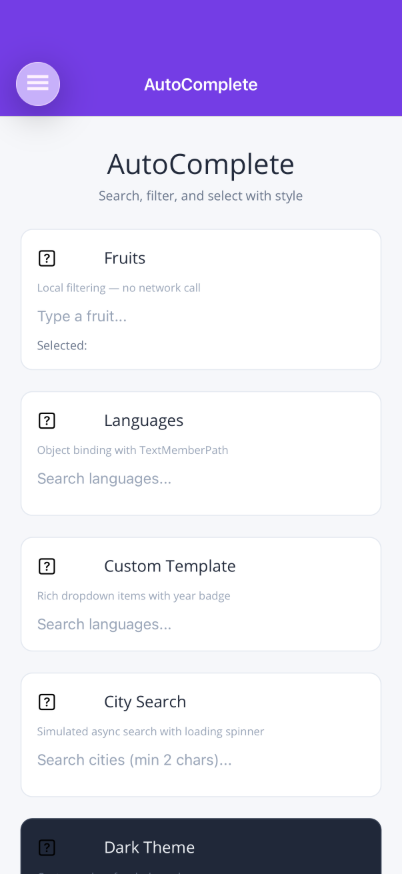
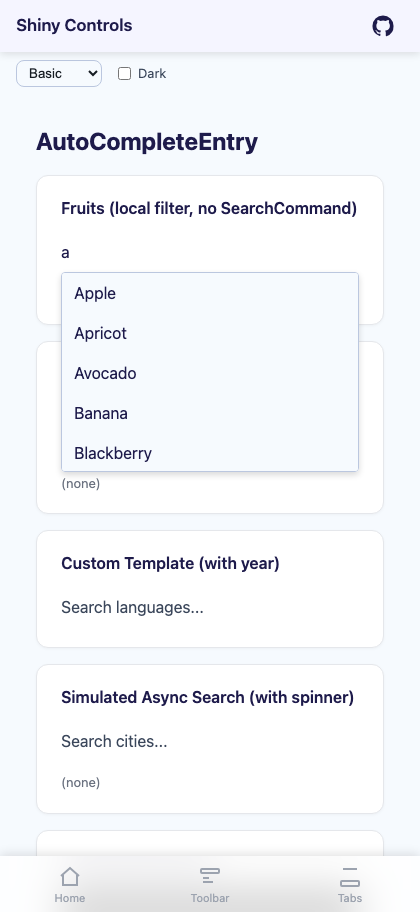
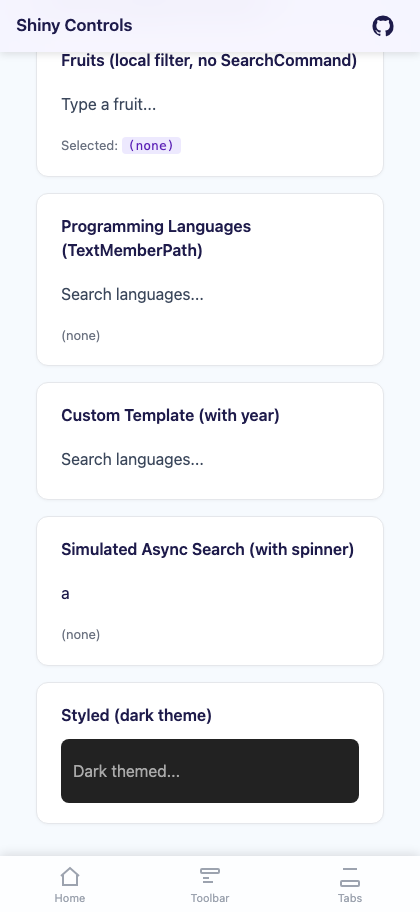
A text input with debounced search, dropdown suggestions, busy indicator, and custom item templates. Supports both local filtering and remote search via a command/callback. Fully styleable on both MAUI (bindable properties) and Blazor (CSS custom properties).


MAUI
Blazor
| Local filter dropdown | Async search with spinner |
|---|---|
 |
 |
Basic Usage
Section titled “Basic Usage”Local Filtering
Section titled “Local Filtering”Provide an ItemsSource without a SearchCommand — the control filters items locally as the user types:
<shiny:AutoCompleteEntry Text="{Binding SearchText}" Placeholder="Search fruits..." ItemsSource="{Binding AllFruits}" SelectedItem="{Binding SelectedFruit}" TextMemberPath="Name" />Remote Search
Section titled “Remote Search”Set SearchCommand to trigger an async search. Bind IsBusy to show the spinner during loading:
<shiny:AutoCompleteEntry Text="{Binding SearchText}" Placeholder="Search..." ItemsSource="{Binding Results}" SelectedItem="{Binding SelectedResult}" SearchCommand="{Binding SearchCommand}" IsBusy="{Binding IsSearching}" TextMemberPath="Name" DebounceInterval="400" Threshold="2" />Properties
Section titled “Properties”| Property | Type | Default | Description |
|---|---|---|---|
Text |
string |
"" |
Current text value (TwoWay) |
Placeholder |
string? |
null |
Placeholder text |
PlaceholderColor |
Color? / string? |
null |
Placeholder color |
ItemsSource |
IList |
null |
Suggestion items |
SelectedItem |
object? |
null |
Selected item (TwoWay) |
SearchCommand |
ICommand / EventCallback<string> |
null |
Async search trigger |
TextMemberPath |
string? |
null |
Property name to display from complex objects |
ItemTemplate |
DataTemplate / RenderFragment<object> |
null |
Custom dropdown item rendering |
IsBusy |
bool |
false |
Show/hide loading spinner (TwoWay) |
DebounceInterval |
int |
300 |
Debounce delay in milliseconds |
Threshold |
int |
1 |
Minimum characters before searching |
MaxDropDownHeight |
double |
200 |
Maximum dropdown height (px) |
TextColor |
Color? / string? |
null |
Input text color |
FontSize |
double |
14 |
Input font size |
FontFamily |
string? |
null |
Font family (MAUI only) |
FontAttributes |
FontAttributes |
None |
Bold/italic (MAUI only) |
DropDownBackgroundColor |
Color? / string? |
White |
Dropdown background |
DropDownBorderColor |
Color? / string? |
LightGray |
Dropdown border color |
CornerRadius |
double |
4 |
Dropdown border radius (MAUI only) |
SpinnerColor |
Color? / string? |
Grey |
Loading spinner color |
ShowAllOnFocus |
bool |
false |
Show all unfiltered items when the input is focused (local filtering only) |
Events
Section titled “Events”| Event | Args | Description |
|---|---|---|
ItemSelected |
object? |
Fires when a suggestion is selected from the dropdown |
Styling
Section titled “Styling”<shiny:AutoCompleteEntry FontSize="18" FontFamily="OpenSans" FontAttributes="Bold" TextColor="Black" PlaceholderColor="DarkGray" DropDownBackgroundColor="#F9FAFB" DropDownBorderColor="#6B7280" SpinnerColor="DodgerBlue" CornerRadius="12" MaxDropDownHeight="300" />MAUI Custom Item Template
Section titled “MAUI Custom Item Template”var autoComplete = new AutoCompleteEntry{ TextMemberPath = nameof(Product.Name), FontSize = 16, CornerRadius = 8, ItemTemplate = new DataTemplate(() => { var grid = new Grid { ColumnDefinitions = { new ColumnDefinition(GridLength.Star), new ColumnDefinition(GridLength.Auto) }, Padding = new Thickness(8, 6) };
var name = new Label { FontSize = 14 }; name.SetBinding(Label.TextProperty, nameof(Product.Name));
var price = new Label { FontSize = 12, TextColor = Colors.Grey }; price.SetBinding(Label.TextProperty, nameof(Product.PriceDisplay));
grid.Add(name, 0, 0); grid.Add(price, 1, 0); return grid; })};Blazor Usage
Section titled “Blazor Usage”<AutoCompleteEntry Text="@searchText" TextChanged="v => searchText = v" Placeholder="Search..." ItemsSource="@results" SelectedItemChanged="OnSelected" SearchCommand="OnSearch" IsBusy="@isBusy" TextMemberPath="Name" DebounceInterval="400" Threshold="2" FontSize="16" TextColor="#333" DropDownBackgroundColor="#fff" DropDownBorderColor="#ccc" SpinnerColor="#3B82F6" InputClass="my-input" DropDownClass="my-dropdown"> <ItemTemplate Context="item"> @{ var p = (Product)item; } <div style="display:flex;justify-content:space-between;"> <span>@p.Name</span> <span style="color:#888;">@p.PriceDisplay</span> </div> </ItemTemplate></AutoCompleteEntry>
@code { string searchText = ""; bool isBusy; IList? results;
async Task OnSearch(string query) { isBusy = true; results = await MyApi.SearchAsync(query); isBusy = false; }
void OnSelected(object? item) { if (item is Product p) { /* handle selection */ } }}Blazor-Only Properties
Section titled “Blazor-Only Properties”| Property | Type | Default | Description |
|---|---|---|---|
CssClass |
string? |
null |
CSS class applied to root element |
InputClass |
string? |
null |
CSS class applied to the input element |
DropDownClass |
string? |
null |
CSS class applied to the dropdown |
AdditionalAttributes |
IDictionary<string, object>? |
null |
Unmatched HTML attributes passed to root element |
CSS Custom Properties
Section titled “CSS Custom Properties”Override these on a parent element or the component’s root to theme without parameters:
| Variable | Default | Controls |
|---|---|---|
--shiny-ac-text |
inherit |
Input text color |
--shiny-ac-ph |
#9CA3AF |
Placeholder color |
--shiny-ac-dd-bg |
#fff |
Dropdown background |
--shiny-ac-dd-border |
#D1D5DB |
Dropdown border |
--shiny-ac-spinner |
#9CA3AF |
Spinner color |
--shiny-ac-font-size |
inherit |
Input font size |
--shiny-ac-dd-max-h |
200px |
Dropdown max height |
Example – dark theme a section without touching individual components:
.dark-section { --shiny-ac-text: #f0f0f0; --shiny-ac-ph: #888; --shiny-ac-dd-bg: #1e1e1e; --shiny-ac-dd-border: #444; --shiny-ac-spinner: #60A5FA;}AI Skill
Section titled “AI Skill”Step 1 — Add the marketplace:
claude plugin marketplace add shinyorg/skillsStep 2 — Install the plugin:
claude plugin install shiny@shinyOne plugin installs all 48 Shiny skills. Your agent loads only the skill relevant to what you're building, so there's no cost to having them all available.
Step 1 — Add the marketplace:
copilot plugin marketplace add https://github.com/shinyorg/skillsStep 2 — Install the plugin:
copilot plugin install shiny@shinyOne plugin installs all 48 Shiny skills. Your agent loads only the skill relevant to what you're building, so there's no cost to having them all available.