


On-Screen Keyboard
A focused on-screen keyboard for touch tablets and kiosks. It auto-shows when a text input takes focus, docks along the bottom edge, and types into whatever is focused — without ever taking the caret off it.
Scope is deliberately narrow: English US-QWERTY, typing into the host app’s own text fields, no IME and no dead-key composition. The 80% of a kiosk, not a replacement for the OS on-screen keyboard.

Screenshots
Section titled “Screenshots”Blazor
| Auto-shown on focus | Typing into a password field |
|---|---|
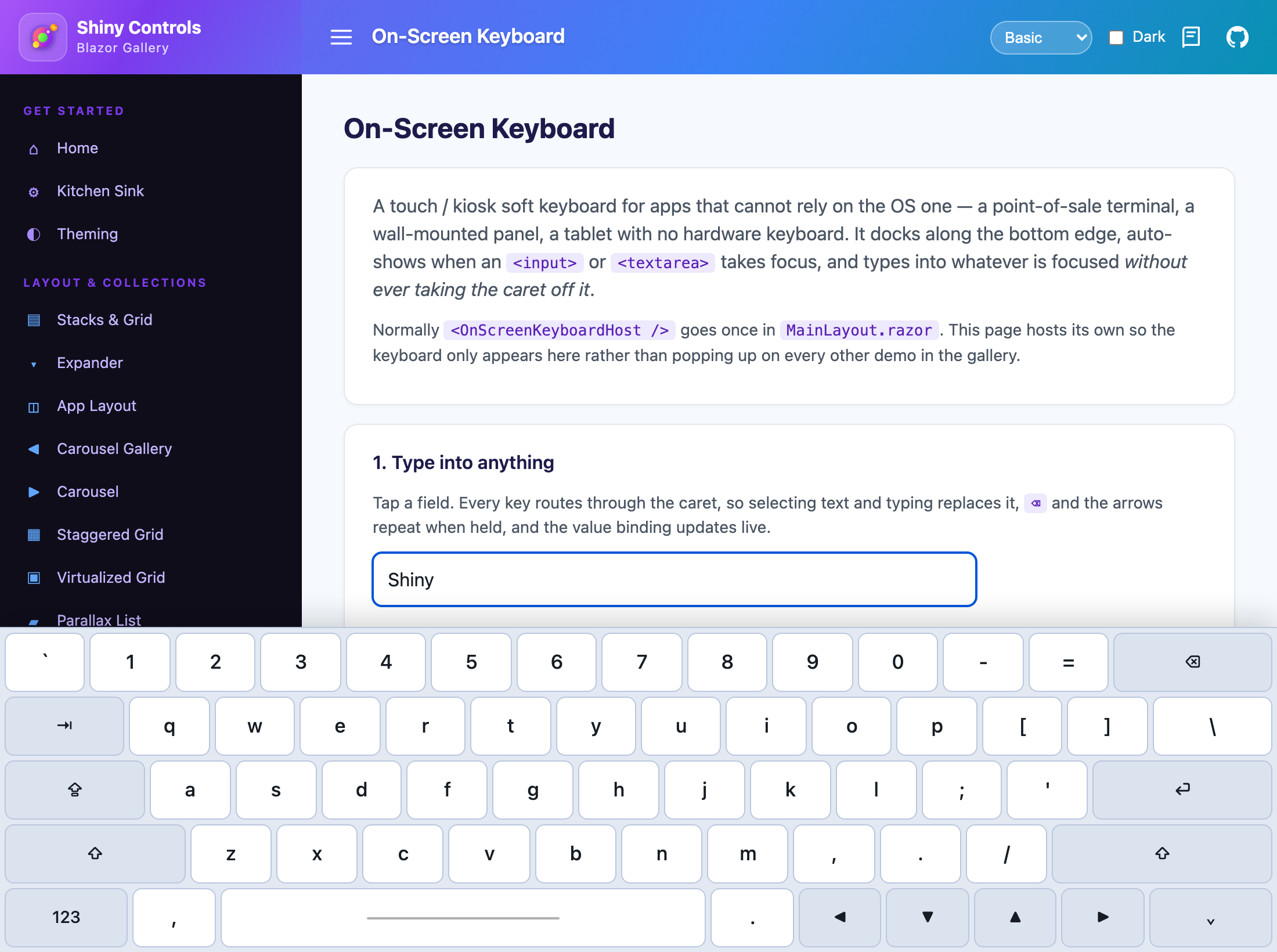 |
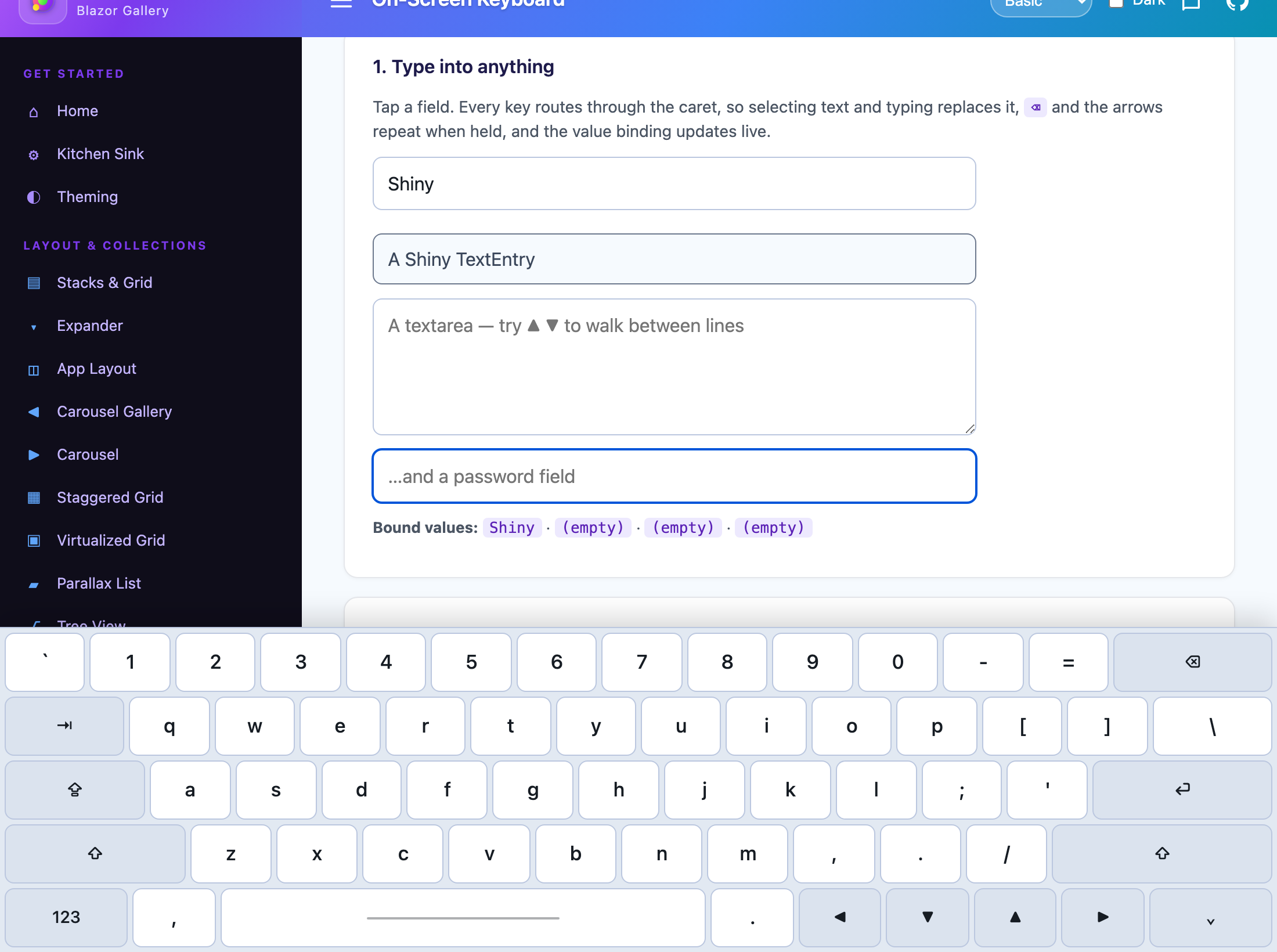 |
- MyApp/
1<!DOCTYPE html>2<html lang="en">34<head>5 <meta charset="utf-8" />6 <meta name="viewport" content="width=device-width, initial-scale=1.0, maximum-scale=1.0, user-scalable=no" />7 <title>MyApp</title>8 <base href="/" />9 <link rel="stylesheet" href="css/app.css" />10 <link rel="icon" type="image/png" href="favicon.png" />11 <link href="_content/Shiny.Blazor.Controls/css/shiny-theme.css" rel="stylesheet" />12</head>1314<body>15 <div id="app">16 <svg class="loading-progress">17 <circle r="40%" cx="50%" cy="50%" />18 <circle r="40%" cx="50%" cy="50%" />19 </svg>20 <div class="loading-progress-text"></div>21 </div>2223 <div id="blazor-error-ui">24 An unhandled error has occurred.25 <a href="" class="reload">Reload</a>26 <a class="dismiss">🆗</a>27 </div>2829 <script src="_framework/blazor.webassembly.js"></script>30</body>3132</html>No add-on package — it is in the main Blazor controls package alongside Docking.
Program.cs — the umbrella call covers the keyboard along with every other service-backed control
(Toast, Dialogs, the splash screen, the walkthrough store and docking):
using Shiny.Blazor.Controls;
builder.Services.AddShinyControls(cfg => cfg    .ConfigureKeyboard(opts =>    {        opts.AutoShowOnFocus = true;        opts.AutoHideOnBlur  = true;        opts.HeightPx        = 280;        opts.PushContent     = true;       // pad the body out from under the keys        opts.Theme           = OnScreenKeyboardTheme.Auto;    }));
Or register just the keyboard:
using Shiny.Blazor.Controls.OnScreenKeyboard;
builder.Services.AddShinyOnScreenKeyboard(opts => opts.HeightPx = 280);
Both are TryAdd, so calling both is safe — the first registration wins.
_Imports.razor:
@using Shiny.Blazor.Controls.OnScreenKeyboardThen place exactly one host, near the root of the layout (typically MainLayout.razor):
<OnScreenKeyboardHost />That is the whole setup. The host is position: fixed, so it does not matter where in the layout it
sits — but it does watch focus for the entire document, so put one in the app rather than one per
page.
Driving it from code
Section titled “Driving it from code”Inject IOnScreenKeyboardService anywhere:
@inject IOnScreenKeyboardService Keyboard
<button @onclick="() => Keyboard.Show()">Kiosk mode</button>
public interface IOnScreenKeyboardService{ bool IsVisible { get; } event EventHandler<bool>? VisibilityChanged;
void Show(); void Hide(); void Toggle();}A kiosk screen usually turns auto-show off and pins the keyboard up for the life of the screen —
otherwise AutoHideOnBlur will drop it the moment the user taps one of your own buttons, because
that genuinely moves focus off the field.
Options
Section titled “Options”OnScreenKeyboardOptions is live. Configure it once at startup, or inject it and change it at
runtime — the host picks the new values up on its next render.
public sealed class OnScreenKeyboardOptions{ public bool AutoShowOnFocus { get; set; } = true; public bool AutoHideOnBlur { get; set; } = true; public double HeightPx { get; set; } = 280; public bool PushContent { get; set; } = true; // false = overlay the content public OnScreenKeyboardTheme Theme { get; set; } = OnScreenKeyboardTheme.Auto; public bool EnterInsertsNewLine { get; set; } // textarea only; see below public TimeSpan AutoRepeatDelay { get; set; } = TimeSpan.FromMilliseconds(400); public TimeSpan AutoRepeatInterval { get; set; } = TimeSpan.FromMilliseconds(50);}Both the options and the service are registered scoped, not singleton — they are per-user state. Under WebAssembly the two lifetimes are identical; on Blazor Server a singleton would apply one user’s settings, and one user’s visible keyboard, to everyone. The configure delegate therefore runs once per scope against that scope’s own options instance.
PushContent pads the document body out from under the keyboard. That is only half the problem, so
the host also measures the focused field against the keyboard’s top edge and scrolls it clear — in
whichever container actually scrolls, not just the body. Apps whose content scrolls inside a shell
(an AppLayout content region, a dialog) get the second behaviour whether or not they take the
first.
Layout
Section titled “Layout”US-QWERTY, plus a symbols layer behind the 123 key.
| Layer | Keys |
|---|---|
| Letters | ` 1 2 3 4 5 6 7 8 9 0 - = ⌫ / ⇥ q w e r t y u i o p [ ] \ / ⇪ a s d f g h j k l ; ' ⏎ / ⇧ z x c v b n m , . / ⇧ |
Symbols (123) |
Digits and - = + / ~ ! @ # $ % ^ & * ( ) _ [ ] \ / € £ ¥ ¢ ° ± × ÷ { } | : ; ⏎ / « » " ' < > ? / , . • – — … ¡ |
| Bottom row (both) | 123/ABC · , · space · . · ◀ ▼ ▲ ▶ · ⌄ (hide) |
Modifiers behave like a real keyboard. ⇧ is momentary — it drops after one character. ⇪ is
sticky, and it only raises the letters, so the number row keeps its digits. The 123 toggle is
sticky too. All three light up while engaged.
Holding a character, ⌫, space or an arrow auto-repeats after AutoRepeatDelay, and a held key
keeps repeating the character it typed first rather than dropping out of shift on the second repeat.
The non-obvious bits
Section titled “The non-obvious bits”1. No focus stealing. Every key cancels pointerdown, on the key itself and on the container, so
the browser never runs its focus default and the caret stays in the field the user is typing into.
Get this wrong and the target input loses its caret the moment the first key is tapped — the single
biggest cause of “the OSK does nothing” reports.
2. Caret and selection. Typing goes in through execCommand('insertText'), which replaces the
selection and leaves the undo stack intact, with a deterministic value splice behind it for browsers
that decline. Because a programmatic value assignment does not set the element’s dirty flag, the
fallback path raises both input and change itself — so a plain @bind and a
@bind:event="oninput" both see the keystroke.
3. Arrow keys know about lines. ▲ / ▼ in a <textarea> walk to the same column on the adjacent
line rather than jumping one character, and contenteditable is left to the selection API.
On a single-line <input>, Enter dispatches real keydown / keyup events and then submits the
containing form — unless a handler cancelled the keydown, in which case it does not. Typing a
literal newline into a single-line field is meaningless, so it never does that.
In a <textarea>, set EnterInsertsNewLine = true to type a newline instead.
Theming
Section titled “Theming”CSS custom properties — set them on any ancestor, or on <OnScreenKeyboardHost> directly:
--shiny-osk-bg, --shiny-osk-border, --shiny-osk-key-bg, --shiny-osk-key-fg,
--shiny-osk-modifier-bg, --shiny-osk-key-pressed-bg, --shiny-osk-key-pressed-fg,
--shiny-osk-height, --shiny-osk-gap, --shiny-osk-radius.
OnScreenKeyboardTheme.Auto — the default — resolves those from the app’s Shiny theme tokens, so it
tracks a runtime theme switch. Light and Dark pin a fixed palette regardless of what the rest of
the app is doing, which is what a kiosk usually wants.
Reduced-motion preferences are honoured: the slide-in transition is dropped entirely.
Limitations
Section titled “Limitations”- DOM inputs only. The keyboard types into
<input>(text-ish types),<textarea>and contenteditable inside this app. It cannot inject into another window, another process, or a cross-origin<iframe>. For a kiosk that is the desired behaviour. - Shadow DOM —
focusindoes not pierce shadow roots, so Web Components with an internal<input>are not detected. - Rich editors (Quill, ProseMirror, Monaco) —
insertTextworks against plain inputs and simple contenteditable, but selection behaviour inside a full editor framework is best-effort. - English US-QWERTY only. No IME, no dead keys, no language switching.
- No Ctrl / Alt. Modifier chords are not dispatched; there are no inert keys on the board pretending otherwise.
Accessibility
Section titled “Accessibility”The keyboard is a role="application" region with an accessible name, and each key is a button with
an aria-label matching what it will actually type in the current shift state. The three latching
keys (⇧, ⇪, 123) report aria-pressed.
Keys are tabindex="-1" on purpose: they must not enter the tab order, because taking focus is
exactly what the keyboard exists to avoid. Screen-reader users on a device with this keyboard are
using the real one; the ARIA tree is there so the board is describable, not so it is tab-navigable.
MAUI — still planned
Section titled “MAUI — still planned”Nothing below exists. It is recorded so the shape can be reviewed.
using Shiny;using Shiny.Maui.Controls.Desktop.OnScreenKeyboard;
builder    .UseMauiApp<App>()    .UseOnScreenKeyboard(opts =>    {        opts.AutoShowOnFocus = true;        opts.Height          = 280;        opts.PushContent     = true;    });
<!-- Inline use, e.g. a kiosk page that always shows the keyboard --><Grid RowDefinitions="*,Auto"> <osk:OnScreenKeyboardView Grid.Row="1" Height="280" /></Grid>It would ship in Shiny.Maui.Controls.Desktop alongside Tray Icon and
Docking, exposing IOnScreenKeyboard with the same
Show / Hide / Toggle / IsVisible / VisibilityChanged surface, themed through
ResourceDictionary keys (OnScreenKeyboardKeyBrush and friends) rather than CSS properties.
Note that this is not the keyboard accessory bar — that decorates the OS keyboard on iOS and Android. This one draws its own keys, for platforms where there is no OS keyboard to decorate.