


Feedback Service
Every interactive control in the library fires feedback events through IFeedbackService — a single, injectable service that lets you customize how your app responds to user interactions. By default, it triggers haptic feedback. Replace it with text-to-speech, sound effects, analytics, or any combination.

How It Works
Section titled “How It Works”All Shiny controls that support feedback have a UseFeedback property (default: true). When an interaction occurs — a button tap, a pin digit entered, a toast shown, a message received — the control calls IFeedbackService.OnRequested() with:
| Parameter | Description |
|---|---|
control |
The actual control instance (e.g. the ChatView, SecurityPin, Button) — use pattern matching like control is ChatView to identify the source |
eventName |
The interaction that occurred (e.g. "MessageSent", "Completed", "Clicked") |
args |
Optional context — for ChatView, this is the ChatMessage object; for standard MAUI controls, the native EventArgs; "LongPress" string for SecurityPin completion |
Default Behavior
Section titled “Default Behavior”UseShinyControls() registers HapticFeedbackService as the default implementation. It performs a click haptic for most events and a long press haptic when eventName is "LongPress".
builder.UseShinyControls(); // registers HapticFeedbackService by defaultCustom Feedback Service
Section titled “Custom Feedback Service”Replace the default by calling SetCustomFeedback<T>() during setup:
builder.UseShinyControls(cfg =>{ cfg.SetCustomFeedback<MyFeedbackService>();});Example: Text-to-Speech for Chat
Section titled “Example: Text-to-Speech for Chat”public class ChatTtsFeedbackService(ITextToSpeech tts) : HapticFeedbackService{ public override async void OnRequested(object control, string eventName, object? args) { // Let haptic do its thing first base.OnRequested(control, eventName, args);
// Speak incoming chat messages aloud if (control is ChatView && eventName == "MessageReceived" && args is ChatMessage { IsFromMe: false } msg) { var say = $"Message from {msg.SenderId}. {msg.Text}"; await tts.SpeakAsync(say); } }}Example: Sound Effects
Section titled “Example: Sound Effects”public class SoundFeedbackService : IFeedbackService{ public void OnRequested(object control, string eventName, object? args) { var sound = (control, eventName) switch { (SecurityPin, "Completed") => "success.wav", (SecurityPin, "DigitEntered") => "click.wav", (ChatView, "MessageSent") => "swoosh.wav", (ChatView, "MessageReceived") => "chime.wav", _ => null };
if (sound is not null) PlaySound(sound); }}Standard MAUI Control Integration
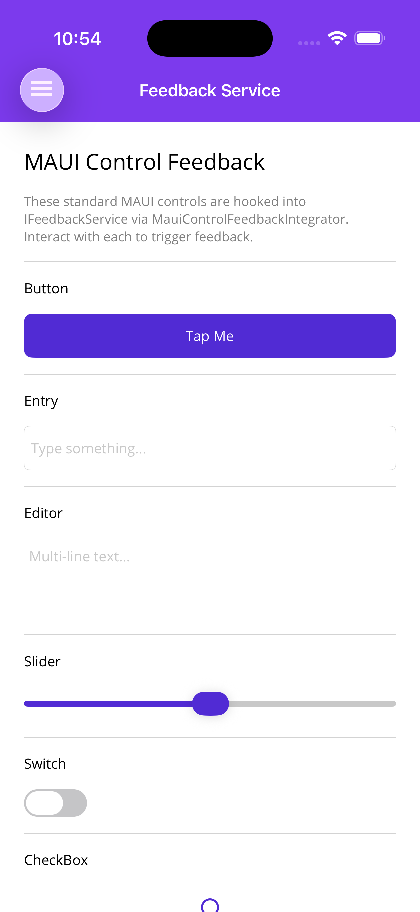
Section titled “Standard MAUI Control Integration”Beyond Shiny’s own controls, you can opt in to automatic feedback for standard MAUI controls — Button, Entry, Slider, Switch, and more. The hook system is fully pluggable and AOT-compatible. It uses Application.DescendantAdded/DescendantRemoved to hook into the visual tree lifecycle, binding and unbinding events automatically with no modifications to the controls themselves.
With all defaults
Section titled “With all defaults”builder.UseShinyControls(cfg =>{ cfg.AddDefaultMauiControlFeedback();});Defaults + custom hooks
Section titled “Defaults + custom hooks”Add your own control hooks on top of the built-in defaults:
cfg.AddDefaultMauiControlFeedback(x =>{ x.Hook<MyCustomControl>(nameof(MyCustomControl.Tapped), (c, h) => c.Tapped += h, (c, h) => c.Tapped -= h);});Custom hooks only (no defaults)
Section titled “Custom hooks only (no defaults)”Use AddMauiControlFeedback to register only the hooks you want:
cfg.AddMauiControlFeedback(x =>{    x.Hook<Button>(nameof(Button.Clicked),        (btn, h) => btn.Clicked += h,        (btn, h) => btn.Clicked -= h);
    x.Hook<Slider, ValueChangedEventArgs>(nameof(Slider.ValueChanged),        (s, h) => s.ValueChanged += h,        (s, h) => s.ValueChanged -= h);});
Two Hook overloads are available:
Hook<TControl>(eventName, subscribe, unsubscribe)— forEventHandlerevents (args passed asEventArgs)Hook<TControl, TEventArgs>(eventName, subscribe, unsubscribe)— forEventHandler<TEventArgs>events (typed args passed through)
Default MAUI Control Hooks
Section titled “Default MAUI Control Hooks”The control parameter is the actual control instance, and args is the native event args object.
| Control | Event | Args | Description |
|---|---|---|---|
Button |
Clicked |
EventArgs |
Button tapped |
Entry |
TextChanged |
TextChangedEventArgs |
Text input changed |
Slider |
ValueChanged |
ValueChangedEventArgs |
Slider moved |
Switch |
Toggled |
ToggledEventArgs |
Switch toggled |
CheckBox |
CheckedChanged |
CheckedChangedEventArgs |
Checkbox toggled |
DatePicker |
DateSelected |
DateChangedEventArgs |
Date selected |
TimePicker |
TimeChanged |
PropertyChangedEventArgs |
Time changed |
Picker |
SelectedIndexChanged |
EventArgs |
Selection changed |
SearchBar |
SearchButtonPressed |
EventArgs |
Search submitted |
Stepper |
ValueChanged |
ValueChangedEventArgs |
Stepper changed |
Editor |
TextChanged |
TextChangedEventArgs |
Editor text changed |
RadioButton |
CheckedChanged |
CheckedChangedEventArgs |
Radio button toggled |
Events are properly unhooked when controls are removed from the visual tree, ensuring no memory leaks.
Shiny Control Events Reference
Section titled “Shiny Control Events Reference”| Control | Event Name | Args | Description |
|---|---|---|---|
ChatView |
MessageSent |
ChatMessage |
User sent a message |
ChatView |
MessageReceived |
ChatMessage |
External message arrived |
ChatView |
MessageTapped |
ChatMessage |
User tapped a message bubble |
ChatView |
AttachImage |
— | User tapped the attach button |
Fab |
Clicked |
— | Fab button tapped |
FabMenu |
Toggled |
— | Menu opened or closed |
FabMenuItem |
Clicked |
— | Menu item tapped |
FloatingPanel |
Opened |
— | Panel finished opening |
FloatingPanel |
Closed |
— | Panel finished closing |
FloatingPanel |
DetentChanged |
— | Panel snapped to a detent |
ImageViewer |
Opened |
— | Viewer overlay opened |
ImageViewer |
Closed |
— | Viewer overlay closed |
ImageViewer |
DoubleTapped |
— | Double-tap zoom toggle |
ImageEditor |
ToolModeChanged |
mode name | Active tool changed (Move, Crop, Draw, Text, Line, Arrow) |
ImageEditor |
Undo |
— | Undo action |
ImageEditor |
Redo |
— | Redo action |
ImageEditor |
Rotate |
— | Image rotated |
ImageEditor |
Reset |
— | Reset to original |
ImageEditor |
CropApplied |
— | Crop applied |
ImageEditor |
Saved |
— | Image saved |
SecurityPin |
Completed |
"LongPress" |
All digits entered |
SecurityPin |
DigitEntered |
— | A digit was entered |
SchedulerCalendarView |
DaySelected |
— | Calendar day tapped |
SchedulerCalendarView |
EventSelected |
— | Calendar event tapped |
SchedulerAgendaView |
EventSelected |
— | Agenda event tapped |
SchedulerAgendaView |
TimeSlotSelected |
— | Agenda time slot tapped |
CellBase (all cells) |
Tapped |
— | Table cell tapped |
Toaster |
Show |
toast text | Toast shown |
Disabling Feedback
Section titled “Disabling Feedback”Set UseFeedback="False" on any control to suppress feedback for that instance:
<shiny:FloatingPanel UseFeedback="False" ... /><shiny:SecurityPin UseFeedback="False" ... />For toast:
await toaster.ShowAsync("Silent toast", cfg => cfg.UseFeedback = false);AI Skill
Section titled “AI Skill”Step 1 — Add the marketplace:
claude plugin marketplace add shinyorg/skillsStep 2 — Install the plugin:
claude plugin install shiny@shinyOne plugin installs all 48 Shiny skills. Your agent loads only the skill relevant to what you're building, so there's no cost to having them all available.
Step 1 — Add the marketplace:
copilot plugin marketplace add https://github.com/shinyorg/skillsStep 2 — Install the plugin:
copilot plugin install shiny@shinyOne plugin installs all 48 Shiny skills. Your agent loads only the skill relevant to what you're building, so there's no cost to having them all available.