
Toolbar & TabBar (Blazor Only)
Two screen-docked navigation chromes for Blazor. ShinyToolbar docks to the top or bottom of its scroll container as an action bar (icons with links/actions, a title, and custom content slots). ShinyTabBar is a mobile-style tab bar pinned to the bottom of the viewport with a selected state, optional filled active icons, and badges. Both support a frosted-glass toggle backed by CSS backdrop-filter.
The top toolbar uses position: sticky, so it reserves its own height — content never starts underneath it — yet page content scrolls under it as you scroll, producing the classic translucent-header effect. The tab bar uses position: fixed, so it stays pinned regardless of scroll.

@using Shiny.Blazor.ControlsNo service registration is required — both are plain Razor components.
ShinyToolbar
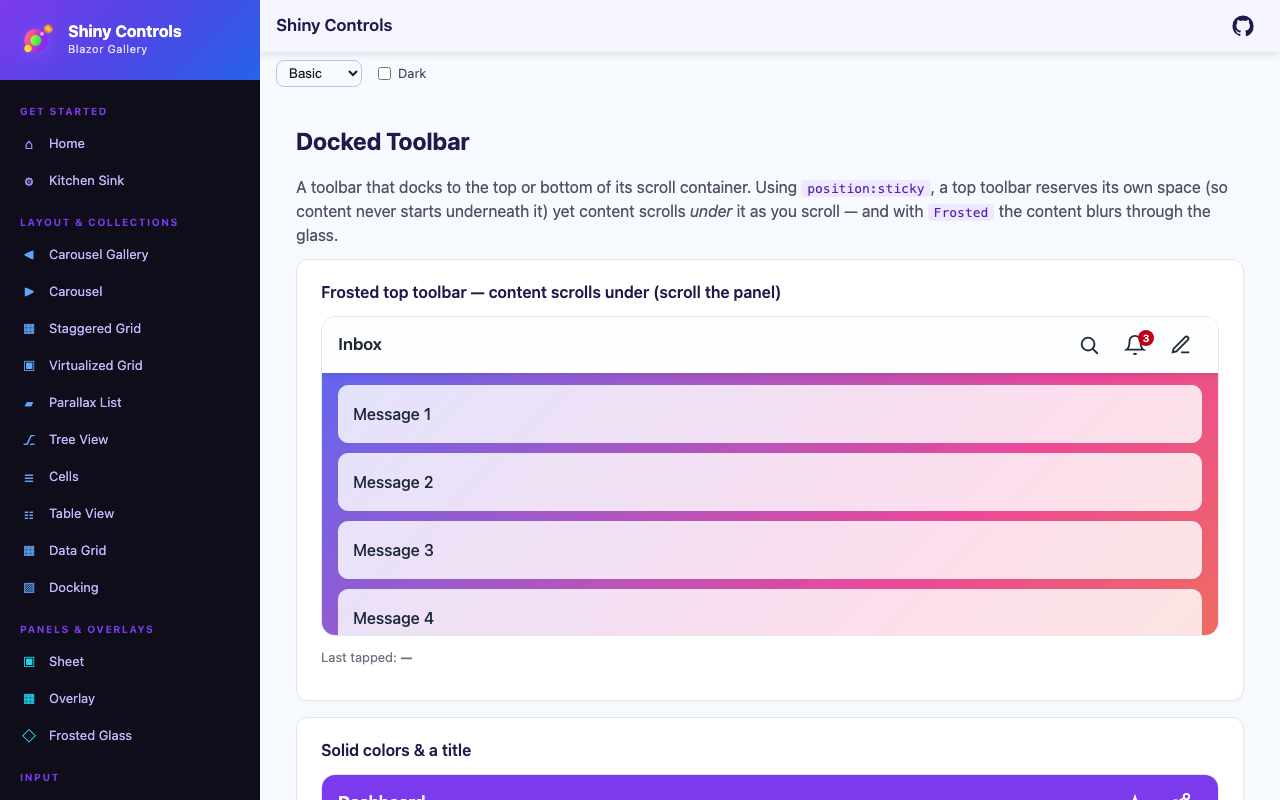
Section titled “ShinyToolbar”Frosted top toolbar — content scrolls under
Section titled “Frosted top toolbar — content scrolls under”position: sticky reserves the bar’s height (content starts below it) and content slides under it as you scroll. With Frosted, the content blurs through the glass.
<div style="height: 320px; overflow-y: auto;"> <ShinyToolbar Dock="ToolbarDock.Top" Frosted="true" Title="Inbox" Items="@items" ItemClicked="OnItemClicked" />
<!-- tall scrollable content slides under the frosted header --> @for (var i = 1; i <= 30; i++) { <p>Message @i</p> }</div>
@code { List<ToolbarItem> items = new() { new() { Icon = "<svg viewBox='0 0 24 24'>…search…</svg>", Text = "Search" }, new() { Icon = "<svg viewBox='0 0 24 24'>…bell…</svg>", Text = "Alerts", Badge = "3" }, new() { Icon = "/icons/compose.png", Text = "Compose", Href = "/compose" } };
void OnItemClicked(ToolbarItem item) { /* … */ }}Solid color toolbar with a title
Section titled “Solid color toolbar with a title”<ShinyToolbar Dock="ToolbarDock.Top" BackgroundColor="#7C3AED" TextColor="#FFFFFF" Title="Dashboard" Items="@items" />Custom content slots
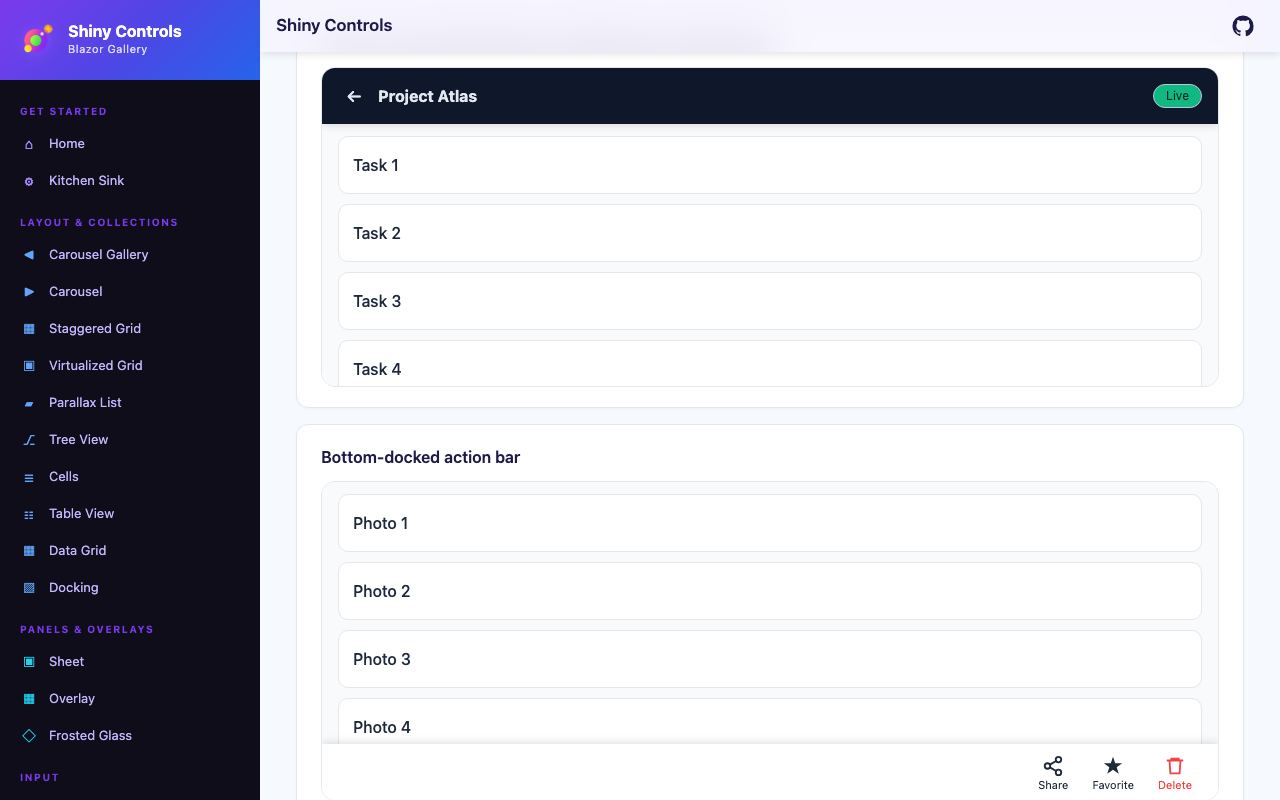
Section titled “Custom content slots”Use StartContent, ChildContent (center), and EndContent for fully custom layouts instead of Title + Items.
<ShinyToolbar Dock="ToolbarDock.Top" BackgroundColor="#0F172A" TextColor="#E2E8F0"> <StartContent> <button @onclick="GoBack">←</button> <strong>Project Atlas</strong> </StartContent> <EndContent> <Pill Text="Live" PillColor="#10B981" /> </EndContent></ShinyToolbar>Bottom-docked action bar
Section titled “Bottom-docked action bar”<ShinyToolbar Dock="ToolbarDock.Bottom" ShowItemLabels="true" Items="@actions" ItemClicked="OnItemClicked" />ShinyToolbar properties
Section titled “ShinyToolbar properties”| Property | Type | Default | Description |
|---|---|---|---|
Dock | ToolbarDock | Top | Docks to the Top or Bottom edge |
Sticky | bool | true | position:sticky (content scrolls under); set false for a normal in-flow bar |
Title | string? | null | Convenience leading title text (used when StartContent is not set) |
Items | List<ToolbarItem>? | null | Trailing action/link items (used when EndContent is not set) |
StartContent | RenderFragment? | null | Custom leading content |
ChildContent | RenderFragment? | null | Custom center content |
EndContent | RenderFragment? | null | Custom trailing content |
BackgroundColor | string | #FFFFFF | Solid fill (ignored when Frosted) |
TextColor | string | #1F2937 | Foreground color |
Height | double | 56 | Bar height (min-height) in pixels |
IconSize | double | 22 | Item icon size in pixels |
ShowItemLabels | bool | false | Show each item’s Text beneath its icon |
Frosted | bool | false | Frosted glass via backdrop-filter |
BlurRadius | double | 20 | Blur amount in pixels when Frosted |
TintColor | string | rgba(255,255,255,0.7) | Translucent fill when Frosted |
HasShadow | bool | true | Edge shadow (direction follows Dock) |
BorderColor | string? | null | Hairline color on the docked edge |
BorderThickness | double | 0 | Hairline thickness in pixels |
SafeArea | bool | true | Adds env(safe-area-inset-*) padding on the docked edge |
ZIndex | int | 100 | Stacking order |
CssClass | string? | null | Extra root CSS class |
Style | string? | null | Extra inline style appended to the root |
Events: ItemClicked — fires the ToolbarItem that was tapped.
ToolbarItem properties
Section titled “ToolbarItem properties”| Property | Type | Default | Description |
|---|---|---|---|
Icon | string? | null | Inline SVG/HTML, a glyph/emoji, or an image URL |
Text | string? | null | Label (shown when ShowItemLabels is true) |
Href | string? | null | When set, the item renders as a link to this URL |
Target | string? | null | Anchor target (e.g. _blank); only used with Href |
Badge | string? | null | Badge text shown on the item (e.g. a count) |
IconColor | string? | null | Overrides the toolbar foreground for this item |
IsDisabled | bool | false | Dims the item and blocks clicks |
Tag | object? | null | Arbitrary payload returned via ItemClicked |
ShinyTabBar
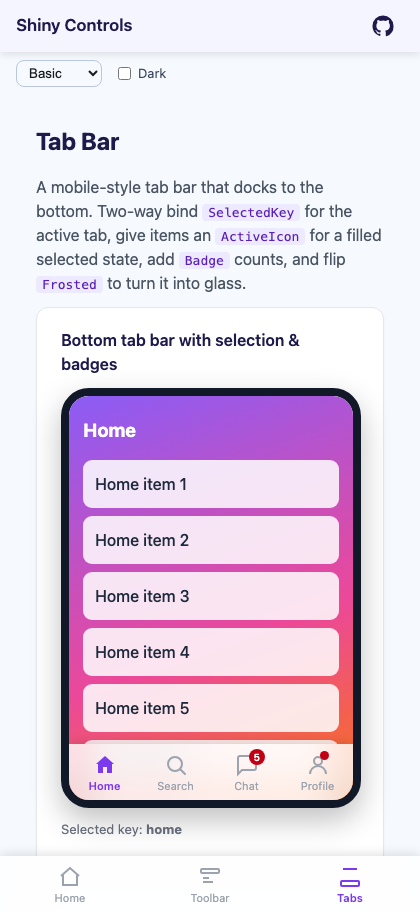
Section titled “ShinyTabBar”Bottom tab bar with selection and badges
Section titled “Bottom tab bar with selection and badges”Two-way bind SelectedKey for the active tab. Give an item an ActiveIcon for a filled selected state, and a Badge (use "" for a plain dot).
<ShinyTabBar Items="@tabs" @bind-SelectedKey="selected" ActiveColor="#7C3AED" Frosted="true" />
@code { string? selected = "home";
List<TabBarItem> tabs = new() { new() { Key = "home", Label = "Home", Icon = HomeOutline, ActiveIcon = HomeFilled }, new() { Key = "search", Label = "Search", Icon = SearchIcon }, new() { Key = "chat", Label = "Chat", Icon = ChatIcon, Badge = "5" }, new() { Key = "profile", Label = "Profile", Icon = ProfileIcon, Href = "/profile" } };}Icon-only, solid background
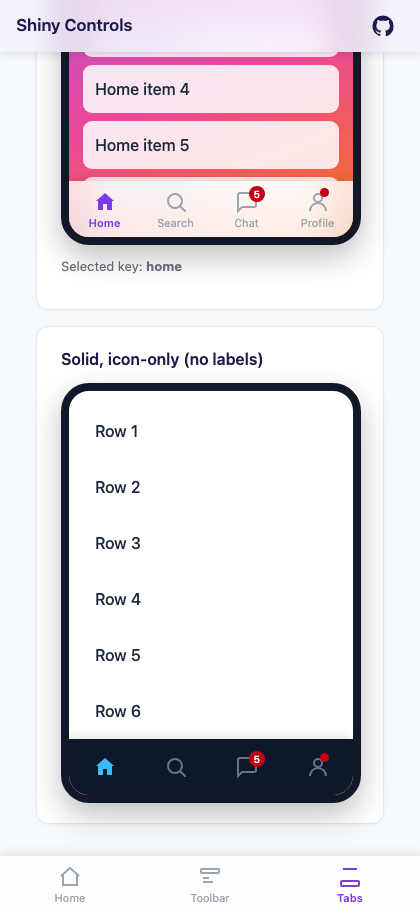
Section titled “Icon-only, solid background”<ShinyTabBar Items="@tabs" @bind-SelectedKey="selected" ShowLabels="false" BackgroundColor="#0F172A" ActiveColor="#38BDF8" InactiveColor="#64748B" />ShinyTabBar properties
Section titled “ShinyTabBar properties”| Property | Type | Default | Description |
|---|---|---|---|
Items | List<TabBarItem>? | null | The tabs |
SelectedKey | string? | null | Two-way bindable active tab Key (pair with SelectedKeyChanged) |
SelectedKeyChanged | EventCallback<string?> | — | Fires when the selected tab changes |
Dock | ToolbarDock | Bottom | Docks to the Bottom (default) or Top edge |
Fixed | bool | true | position:fixed (always pinned); set false to use sticky inside a container |
BackgroundColor | string | #FFFFFF | Solid fill (ignored when Frosted) |
ActiveColor | string | #2196F3 | Selected tab color |
InactiveColor | string | #9CA3AF | Unselected tab color |
ShowLabels | bool | true | Show each tab’s Label beneath its icon |
Height | double | 56 | Bar height (min-height) in pixels |
IconSize | double | 24 | Tab icon size in pixels |
Frosted | bool | false | Frosted glass via backdrop-filter |
BlurRadius | double | 20 | Blur amount in pixels when Frosted |
TintColor | string | rgba(255,255,255,0.7) | Translucent fill when Frosted |
HasShadow | bool | true | Edge shadow (direction follows Dock) |
BorderColor | string? | null | Hairline color on the docked edge |
BorderThickness | double | 0 | Hairline thickness in pixels |
SafeArea | bool | true | Adds env(safe-area-inset-bottom) padding (home-indicator clearance) |
ZIndex | int | 100 | Stacking order |
CssClass | string? | null | Extra root CSS class |
Style | string? | null | Extra inline style appended to the root |
Events: SelectedKeyChanged (two-way bind via @bind-SelectedKey), ItemClicked — fires the tapped TabBarItem.
TabBarItem properties
Section titled “TabBarItem properties”| Property | Type | Default | Description |
|---|---|---|---|
Key | string? | null | Stable identifier used for selection |
Icon | string? | null | Inline SVG/HTML, a glyph/emoji, or an image URL (shown when inactive) |
ActiveIcon | string? | null | Optional filled variant shown when the tab is selected |
Label | string? | null | Label beneath the icon (hidden when ShowLabels is false) |
Href | string? | null | When set, selecting the tab also navigates here |
Badge | string? | null | Badge text; an empty string "" renders a dot |
IsDisabled | bool | false | Dims the tab and blocks selection |
Tag | object? | null | Arbitrary payload returned via ItemClicked |
Placement & scroll-under
Section titled “Placement & scroll-under”position: sticky sticks relative to the nearest scroll container, and any ancestor with overflow: hidden silently breaks it — use overflow: clip if you must clip an axis.
For app-wide chrome, place ShinyToolbar as the first element of your page/layout scroll area and drop ShinyTabBar anywhere (it’s Fixed). A common responsive pattern is a sidebar on desktop that gives way to a bottom ShinyTabBar on narrow viewports:
<main class="content"> <ShinyToolbar Dock="ToolbarDock.Top" Frosted="true" Title="My App" />
<div class="content-inner"> @Body </div>
<ShinyTabBar CssClass="mobile-tabbar" Items="@tabs" SelectedKey="@CurrentKey" /></main>/* hidden on desktop; shown on narrow screens (::deep reaches the child component root) */.content ::deep .mobile-tabbar { display: none; }
@media (max-width: 820px) { .sidebar { display: none; } .content ::deep .mobile-tabbar { display: block; } .content-inner { padding-bottom: calc(56px + env(safe-area-inset-bottom) + 16px); }}AI Skill
Section titled “AI Skill”Step 1 — Add the marketplace:
claude plugin marketplace add shinyorg/skills Step 2 — Install the plugin:
claude plugin install controls@shiny Step 1 — Add the marketplace:
copilot plugin marketplace add https://github.com/shinyorg/skills Step 2 — Install the plugin:
copilot plugin install controls@shiny