


MediaPickerButton
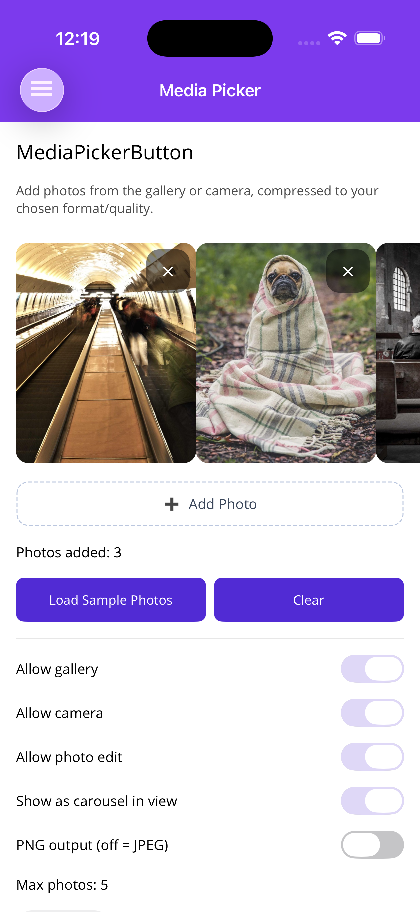
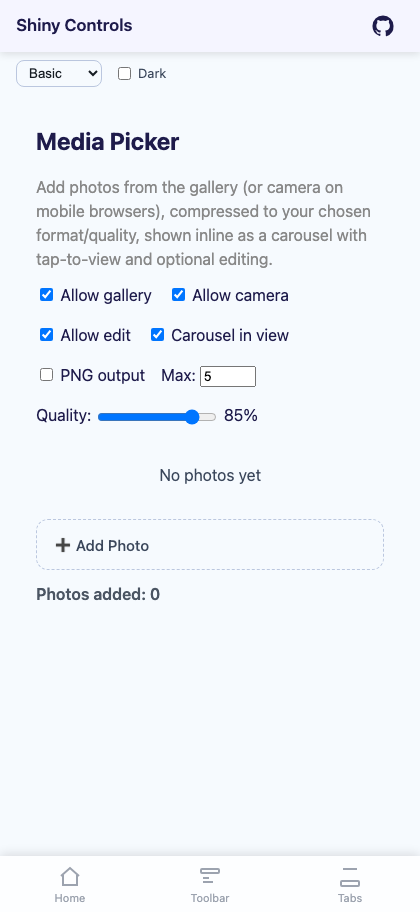
A button that lets the user add photos from the gallery and/or camera, compresses/re-encodes each to PNG or JPEG at a chosen quality (with optional max-dimension downscale), caps the count with MaxPhotos (added one at a time — the OS pickers are single-select), and shows the collected photos inline as a tappable carousel (opening the ImageViewer, with an optional Edit button that reuses the ImageEditor) or a compact pinch/zoom overlay. It ships inside the base packages — no extra dependency.


Screenshots
Section titled “Screenshots”MAUI
Blazor
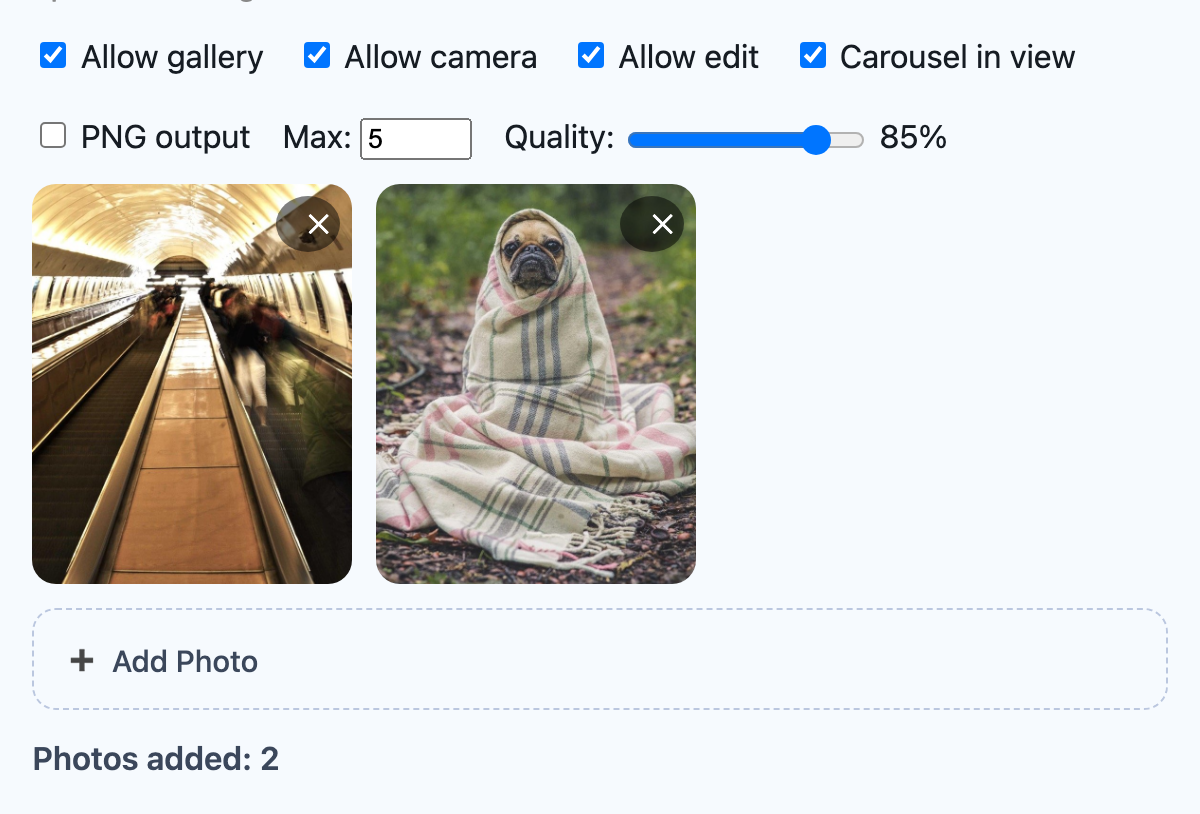
Basic Usage
Section titled “Basic Usage”.NET MAUI
Section titled “.NET MAUI”<shiny:MediaPickerButton Photos="{Binding Photos}" AllowGallery="True" AllowCamera="True" AllowPhotoEdit="True" ShowAsCarouselInView="True" MaxPhotos="5" CompressionQuality="85" OutputFormat="Jpeg" PermissionDeniedText="Photo access was denied — enable it in Settings." />[ObservableProperty]ObservableCollection<MediaPickerItem> photos = new(); // Shiny.Maui.Controls.MediaOutputFormat is Shiny.Maui.Controls.ImageEditor.ImageExportFormat (Png / Jpeg).
Blazor
Section titled “Blazor”<MediaPickerButton @bind-Photos="photos" AllowGallery="true" AllowCamera="true" AllowPhotoEdit="true" ShowAsCarouselInView="true" MaxPhotos="5" CompressionQuality="85" OutputFormat="jpeg" PermissionDeniedText="Photo access was denied." />
@code { IReadOnlyList<Shiny.Blazor.Controls.MediaPickerItem> photos = [];}On Blazor OutputFormat is a string ("jpeg" / "png"), and each MediaPickerItem exposes a DataUri you can bind directly to <img src>.
Where the bytes live (Blazor)
Section titled “Where the bytes live (Blazor)”A picked photo stays in the browser. What crosses into .NET is a descriptor — id, an object URL for <img src>, dimensions, content type and size — and the bytes move only when something asks for them, always as binary:
| You want | What happens |
|---|---|
MediaPickerItem.Data |
Filled from a chunked IJSStreamReference when the photo is picked (the default) |
await item.OpenReadStreamAsync() / ReadAllBytesAsync() |
The same stream, on demand |
UploadUrl set |
The browser posts the photo as multipart form data itself — the bytes never enter .NET |
Nothing is base64-encoded on any path. That matters most on Blazor Server: a base64 photo is one SignalR message, and a 4MB photo becomes a 5.4MB string — far past the default 32KB MaximumReceiveMessageSize, so the server closes the circuit and the upload never happens.
Uploading from the browser (Blazor)
Section titled “Uploading from the browser (Blazor)”<MediaPickerButton @ref="picker" @bind-Photos="photos" MaxPhotos="5" MaxImageDimension="1600" CompressionQuality="85" UploadProgress="OnProgress" />
@code { MediaPickerButton? picker; IReadOnlyList<MediaPickerItem> photos = []; int percent;
// Save the record FIRST, so each photo has something that exists to be addressed to. async Task Save() { var id = await SaveTheThing();
var results = await picker!.UploadAllAsync(new MediaPickerUpload($"/photos/{id}") { Headers = new Dictionary<string, string> { ["X-Upload-Ticket"] = ticket } });
foreach (var failed in results.Where(r => !r.Success)) ... // still picked, so "try again" costs the user nothing }
void OnProgress(MediaPickerUploadProgress p) { percent = p.Percent ?? 0; StateHasChanged(); }}AutoUpload="true" sends each photo the moment it is picked, for when the address is known up front. Uploaded reports each result, and the server’s answer comes back verbatim in MediaPickerUploadResult.Body. A successful upload takes the photo out of the picker unless you pass keep: true, which is how the same photos go to more than one place.
Blazor-only properties
Section titled “Blazor-only properties”| Property | Type | Default | Description |
|---|---|---|---|
UploadUrl |
MediaPickerUpload? |
null |
Where the browser posts each photo — Url, FieldName (default file), FileName, Method, Headers, WithCredentials |
AutoUpload |
bool | false |
Upload as soon as a photo is picked, rather than waiting for UploadAllAsync |
LoadBytes |
bool? | null |
Fill MediaPickerItem.Data on pick. Defaults to true, or false when UploadUrl is set |
MaxReadSize |
long | 32MB | Refuses to read a photo larger than this into .NET |
Methods: UploadAllAsync(upload?, keep?, ct), UploadAsync(item, upload?, keep?, ct), ClearAsync().
Properties
Section titled “Properties”| Property | Type | Default | Description |
|---|---|---|---|
AllowGallery |
bool | true |
Offer “choose from gallery” |
AllowCamera |
bool | true |
Offer “take photo”. When both are enabled, tapping shows a gallery/camera chooser — except in Blazor on iPhone/iPad, where the browser’s own Photo Library / Take Photo / Choose File sheet is shown instead |
AllowPhotoEdit |
bool | false |
Show an Edit button in the viewer that opens the ImageEditor; edits are re-saved into the collection |
PermissionDeniedText |
string | “Permission denied…” | Message shown when camera/gallery access is denied |
NoImagesTemplate |
DataTemplate? / RenderFragment? | null |
Shown when there are no photos yet (default: “No photos yet”) |
ShowAsCarouselInView |
bool | true |
true → inline thumbnail carousel; false → compact preview that opens a paged pinch/zoom overlay |
MaxPhotos |
int | 1 |
Maximum photos; the add trigger hides once reached |
CompressionQuality |
int | 92 |
Encoder quality as a percentage (1–100) |
MaxImageDimension |
int | 0 |
If > 0, the longest edge is downscaled to this many pixels |
OutputFormat |
ImageExportFormat / string | Jpeg / "jpeg" |
Output encoding — PNG or JPEG |
Photos |
IList / IReadOnlyList of MediaPickerItem |
empty | The collected photos (two-way). Hand in photos the screen already has — see Photos that can’t be removed |
ItemSpacing |
double | 0 (MAUI) / 12 (Blazor) |
Space between thumbnails in the inline carousel |
AddButtonText |
string | “➕ Add Photo” | Text on the add trigger (on Blazor, also the accessible name of a custom one) |
AddButtonTemplate |
DataTemplate? / RenderFragment? | null |
Replaces the dashed add trigger — see Custom add button |
GalleryActionText / CameraActionText |
string | “Choose from Gallery” / “Take Photo” | Chooser labels |
UseFeedback |
bool (MAUI) | true |
Haptic/sound feedback on actions |
Photos that can’t be removed
Section titled “Photos that can’t be removed”MediaPickerItem.CanRemove (default true) controls the ✕ on a thumbnail. Set it to false for a photo the screen loaded itself — one that is already saved — and the user can add to the set but can’t take that one out. The lock survives an edit. It only governs the UI: removing the photo from code (Photos.Remove, Blazor’s ClearAsync, a successful upload) still works.
// MAUI — MediaPickerItem is a record, so CanRemove is init-onlyPhotos.Add(new MediaPickerItem(bytes, 900, 1200, "image/jpeg") { CanRemove = false });@* Blazor — saved photos can be handed in by URL *@<MediaPickerButton @bind-Photos="photos" MaxPhotos="5" />
@code { IReadOnlyList<MediaPickerItem> photos = [ new() { DataUri = "/photos/41.jpg", ContentType = "image/jpeg", CanRemove = false } ];}On Blazor, a list passed in through Photos replaces what the picker holds. A photo handed in by URL has no bytes in the browser, so UploadAllAsync skips it (it isn’t waiting to be sent), the viewer doesn’t offer Edit for it unless its Data is set, and ReadAllBytesAsync throws for it.
Custom add button
Section titled “Custom add button”AddButtonTemplate replaces the dashed “Add Photo” trigger with your own content. The whole template is the tap target, and it still hides once MaxPhotos is reached.
<shiny:MediaPickerButton Photos="{Binding Photos}" MaxPhotos="3" ItemSpacing="12"> <shiny:MediaPickerButton.AddButtonTemplate> <DataTemplate> <Border Padding="16" StrokeShape="RoundRectangle 16"> <Label Text="📷 Add up to 3 photos" HorizontalOptions="Center" /> </Border> </DataTemplate> </shiny:MediaPickerButton.AddButtonTemplate></shiny:MediaPickerButton><MediaPickerButton @bind-Photos="photos" MaxPhotos="3" ItemSpacing="16" AddButtonText="Add up to 3 photos"> <AddButtonTemplate> <div class="my-add-tile">📷 Add up to 3 photos</div> </AddButtonTemplate></MediaPickerButton>Keep the template to visuals. On MAUI, a Button inside it takes the tap for itself and the picker never opens. On Blazor it’s rendered inside a <button>, so a nested button or link is invalid markup; AddButtonText stays as that button’s accessible name.
Events
Section titled “Events”PhotoAdded/PhotoRemoved— a photo was added or removed (MediaPickerItem).PhotosChanged(MAUI event +PhotosChangedCommand; BlazorEventCallback) — the collection changed.PermissionDenied— camera/gallery access was denied (message string).Uploaded(Blazor) — one photo finished uploading:MediaPickerUploadResultwithSuccess,StatusCodeand the server’sBody.UploadProgress(Blazor) — how far a photo’s upload has got, from the browser’s own upload events (Percentis null when the size is unknown).
How it works
Section titled “How it works”- Multi-photo is add-one-at-a-time — each tap picks/captures a single photo and appends until
MaxPhotos. The OS pickers do not offer native multi-select here. - MAUI is a plain
ContentViewusing the built-inMicrosoft.Maui.Media.MediaPicker— no handler or builder registration. TheMediaPickerdrives the OS permission prompts; a denial surfacesPermissionDeniedText. - Blazor self-imports its JS module (no DI). Gallery/camera use a hidden
<input type="file" accept="image/*">(withcapture="environment"for the camera); compression/resize/format-conversion happen on an offscreen canvas, and the encoded blob is kept there — see Where the bytes live. - Viewing reuses the ImageViewer (pinch/zoom); editing reuses the ImageEditor.
AI Skill
Section titled “AI Skill”Step 1 — Add the marketplace:
claude plugin marketplace add shinyorg/skillsStep 2 — Install the plugin:
claude plugin install shiny@shinyOne plugin installs all 48 Shiny skills. Your agent loads only the skill relevant to what you're building, so there's no cost to having them all available.
Step 1 — Add the marketplace:
copilot plugin marketplace add https://github.com/shinyorg/skillsStep 2 — Install the plugin:
copilot plugin install shiny@shinyOne plugin installs all 48 Shiny skills. Your agent loads only the skill relevant to what you're building, so there's no cost to having them all available.