


Slider
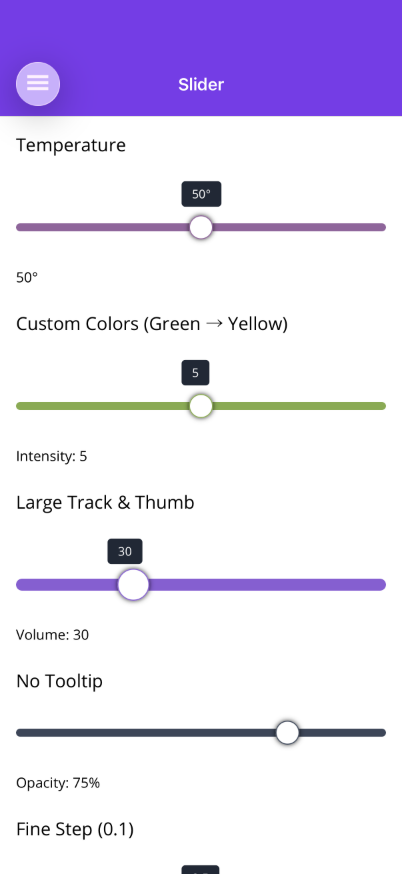
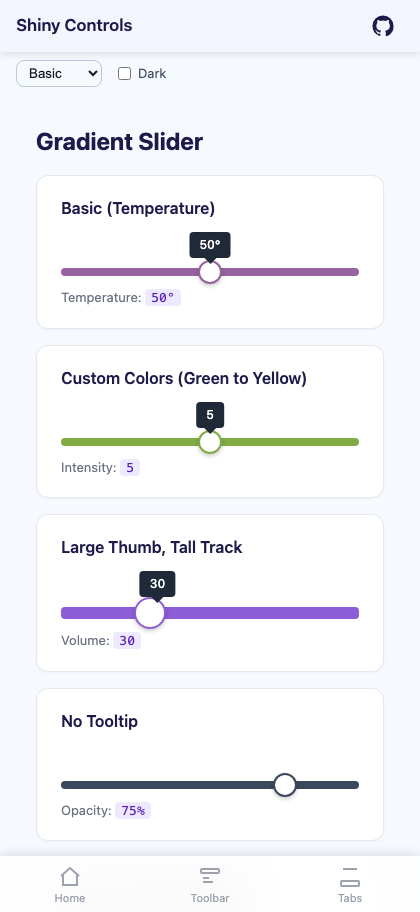
A slider control with a gradient track that blends from a cold color to a hot color. The thumb border color samples the gradient at the current position, and a tooltip floats above showing the current value. It can run vertically, it can carry labelled stop points the thumb snaps to, and the thumb itself can hold your own content.


MAUI
Blazor
| Stop points | Vertical | Custom thumb |
|---|---|---|
 |
 |
 |
Features
Section titled “Features”| Feature | Description |
|---|---|
| Two-Color Blended Track | The whole track is one solid color: the blend of ColdColor and HotColor at the current position. At the minimum it is fully ColdColor, at the maximum fully HotColor. |
| Blended Thumb Border | The thumb’s border color matches the gradient color at the current position, providing a visual cue of the value. |
| Value Tooltip | A configurable tooltip badge floats above the thumb displaying the formatted current value with a pointer arrow. |
| Custom Tooltip Template | Replace the default badge with a DataTemplate (MAUI) or RenderFragment<double> (Blazor) for fully custom tooltip rendering. |
| Custom Thumb Content | ThumbTemplate puts an icon, a glyph or the value itself inside the thumb, with ThumbWidth/ThumbHeight/ThumbCornerRadius to shape the box around it. |
| Step Snapping | Values snap to the configured Step increment. |
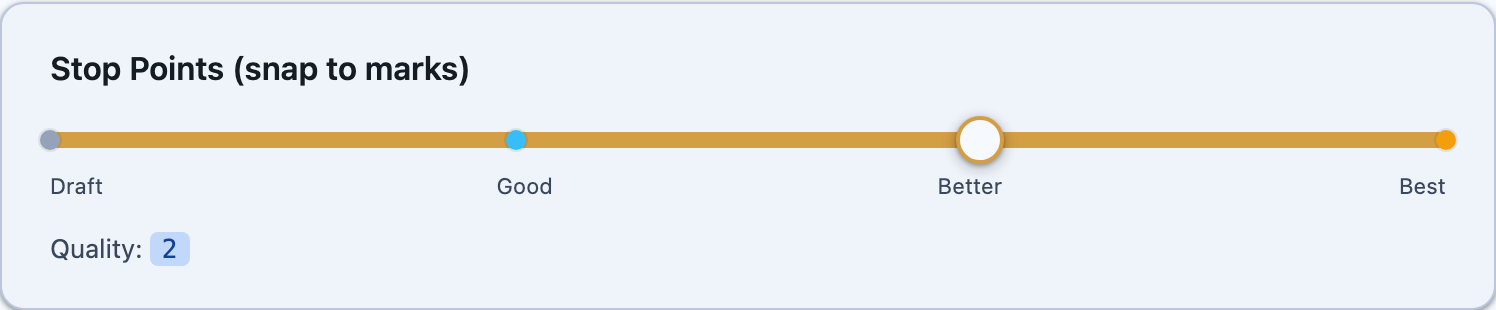
| Stop Points | Add SliderMarks to put dots, ticks or pill-shaped labels at fixed values, each with its own text and color. With SnapToMarks on (the default) the thumb comes to rest on the nearest one. |
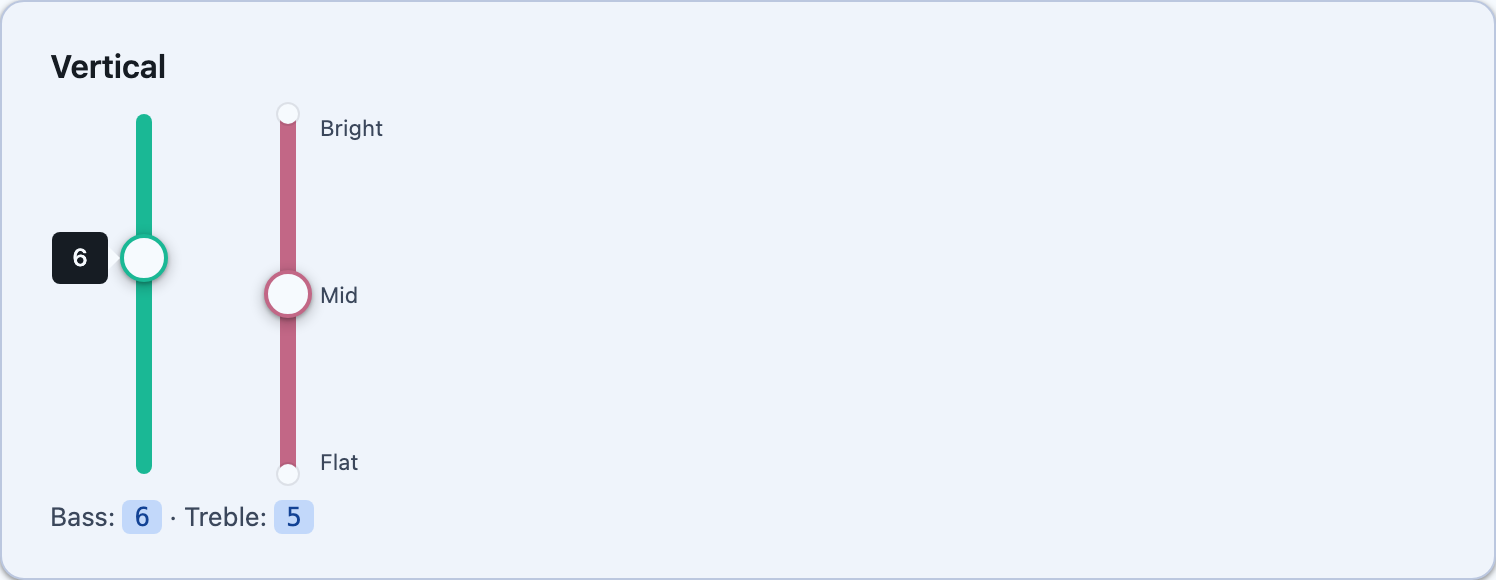
| Vertical Orientation | Orientation="Vertical" runs the track bottom-to-top, with the tooltip to its left and the mark labels to its right. |
| Drag & Tap | Supports both drag (pan gesture / pointer drag) and tap-to-jump interaction. |
AI Skill
Section titled “AI Skill”Step 1 — Add the marketplace:
claude plugin marketplace add shinyorg/skillsStep 2 — Install the plugin:
claude plugin install shiny@shinyOne plugin installs all 48 Shiny skills. Your agent loads only the skill relevant to what you're building, so there's no cost to having them all available.
Step 1 — Add the marketplace:
copilot plugin marketplace add https://github.com/shinyorg/skillsStep 2 — Install the plugin:
copilot plugin install shiny@shinyOne plugin installs all 48 Shiny skills. Your agent loads only the skill relevant to what you're building, so there's no cost to having them all available.
Quick Start
Section titled “Quick Start”.NET MAUI
Section titled “.NET MAUI”<shiny:Slider Value="{Binding Temperature}" Minimum="0" Maximum="100" ColdColor="#3B82F6" HotColor="#EF4444" ValueFormat="0°" />Blazor
Section titled “Blazor”<Slider @bind-Value="temperature" Minimum="0" Maximum="100" ColdColor="#3B82F6" HotColor="#EF4444" ValueFormat="0°" />
@code { double temperature = 50;}Properties
Section titled “Properties”| Property | MAUI Type | Blazor Type | Default | Description |
|---|---|---|---|---|
| Value | double | double | 0 | Current value (TwoWay) |
| Minimum | double | double | 0 | Minimum value |
| Maximum | double | double | 100 | Maximum value |
| Step | double | double | 1 | Snap increment (ignored while a mark is snapped to) |
| Orientation | SliderOrientation | SliderOrientation | Horizontal | Vertical puts the minimum at the bottom |
| VerticalLength | double | double | 220 | Track length when vertical |
| ColdColor | Color | string | #3B82F6 | Left/bottom (cold) gradient color |
| HotColor | Color | string | #EF4444 | Right/top (hot) gradient color |
| TrackHeight | double | double | 8 | Track height in px |
| ThumbSize | double | double | 24 | Thumb diameter in px |
| ThumbWidth | double | double | -1 | Thumb width; -1 keeps it square at ThumbSize |
| ThumbHeight | double | double | -1 | Thumb height; -1 keeps it square at ThumbSize |
| ThumbCornerRadius | double | string? | -1 / null | Fully rounded by default – a circle, or a pill once the thumb is not square |
| ThumbPadding | Thickness | string? | 0 / null | Inset between the thumb border and its template content |
| ThumbTemplate | DataTemplate? | RenderFragment<double>? | null | Content drawn inside the thumb |
| ThumbColor | Color | string | White | Thumb fill color |
| ThumbBorderWidth | double | double | 2 | Thumb border width |
| ShowTooltip | bool | bool | true | Show/hide the value tooltip |
| TooltipBackgroundColor | Color | string | #1F2937 | Tooltip badge background |
| TooltipTextColor | Color | string | White | Tooltip text color |
| TooltipFontSize | double | double | 12 | Tooltip font size |
| ValueFormat | string? | string? | null | .NET format string for display |
| TooltipTemplate | DataTemplate? | RenderFragment<double>? | null | Custom tooltip content |
| IsEnabled | – | bool | true | Enable/disable (Blazor only; MAUI uses IsEnabled from VisualElement) |
| MarksSource | IEnumerable? | – | null | Stop points from data, drawn alongside Marks (MAUI only; Blazor uses @foreach) |
| SnapToMarks | bool | bool | true | Thumb comes to rest on the nearest mark |
| MarkShape | SliderMarkShape | SliderMarkShape | Dot | Dot, Bubble (pill-shaped label) or Line (tick) |
| MarkSize | double | double | 10 | Dot diameter / tick thickness |
| MarkColor | Color? | string | Theme surface | Fill for marks that set no color |
| MarkTextColor | Color? | string | Theme on-surface-variant | Label color for marks that set no color |
| MarkFontSize | double | double | 11 | Mark label size |
| ShowMarkLabels | bool | bool | true | Draw the mark labels at all |
Events & Commands
Section titled “Events & Commands”MAUI:
ValueChangedEvent(EventHandler<double>) – Fired when value changesValueChangedCommand(ICommand) – Command fired on value changeDragCompleted(EventHandler<double>) /DragCompletedCommand(ICommand) – Fired once with the final value on release (below)
Blazor:
ValueChanged(EventCallback<double>) – Two-way binding callbackDragCompleted(EventCallback<double>) – Fired once with the final value on release
Reacting once, on release
Section titled “Reacting once, on release”ValueChanged and ValueChangedCommand fire on every step while the thumb is dragged. When the change
should cause something that must happen once (saving, a network call, sending a command to a device),
use DragCompleted. It is raised once with the final value when the drag is released (a cancelled drag
counts as a release), and right after a tap or click on the track moves the thumb. It is not raised when
the value ends up where it started.
MAUI:
DragCompleted(EventHandler<double>)DragCompletedCommand(ICommand) – the parameter is the final value
<shiny:Slider Value="{Binding Brightness}" DragCompletedCommand="{Binding SendBrightnessCommand}" /><Slider @bind-Value="brightness" DragCompleted="SendBrightness" />Stop Points
Section titled “Stop Points”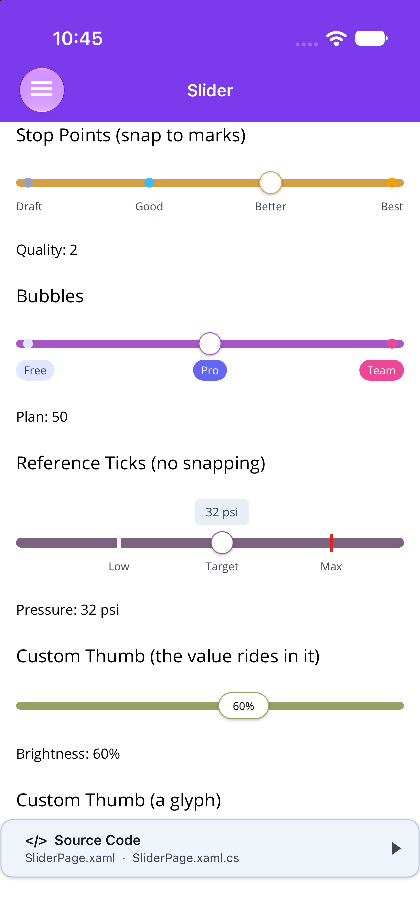
Marks are the stop points on the track. On MAUI they are a collection; on Blazor they are child components. Each carries its own text and color.
<shiny:Slider Value="{Binding Quality}" Minimum="0" Maximum="3" ShowTooltip="False"> <shiny:Slider.Marks> <shiny:SliderMark Value="0" Text="Draft" Color="#94A3B8" /> <shiny:SliderMark Value="1" Text="Good" Color="#38BDF8" /> <shiny:SliderMark Value="2" Text="Better" Color="#22C55E" /> <shiny:SliderMark Value="3" Text="Best" Color="#F59E0B" /> </shiny:Slider.Marks></shiny:Slider>Blazor
Section titled “Blazor”<Slider @bind-Value="quality" Minimum="0" Maximum="3" ShowTooltip="false"> <SliderMark Value="0" Text="Draft" Color="#94A3B8" /> <SliderMark Value="1" Text="Good" Color="#38BDF8" /> <SliderMark Value="2" Text="Better" Color="#22C55E" /> <SliderMark Value="3" Text="Best" Color="#F59E0B" /></Slider>Marks from data
Section titled “Marks from data”When the stops come from a view model – saved positions, per-item presets – bind them with
MarksSource instead of declaring them. Items can be SliderMarks or plain numbers (a number becomes
an unlabelled mark at that value). An ObservableCollection is followed as it changes, and the
source’s marks are drawn and snapped to alongside any declared in Marks.
<shiny:Slider Value="{Binding Position}" MarksSource="{Binding Bookmarks}" MarkShape="Line" SnapToMarks="False" />public ObservableCollection<SliderMark> Bookmarks { get; } =[ new() { Value = 20, Text = "Intro" }, new() { Value = 65, Text = "Chorus" }];On Blazor, marks are already components, so loop over the data:
<Slider @bind-Value="position" MarkShape="SliderMarkShape.Line" SnapToMarks="false"> @foreach (var b in bookmarks) { <SliderMark @key="b" Value="b.Value" Text="@b.Text" /> }</Slider>SliderMark
Section titled “SliderMark”| Property | MAUI Type | Blazor Type | Default | Description |
|---|---|---|---|---|
| Value | double | double | 0 | Position on the track |
| Text | string? | string? | null | Label – a caption under a dot or tick, the content of a bubble |
| Color | Color? | string? | null | Dot, tick or bubble fill; falls back to MarkColor |
| TextColor | Color? | string? | null | Label color; falls back to MarkTextColor |
| Shape | SliderMarkShape? | SliderMarkShape? | null | Overrides the slider’s MarkShape for this mark |
| Size | double | double | -1 | Overrides MarkSize for this mark |
| IsVisible | bool | bool | true | A hidden mark is not drawn and is not a snap target |
The stop point itself is always the dot or tick on the track; the label sits in the band beside it. Snapping parks the thumb on a mark by definition, so a label drawn on the track would spend its life underneath the thumb.
SnapToMarks defaults to true, so a slider with marks ignores Step. Set it false when the marks
are only reference points – a target line, a redline – on an otherwise continuous slider:
<shiny:Slider Value="{Binding Pressure}" Minimum="0" Maximum="60" Step="1" SnapToMarks="False" MarkShape="Line" ValueFormat="0 psi"> <shiny:Slider.Marks> <shiny:SliderMark Value="32" Text="Target" Color="#22C55E" /> <shiny:SliderMark Value="50" Text="Max" Color="#DC2626" /> </shiny:Slider.Marks></shiny:Slider>Vertical
Section titled “Vertical”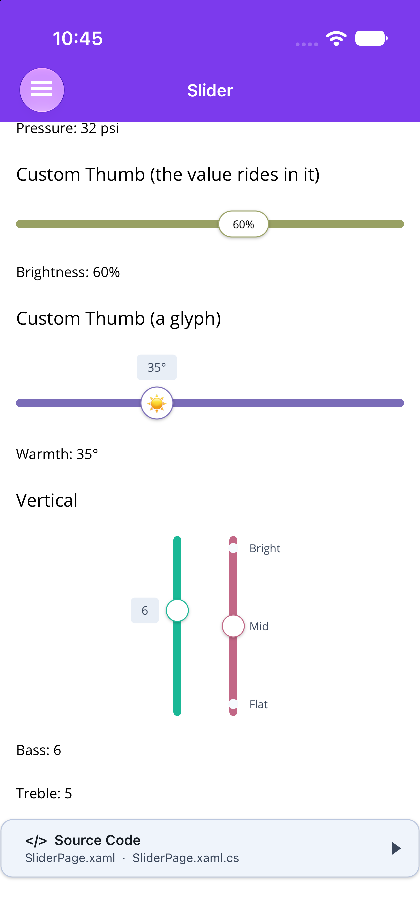
A vertical slider runs bottom-to-top and has no width to stretch into, so it takes its length from
VerticalLength rather than the layout.
<shiny:Slider Orientation="Vertical" VerticalLength="180" Value="{Binding Bass}" Minimum="0" Maximum="10" Step="1" />Blazor
Section titled “Blazor”<Slider @bind-Value="bass" Orientation="SliderOrientation.Vertical" VerticalLength="180" Minimum="0" Maximum="10" Step="1" />Custom Tooltip Template
Section titled “Custom Tooltip Template”<shiny:Slider Value="{Binding Temp}" Minimum="0" Maximum="100"> <shiny:Slider.TooltipTemplate> <DataTemplate> <Border BackgroundColor="#7C3AED" StrokeShape="{RoundRectangle CornerRadius=8}" Padding="8,4"> <Label Text="{Binding StringFormat='{0:0}°F'}" TextColor="White" FontSize="14" /> </Border> </DataTemplate> </shiny:Slider.TooltipTemplate></shiny:Slider>Blazor
Section titled “Blazor”<Slider @bind-Value="temp" Minimum="0" Maximum="100"> <TooltipTemplate Context="val"> <div style="background: #7C3AED; color: white; padding: 4px 12px; border-radius: 8px;"> @val.ToString("0")°F </div> </TooltipTemplate></Slider>Custom Thumb Content
Section titled “Custom Thumb Content”ThumbTemplate puts your own content inside the thumb. Its binding context (MAUI) / context
parameter (Blazor) is the slider’s current Value.
<!-- xmlns:sys="clr-namespace:System;assembly=netstandard" --><shiny:Slider Value="{Binding Brightness}" Minimum="0" Maximum="100" ShowTooltip="False" ThumbWidth="52" ThumbHeight="28" ThumbPadding="4,0"> <shiny:Slider.ThumbTemplate> <DataTemplate x:DataType="sys:Double"> <Label Text="{Binding ., StringFormat='{0:0}%'}" FontSize="11" FontAttributes="Bold" HorizontalTextAlignment="Center" VerticalTextAlignment="Center" /> </DataTemplate> </shiny:Slider.ThumbTemplate></shiny:Slider>Blazor
Section titled “Blazor”<Slider @bind-Value="brightness" Minimum="0" Maximum="100" ShowTooltip="false" ThumbWidth="52" ThumbHeight="28" ThumbPadding="0 4px"> <ThumbTemplate Context="value"> <span style="font-size: 11px; font-weight: 700;">@value.ToString("0")%</span> </ThumbTemplate></Slider>The thumb does not grow to fit its content. The track’s travel is measured from the thumb, so the
box has to be known before anything is laid out – size it with ThumbSize, or with
ThumbWidth/ThumbHeight when the content is not square, and the content is centred and clipped
inside it. ThumbCornerRadius turns the default pill into any other shape.
On MAUI the template is realized once and rebound as the thumb moves, rather than rebuilt per frame, so a template that animates keeps its state across a drag.
Behavior
Section titled “Behavior”- The whole track takes the single blended color for the current position
- The thumb border takes the same blended color, giving immediate visual feedback
- Values are clamped between
MinimumandMaximumand snapped toStep, unless marks are present andSnapToMarksis on - Setting
ShowTooltip="False"hides the tooltip for a minimal appearance - The band under the track always reserves the half of the thumb that hangs past it, so a tall custom thumb is not clipped and does not overlap whatever follows the slider
- Vertical runs bottom-to-top: the minimum is at the bottom, the tooltip sits to the left of the track and the mark labels to its right