


PasswordStrength
A password field with a live strength meter and a rule checklist underneath it, built on top of TextEntry. One control on both hosts, with the same properties and the same defaults.


Screenshots
Section titled “Screenshots”MAUI (iOS)
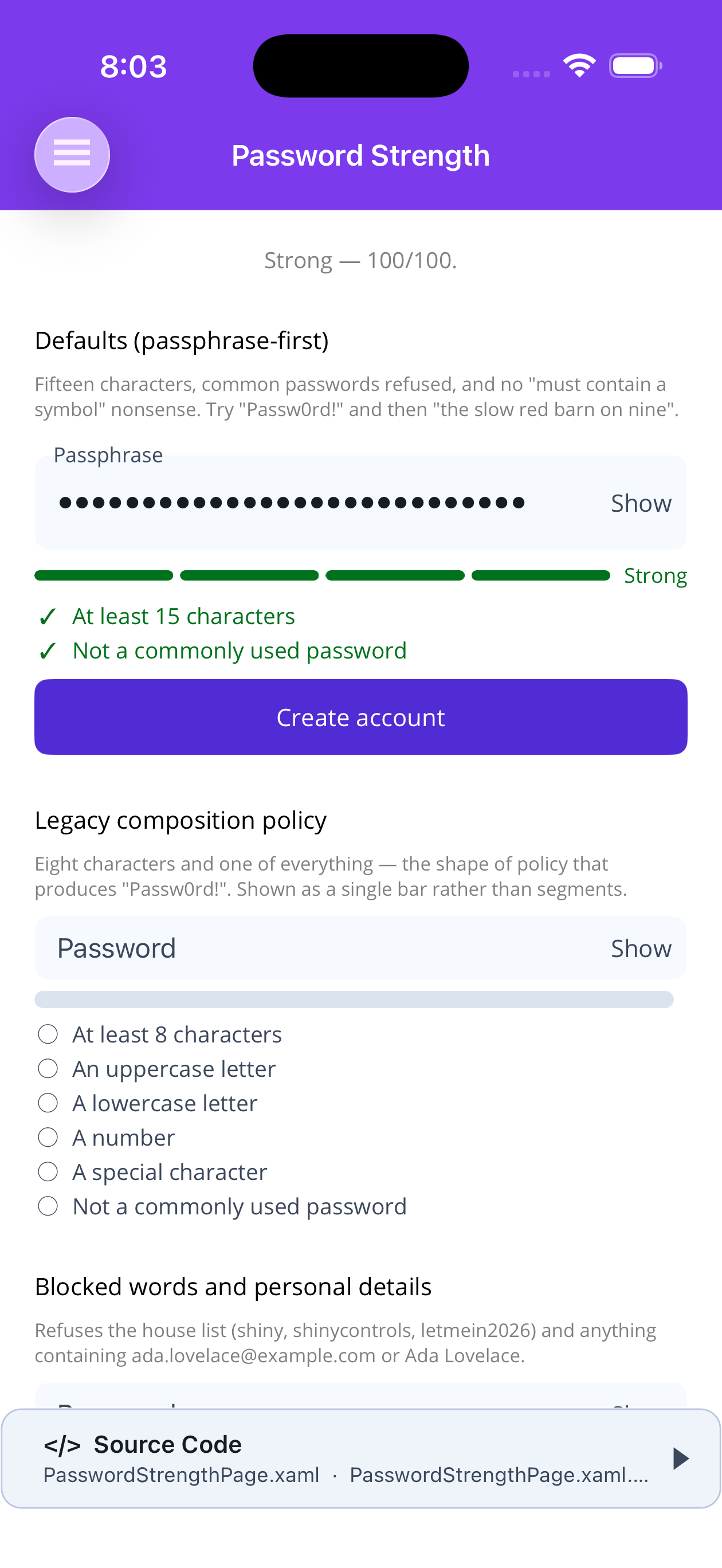
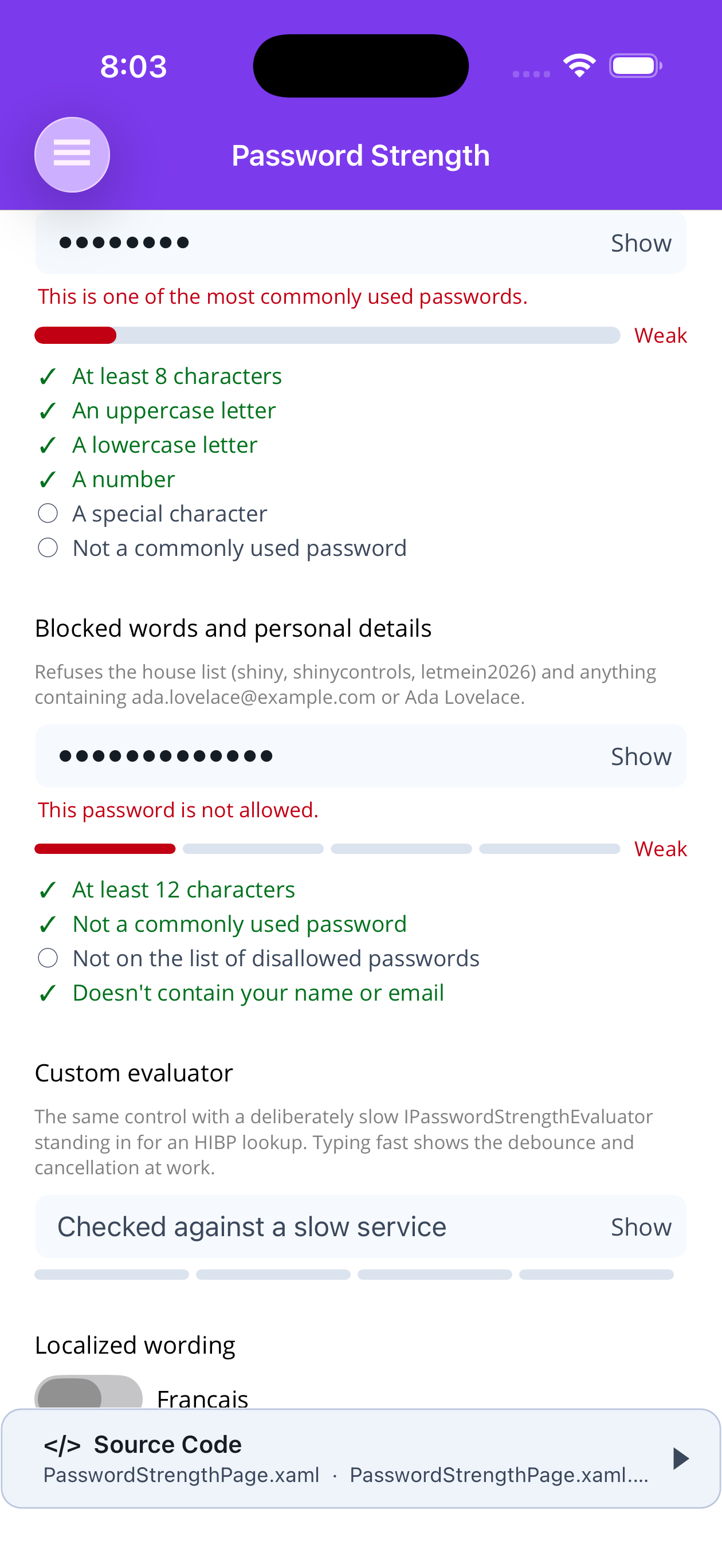
| A strong passphrase | Weak, and a blocked word |
|---|---|
 |
 |
Blazor
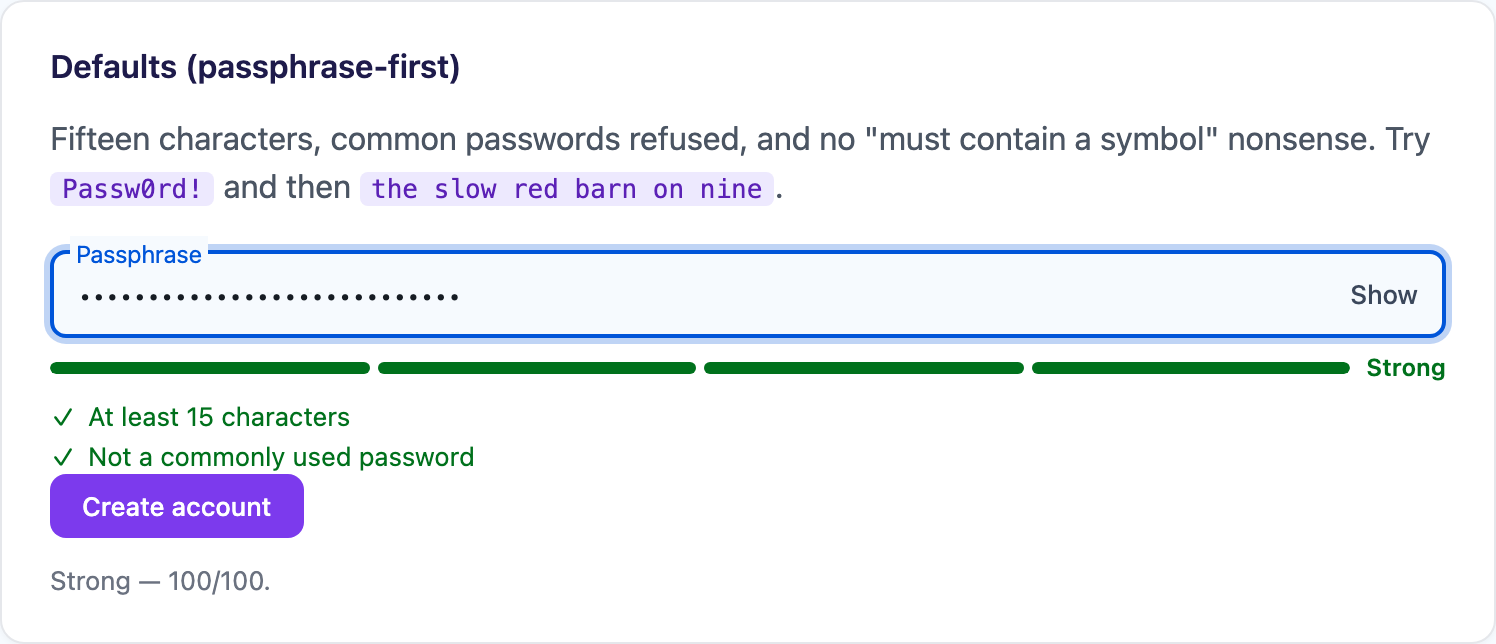
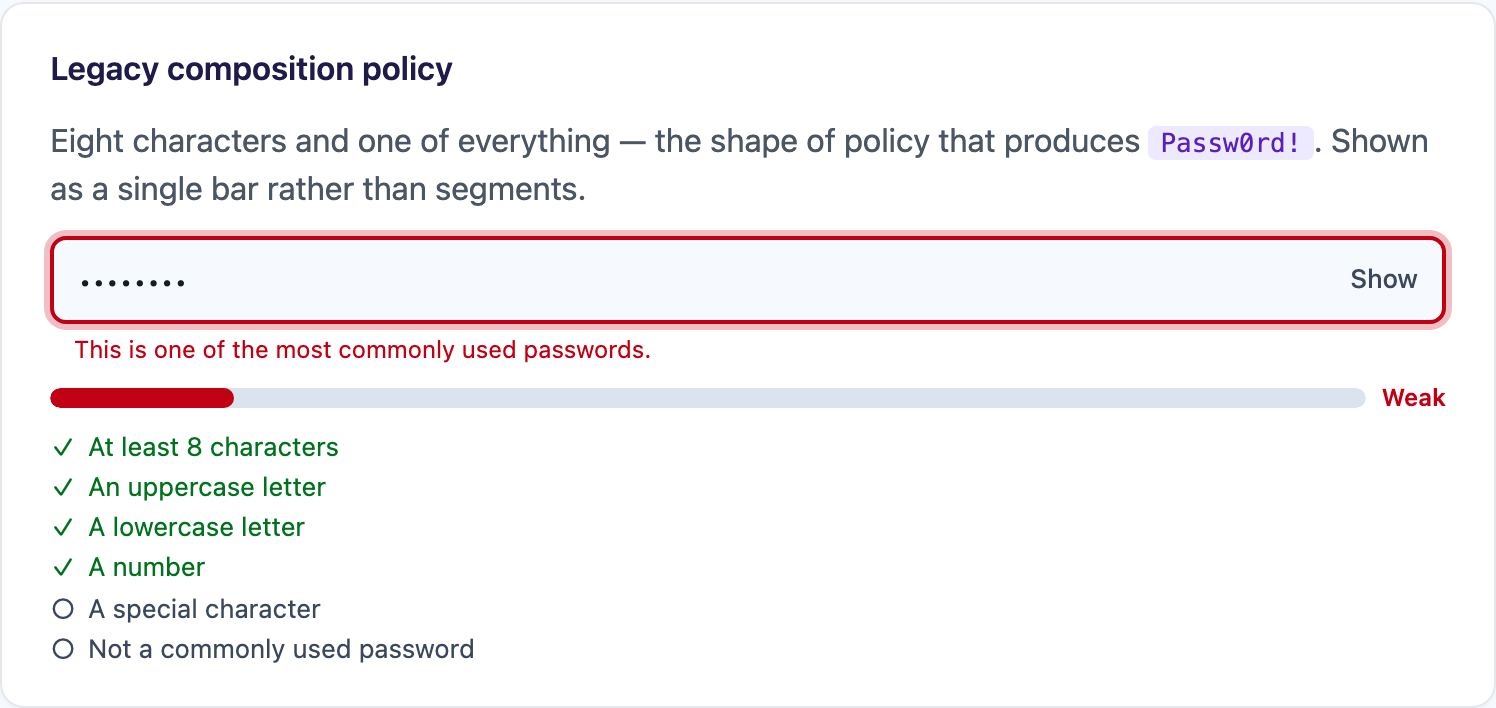
| Defaults, passphrase-first | Legacy composition policy | Blocked words |
|---|---|---|
 |
 |
 |
| Localized wording |
|---|
 |
The defaults are passphrase-first
Section titled “The defaults are passphrase-first”MinimumLength is 15, breached values are refused, and every character-composition rule —
uppercase, lowercase, number, symbol — is off.
That is deliberate. A “must contain a symbol” rule does not produce strong passwords; it produces
Passw0rd!, which is short, memorable to nobody, and already sitting at the top of every wordlist.
NIST SP 800-63B dropped composition rules for exactly that reason. Turn them on when an external
policy forces your hand, not as a precaution.
Basic Usage
Section titled “Basic Usage”MAUI
<shiny:PasswordStrength Placeholder="Passphrase"                        Variant="Floating"                        Password="{Binding Passphrase, Mode=TwoWay}"                        IsAcceptable="{Binding CanSubmit}"                        StrengthChanged="OnStrengthChanged" />
<Button Text="Create account"        Command="{Binding SubmitCommand}"        IsEnabled="{Binding CanSubmit}" />
Blazor
<PasswordStrength @ref="field"                  @bind-Password="passphrase"                  Placeholder="Passphrase"                  StrengthChanged="OnStrengthChanged" />
<button disabled="@(field?.IsAcceptable != true)">Create account</button>
@code {    PasswordStrength? field;    string passphrase = "";
    void OnStrengthChanged(PasswordStrengthChangedEventArgs e) { }}
Gate on IsAcceptable, not on Score
Section titled “Gate on IsAcceptable, not on Score”The two answer different questions and they genuinely disagree.
Score(0-100) andLevel(Weak/Fair/Good/Strong) say how hard the password is to crack.IsAcceptablesays whether every rule in the policy is met.
A forty-character passphrase scores 100 and still fails a policy that demands a digit. A submit
button bound to Score >= 80 will happily accept a password your own rules reject.
Properties
Section titled “Properties”| Property | Type | Default | Description |
|---|---|---|---|
Password |
string | "" |
Current value (TwoWay / @bind-Password) |
Placeholder |
string | "Password" |
Placeholder / floating label |
Variant |
TextEntryVariant | Classic |
Passed through to the inner TextEntry |
MinimumLength |
int | 15 |
Shortest acceptable password |
RequireUppercase |
bool | false |
Require an A-Z |
RequireLowercase |
bool | false |
Require an a-z |
RequireNumber |
bool | false |
Require a digit |
RequireSpecialCharacter |
bool | false |
Require a character from SpecialCharacters |
SpecialCharacters |
string | printable ASCII symbols + space | What counts as special |
RequireNotCompromisedPassword |
bool | true |
Refuse commonly breached values and their disguises |
BlockedPasswords |
list | null |
Extra values to refuse outright |
UserInputs |
list | null |
This user’s email / name — refused, and discounted when scoring |
MinimumTimeToCrack |
TimeSpan | Zero (off) |
Least time the password must resist GuessesPerSecond; adds a checklist rule |
GuessesPerSecond |
double | 1e10 |
The attacker the time to crack is estimated against |
Evaluator |
IPasswordStrengthEvaluator? | null |
Per-field scorer override |
DebounceMilliseconds |
int | 250 |
Pause before scoring; 0 scores every keystroke |
Localizer |
PasswordStrengthLocalizer? | null |
Replaces the wording |
MeterStyle |
PasswordStrengthMeterStyle | Segments |
Four blocks, or one bar filled to the score |
MeterHeight |
double | 6 |
Meter thickness |
MeterCornerRadius |
double / string | 3 / "3px" |
Meter corner radius |
SegmentSpacing |
double | 4 |
Gap between segments; ignored in Bar mode |
TrackColor |
Color? / string? | null |
Unfilled meter; null follows surface-container-highest |
WeakColor FairColor GoodColor StrongColor |
Color? / string? | null |
Null follows critical / caution / warning / success |
RuleTextColor |
Color? / string? | null |
Unsatisfied checklist row; null follows on-surface-variant |
RuleFontSize |
double | 13 |
Checklist font size |
ShowMeter |
bool | true |
Draw the meter |
ShowStrengthLabel |
bool | true |
Draw the Weak/Fair/Good/Strong caption |
ShowRules |
bool | true |
Draw the checklist |
ShowWarning |
bool | true |
Surface the evaluator’s warning as the field’s hint text |
ShowVisibilityToggle |
bool | true |
The Show/Hide button |
ShowTimeToCrack |
bool | false |
A “Time to crack: 21 days” caption under the meter |
ShowPasswordIcon HidePasswordIcon |
ImageSource? / string? | null |
Toggle content; null uses the words “Show” / “Hide” |
Score |
int | 0 |
0-100, read-only |
Level |
PasswordStrengthLevel | None |
Read-only |
IsAcceptable |
bool | false |
Every rule met, read-only |
Result |
PasswordStrengthResult? | null |
Full verdict — rules, warning, suggestions |
On MAUI Score, Level, IsAcceptable and Result default to BindingMode.OneWayToSource, so
bind them to view-model properties. On Blazor they are plain read-only properties reached through
@ref.
Events & Methods
Section titled “Events & Methods”| Member | Description |
|---|---|
StrengthChanged |
PasswordStrengthChangedEventArgs — Result, Score, Level, IsAcceptable |
Completed |
Return key pressed |
StrengthChangedCommand |
MAUI only; invoked with the PasswordStrengthResult |
EvaluateNowAsync() |
Score immediately, bypassing the debounce |
IsPasswordRevealed / SetPasswordRevealed(bool) |
Drive the reveal from your own UI |
Focus() / Unfocus() |
MAUI only |
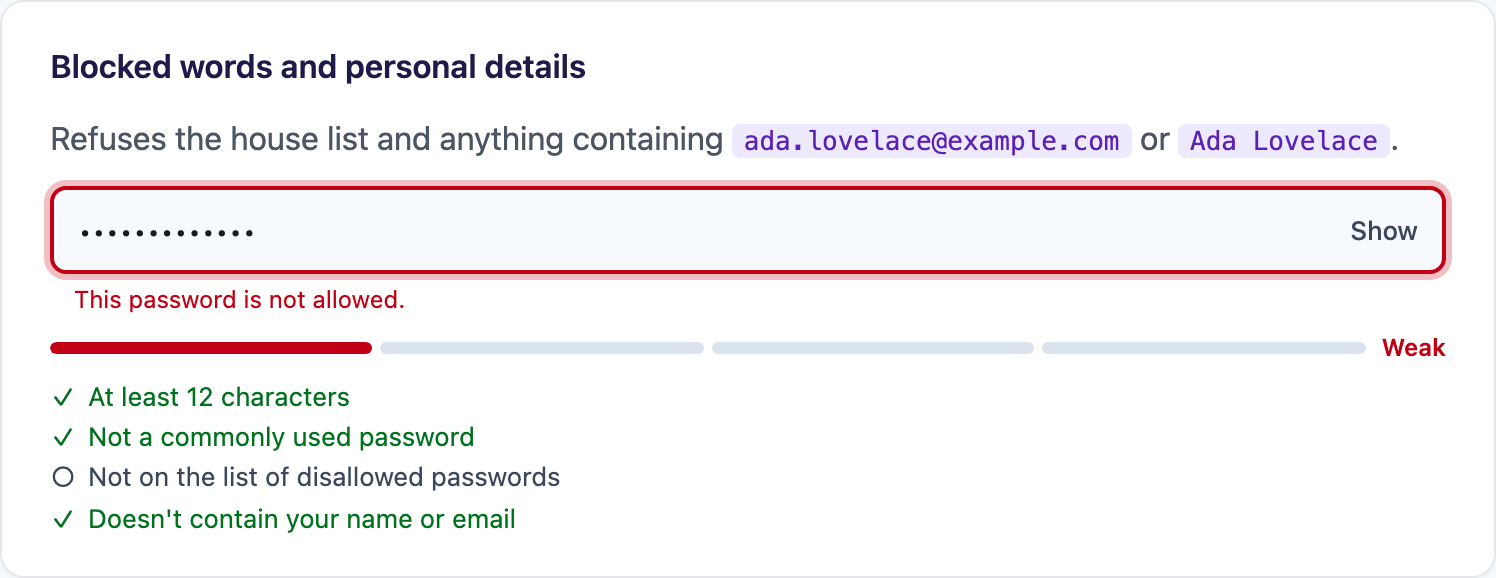
Blocked words and the user’s own details
Section titled “Blocked words and the user’s own details”<shiny:PasswordStrength Password="{Binding Password}" MinimumLength="12" BlockedPasswords="{Binding HouseRules}" UserInputs="{Binding UserDetails}" />BlockedPasswords refuses exact matches, case-insensitively — the product name, the company name,
whatever a policy endpoint hands you. UserInputs is different: an email address is split on its
punctuation first, so ada.lovelace@example.com catches a password containing lovelace, and the
matched run is discounted when scoring rather than merely flagged. Fragments shorter than four
characters are ignored — they match half the dictionary and would fail every password.
Both lists are read when the parameters change. If you mutate a list in place, call
EvaluateNowAsync().
Time to crack
Section titled “Time to crack”The built-in evaluator turns its entropy estimate into a time to crack: the average time an attacker
making GuessesPerSecond guesses would need to find the password. ShowTimeToCrack paints it under
the meter, and MinimumTimeToCrack turns it into policy. The password is not acceptable until the
estimate reaches the floor, so a password can clear the length rule and still be refused because it
would fall in 21 days when the floor is a century.
<shiny:PasswordStrength Password="{Binding Password}" MinimumLength="8" MinimumTimeToCrack="36525.00:00:00" ShowTimeToCrack="True" IsAcceptable="{Binding CanSubmit}" /><PasswordStrength @bind-Password="password" MinimumLength="8" MinimumTimeToCrack="TimeSpan.FromDays(36525)" ShowTimeToCrack="true" />The rule is added as the last row of the checklist (“At least 1 century to crack”), so turning it on
does not reorder the rows above it. The estimate is on the verdict as
PasswordStrengthResult.TimeToCrackSeconds, a double, because a good passphrase outlasts what a
TimeSpan can hold. TimeToCrack gives the same value as a TimeSpan that stops at
TimeSpan.MaxValue, about 29,000 years.
The default of 10 billion guesses a second models an offline attack on a fast hash. Set
GuessesPerSecond to match what you store: about 10,000 for bcrypt or Argon2, about 10 for a
rate-limited login form. PasswordCrackTime.Describe(seconds) returns the unit, the count and the
English wording (“21 days”) if you want to show the value yourself. A custom evaluator that wants
the caption or the rule has to set TimeToCrackSeconds and add the rule itself.
Pluggable scoring
Section titled “Pluggable scoring”public interface IPasswordStrengthEvaluator{ ValueTask<PasswordStrengthResult> EvaluateAsync( PasswordStrengthRequest request, CancellationToken cancellationToken = default );}Register one app-wide:
// MAUIbuilder.UseShinyControls(x => x.SetCustomPasswordStrengthEvaluator<HibpEvaluator>());
// Blazorservices.AddShinyControls(x => x.SetCustomPasswordStrengthEvaluator<HibpEvaluator>());
Resolution order is Evaluator → DI → the built-in heuristic.
The interface is asynchronous and cancellable precisely so a network-backed implementation is
workable. Keystrokes are debounced by DebounceMilliseconds and the previous evaluation is
cancelled before the next starts, so an evaluator is not asked to answer for every character typed —
but it must pass the token through, because the answer to a password the user has already changed is
worthless. If a custom evaluator throws, the built-in one answers instead, so losing the network
downgrades the meter rather than freezing it on a stale verdict.
The built-in heuristic
Section titled “The built-in heuristic”DefaultPasswordStrengthEvaluator estimates entropy as collapsed length × log2(character pool), then
maps it onto 0-100 where 80 bits scores 100. “Collapsed” means the characters an attacker gets for
free come out first:
- runs of the same character —
aaaaaaaaaaaaaaaais worth about two characters, not sixteen - ascending and descending sequences —
123456,abcdef - repeated blocks — everything past the first repetition of
abcabcabc
Any word from the built-in list of commonly breached passwords is then charged a flat 11 bits
instead of its length, and a password that is one of those values — seen through case, leet
substitution and a bolted-on year, so P@ssw0rd2024 is caught along with password — is scored as
if it were the bare word.
It needs no network and no data files. The list is deliberately short rather than a bundled
ten-million-line wordlist: a package every app links has no business carrying tens of megabytes, and
the long tail is better served by a real breach corpus behind the interface above.
CommonPasswords.IsCompromised(string) and CommonPasswords.FindLongestMatch(string) are public, so
a custom evaluator can reuse the list.
Localization
Section titled “Localization”| MAUI | Blazor |
|---|---|
 |
|
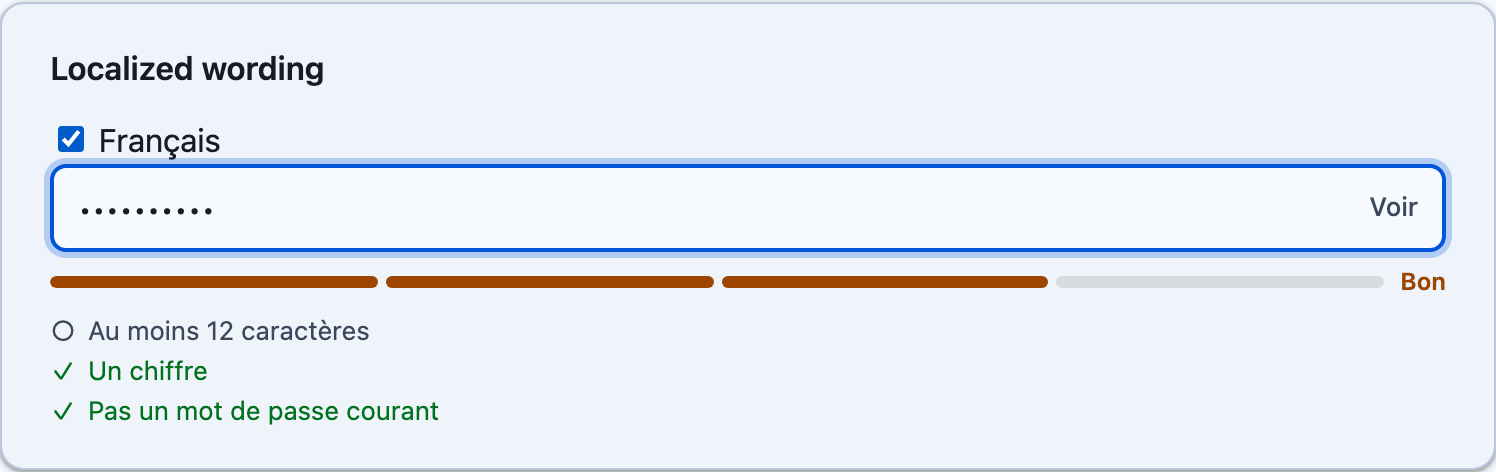
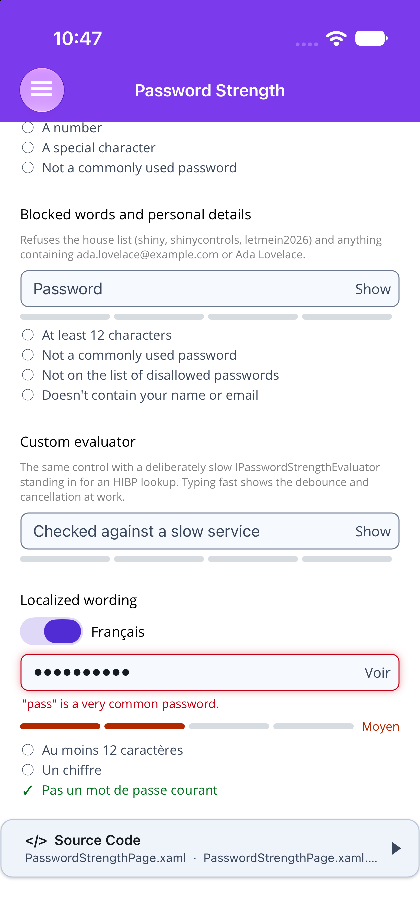
control.Localizer = text => text.Key switch{ PasswordStrengthTextKey.LevelWeak => "Faible", PasswordStrengthTextKey.LevelStrong => "Fort", // Argument carries the number, so the sentence can be rebuilt rather than patched PasswordStrengthTextKey.RuleMinimumLength => $"Au moins {text.Argument} caractères", // Value carries the matched word or personal detail PasswordStrengthTextKey.WarningCommonPassword => $"« {text.Value} » est un mot de passe très courant.", _ => null // anything not translated keeps the default};Every string the control paints has a key. Returning null keeps the default, so a localizer only
has to know about the strings it actually translates.
That includes the built-in evaluator’s warning. It tags each one with PasswordStrengthResult.WarningKey — WarningCompromised, WarningBlocked, WarningUserInput or WarningCommonPassword — and WarningValue, the matched word or detail, which reaches the localizer as PasswordStrengthText.Value. A custom evaluator’s warning that carries no key is shown exactly as written.
Durations are localized one unit at a time. The keys are DurationSeconds, DurationMinutes,
DurationHours, DurationDays, DurationMonths, DurationYears and DurationCenturies, each with
the count in Argument, plus DurationInstant and DurationEons. The finished phrase then reaches
TimeToCrack (“Time to crack: …”) and RuleMinimumTimeToCrack (“At least … to crack”) as Value:
PasswordStrengthTextKey.DurationDays => $"{text.Argument} jours",PasswordStrengthTextKey.TimeToCrack => $"Temps pour le casser : {text.Value}",PasswordStrengthTextKey.RuleMinimumTimeToCrack => $"Au moins {text.Value} pour le casser",Accessibility
Section titled “Accessibility”On Blazor the meter is a role="progressbar" carrying aria-valuenow and an aria-valuetext of the
current level, the strength caption is aria-live="polite", and each checklist row appends a
visually hidden “, met” / “, not met” — a coloured glyph on its own does not say which.
The Show/Hide toggle defaults to the words “Show” and “Hide” rather than an eye glyph. An eye
emoji renders at a different size on every platform, some Android system fonts do not have one, and
neither reads correctly to a screen reader. Set ShowPasswordIcon / HidePasswordIcon to use your
own icon font.
Step 1 — Add the marketplace:
claude plugin marketplace add shinyorg/skillsStep 2 — Install the plugin:
claude plugin install shiny@shinyOne plugin installs all 39 Shiny skills. Your agent loads only the skill relevant to what you're building, so there's no cost to having them all available.
Step 1 — Add the marketplace:
copilot plugin marketplace add https://github.com/shinyorg/skillsStep 2 — Install the plugin:
copilot plugin install shiny@shinyOne plugin installs all 39 Shiny skills. Your agent loads only the skill relevant to what you're building, so there's no cost to having them all available.