


Terminal UI
ShinyDocDbMyAdmin has two front ends. The web one ships as a container image;
this one ships as a dotnet tool and runs in your terminal. They are not two tools that read the same
files — they are the same admin layer with two ways to look at it, so a connection saved in one is a
connection the other opens.
dotnet tool install -g ShinyDocDbMyAdmin.Tuishinydocdb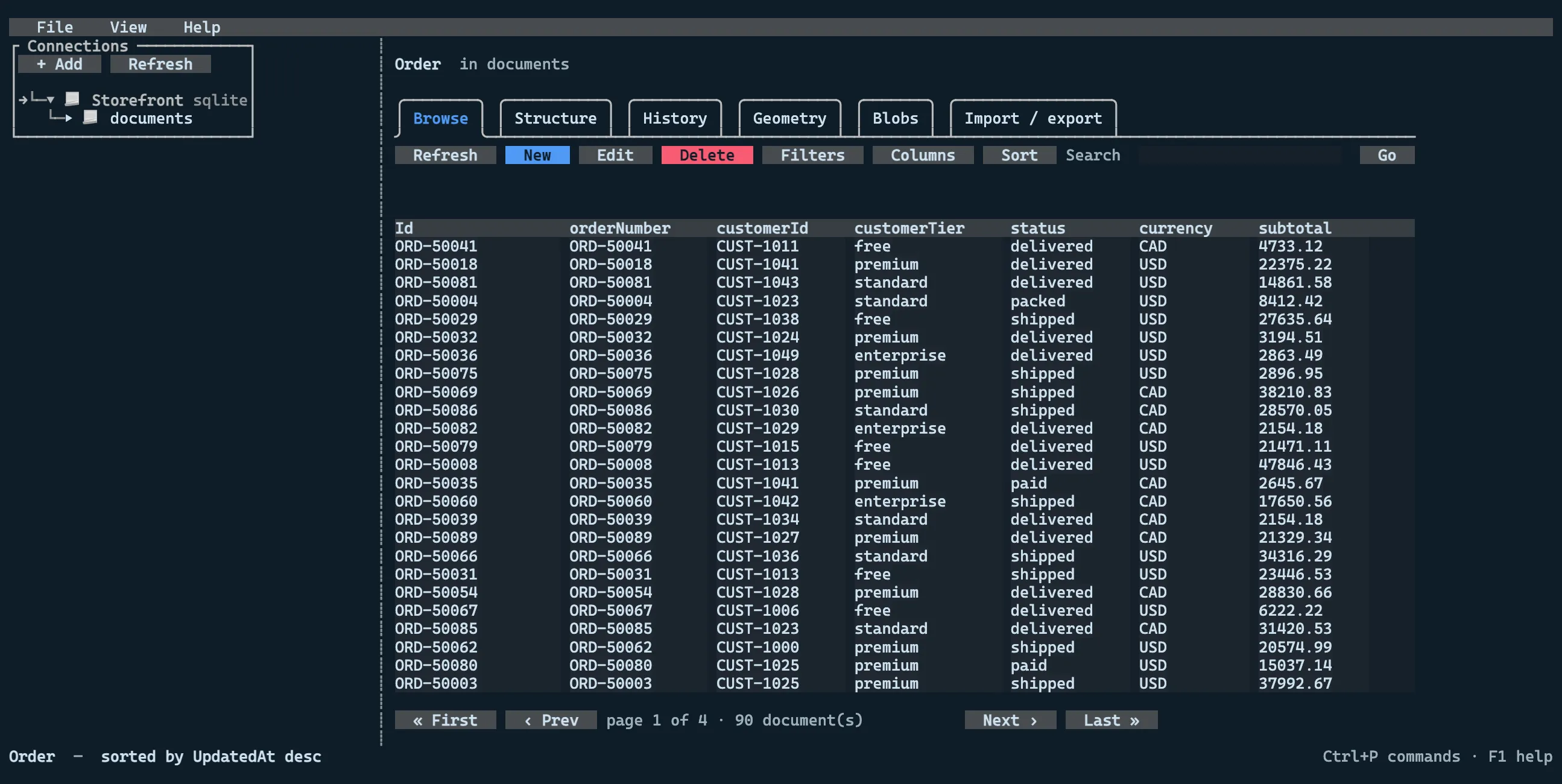
Why a second front end
Section titled “Why a second front end”The web app is a container. That is the right shape for something a team points at a staging database and leaves running — and the wrong shape for the thing you reach for when you are already in a terminal, already SSH’d into the box, and want to know what is in a SQLite file.
Everything below Components/ in the web app — connection profiles, the document, schema, index and
sidecar services, import and export — lives in a shared project both front ends reference. That is why
the feature list here is not a subset: it is the same list.
What is the same, and what is not
Section titled “What is the same, and what is not”| Web | Terminal | |
|---|---|---|
| Connections, saved queries, assistant settings | ~/.shinydocdbmyadmin/admin.db |
the same file |
| Secrets at rest | AES-GCM under the instance key | the same key file |
| Connection bundles | ConnectionTransferService |
the same serializer |
| Providers | every relational backend | the same nine |
| Upload a database file | copies the bytes into the data directory | you give it a path — it is your machine |
| Download a blob or an export | streamed to the browser | written to a path you name |
| Draw geometry | server-rendered SVG | braille cells |
| Demo mode | a public playground deployment | not applicable |
Getting around
Section titled “Getting around”The web app navigates by URL, which gives it a back button and deep links for free. A terminal has neither, so the equivalents are an explicit screen stack and a command palette.
| Key | What it does |
|---|---|
Ctrl+P |
Command palette — everything the tool can do, by name |
F2 |
Jump to the explorer — the tree is where navigation starts |
Esc |
Back one screen, or close the dialog |
F5 |
Refresh the screen and the explorer |
F1 |
Keyboard help |
Ctrl+Q |
Quit |
Tab / Shift+Tab |
Move between controls |
Enter |
Open the selected row |
Ctrl+F |
Search inside a grid |
PgUp / PgDn |
Previous / next page of documents |
Ctrl+S |
Save the open document or query |
Delete |
Delete the selected row — always asks first |
The app opens with the cursor in the explorer, and F2 puts it back there — expand a connection with →,
walk it with ↑/↓, open with Enter.
Workspace tabs move with ←/→ once the tab strip has focus, or by name from the palette
(Next tab / Previous tab). There is deliberately no Ctrl+arrow shortcut for it: the terminal
sequences for modified arrows are not decoded here, so binding one would give you a key that silently does
nothing.
The palette is the one to learn. In a terminal it is the only way to reach something you cannot currently see, so anything reachable by clicking is also reachable by typing part of its name.
Command line
Section titled “Command line”shinydocdb [options] open the connection listshinydocdb --profile <name|id> open straight into a connectionshinydocdb export <file> [--secrets] write the connection bundle and exitshinydocdb import <file> read a connection bundle and exitshinydocdb help | version
-p, --profile <name|id> connection to open (name match is case-insensitive) --data-dir <path> where the tool keeps its own state (default ~/.shinydocdbmyadmin, same as the web front end) --theme <light|dark> override the saved theme for this run --no-ai run without the assistant, and without registering it --ai-provider <name> configure the assistant: openai, azure, anthropic or compatible. Needs --ai-model too, and makes the configuration read-only in the settings screen. --ai-model <id> model id, or the deployment name on Azure --ai-endpoint <url> base URL, for azure and compatible --ai-writes <list> write tools to allow: insert, update, delete or none --no-splash skip the Shiny mark on startup --secrets include secrets in an export, encrypted under a passphrase you are prompted forexport and import never draw anything. They are the scriptable half of the transfer screen, which is
the difference between “you can move your connections” and “you can put your connections in your
dotfiles”.
Starting the tool draws the Shiny mark for a moment while the connection store opens — on the normal
screen, so it scrolls into your session’s history rather than costing the app a frame. It is skipped
automatically when output is redirected, when the terminal has no colour and when NO_COLOR is set, and
--no-splash turns it off for good.
Connections
Section titled “Connections”
The same list the web app shows, from the same store — including anything the host declares through
ConnectionStrings:{name} + Shiny:DocumentDb:{name}:Provider, which appears under a from host flag
and cannot be edited here. See Connections for where they come from and
what read-only blocks.
The Target column shows what a connection points at — the file path, or the host and database — and never the credentials. Those only leave the store when a connection is actually opened.
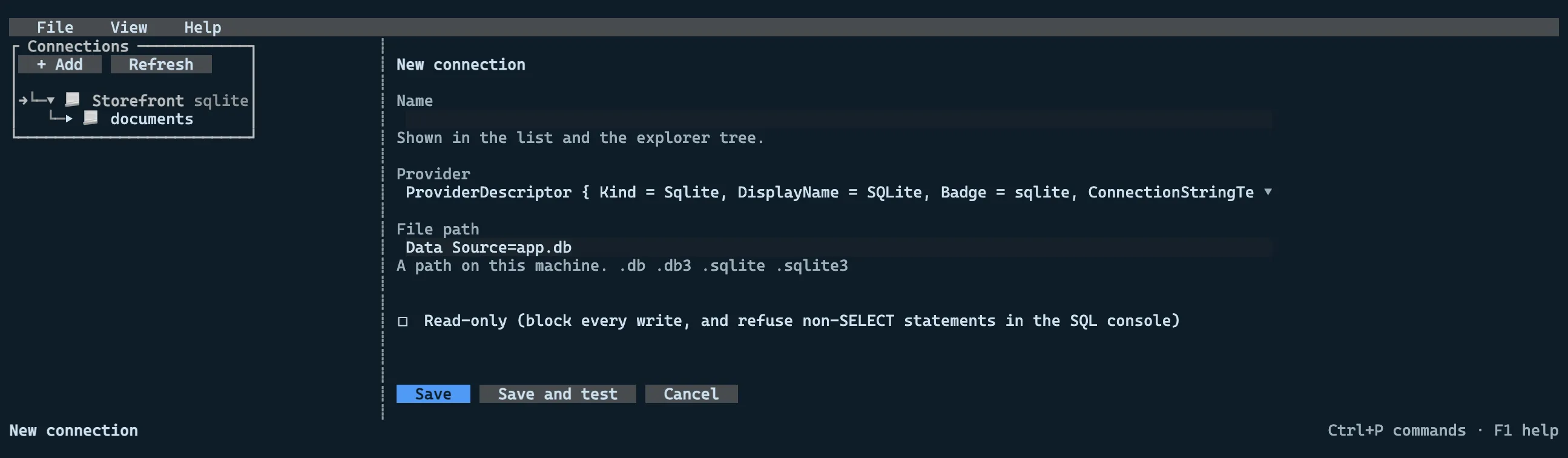
The one field with no terminal equivalent is the file upload. On the web it exists because a browser cannot hand the server a path, only bytes. A tool running on your own machine already has the path, so the file-backed providers simply take one and no copy of your database is made.
Moving connections between them
Section titled “Moving connections between them”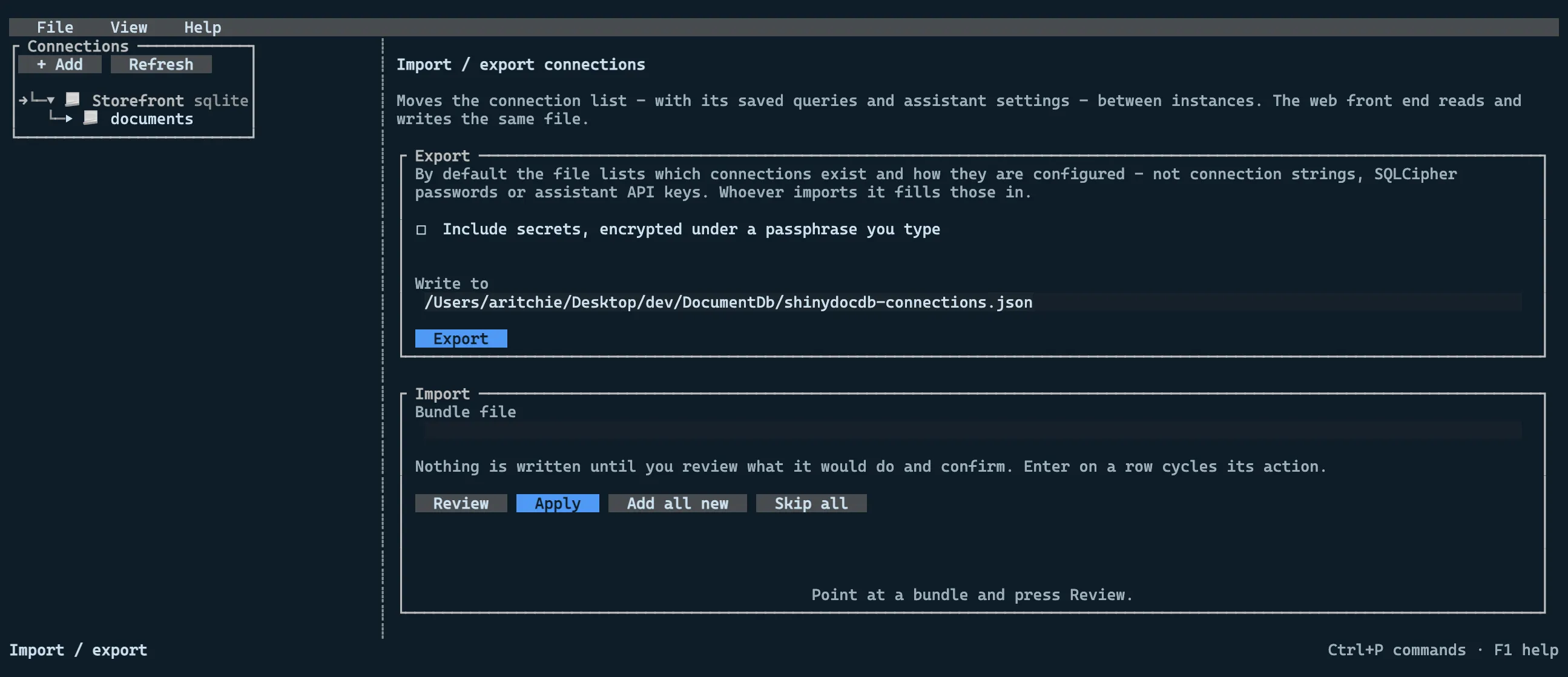
Secrets are left out of an export unless you ask for them. A connection string is a credential, and an export that carries them is a credential file — which is exactly what an export invites you to drop in a ticket. Opting in re-encrypts them under a passphrase you type, not under the instance key, because the instance key would make the file useless anywhere but the machine that wrote it.
Import writes nothing until you have reviewed what it would do, and defaults every conflict to skip.
Enter on a row cycles skip → add → replace.
Both directions work: a bundle written by the web app imports here, and one written here imports there. There is a test that does exactly that round-trip, because it is the claim this whole page rests on.
Databases and types
Section titled “Databases and types”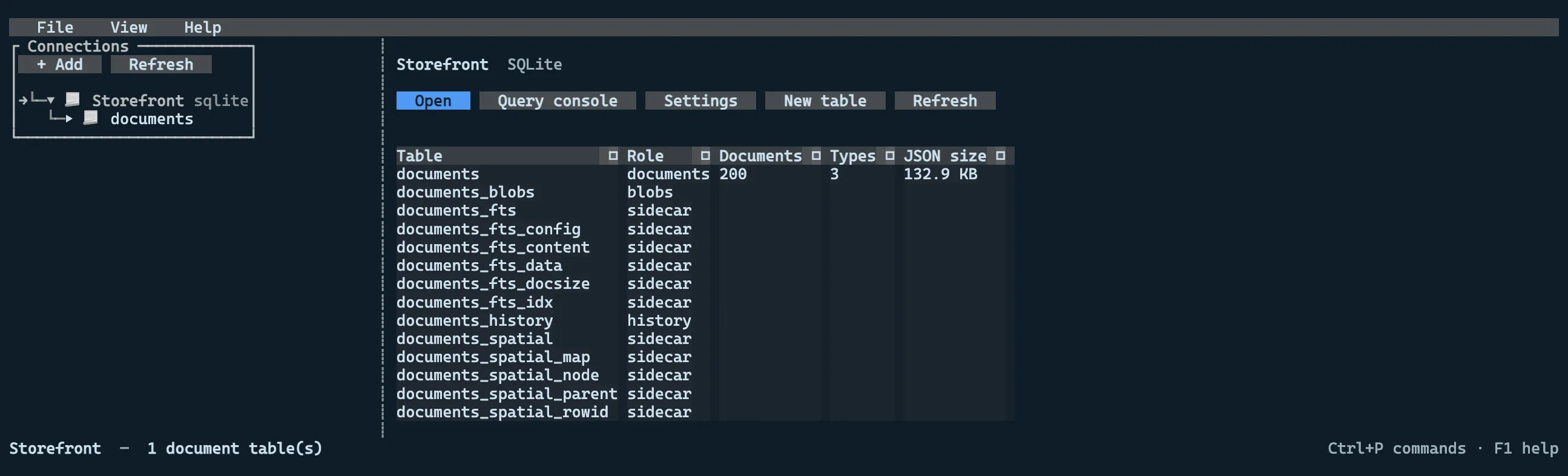
Sidecars are listed rather than hidden. They are not browsable — the envelope is not in them — but their presence is what tells you a type has history, blobs, geometry or vectors.

DocumentDb keeps every type in one table and tells them apart by the TypeName column, so what
phpMyAdmin would call a table is a type here. Both levels are real, so both are shown.
The workspace
Section titled “The workspace”Opening a type gives you the same tabs the web app does, and only the tabs whose backing data exists — a
type with no {table}_history has no History tab, because offering an empty one would suggest the feature
was configured and idle rather than absent.
Browse
Section titled “Browse”Columns are inferred from the documents rather than declared, with Id always leading. Filtering, sorting
and paging all happen in the database: the grid holds one page of a type that may have millions of
documents, so a client-side sort would reorder twenty-five rows and look like it had sorted the type.
Enter on a row opens the JSON editor, with syntax colouring, validation before save, and the same
sidecar reporting the web app does — if a write could not update the vector index, you are told, rather
than left with a search that quietly returns the old neighbours.
Structure
Section titled “Structure”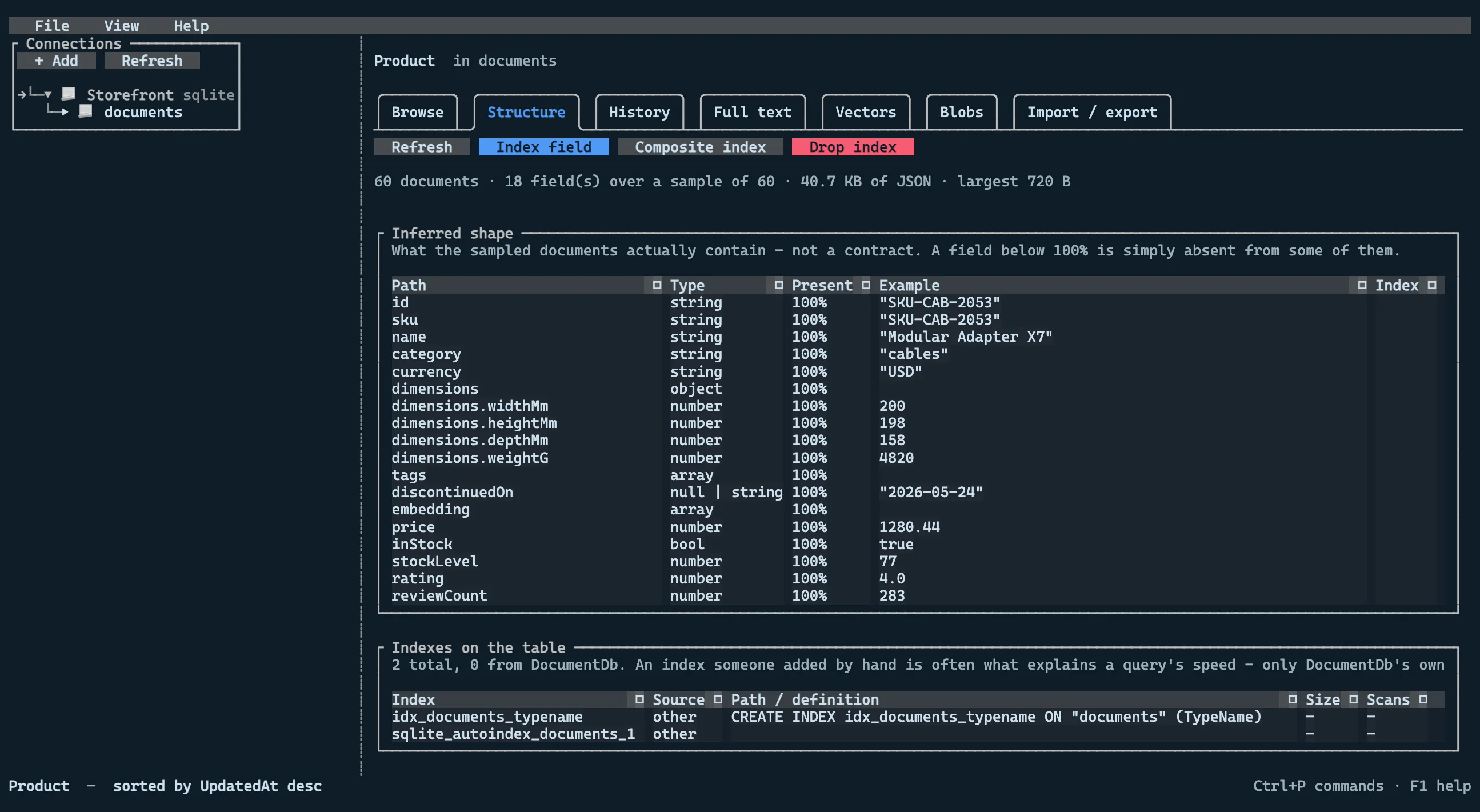
The shape is a description of what the sampled documents contain, not a contract. A field below 100% is simply absent from some of them.
Every index on the table is listed, not only DocumentDb’s — an index someone added by hand is often what explains a query’s speed. Only DocumentDb’s own can be dropped from here.
History
Section titled “History”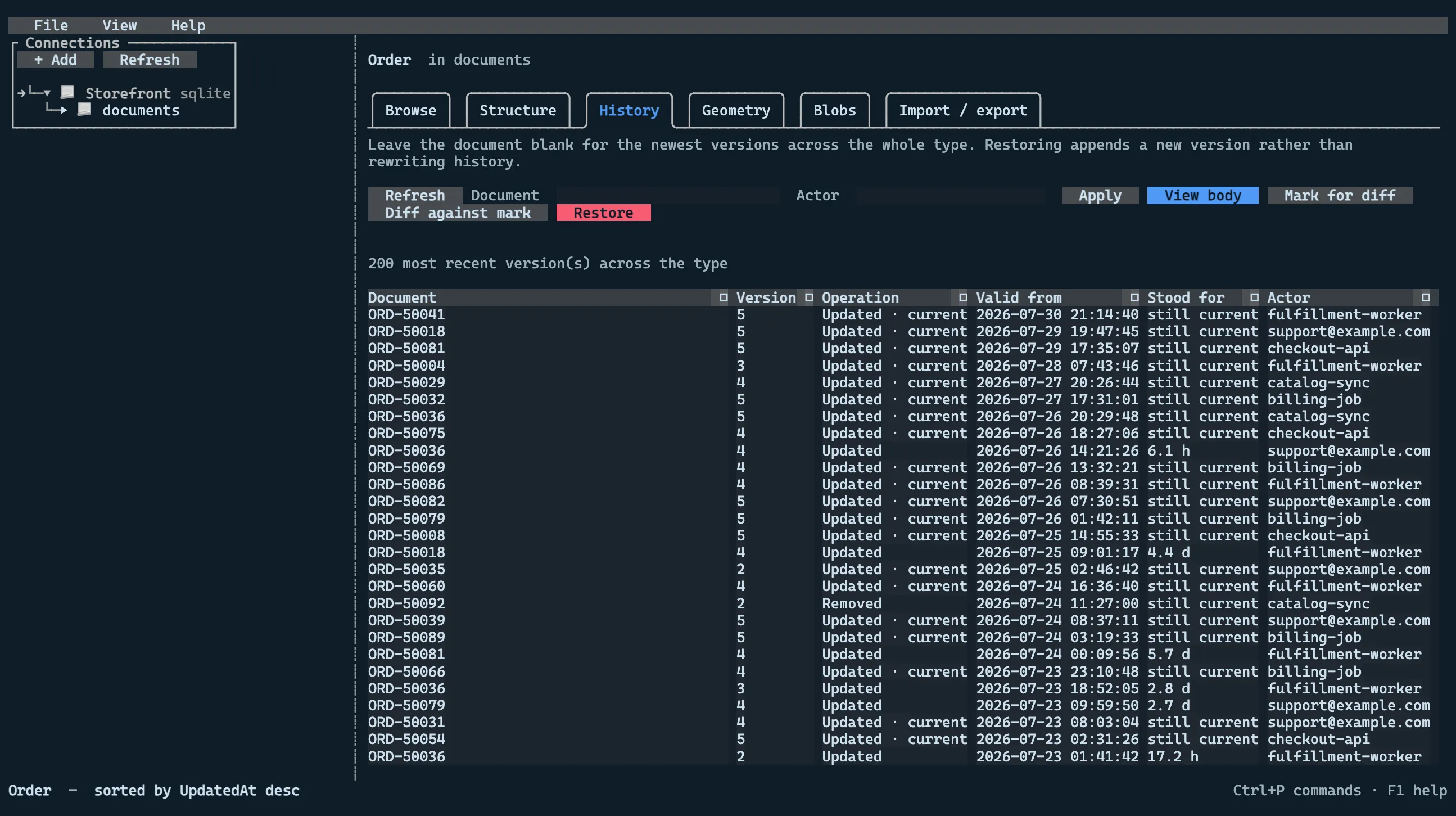
Leave the document blank for the newest versions across the whole type — an audit log, and the way in when you do not already know which document you are looking for. Mark a version, select another, and Diff against mark shows the field-level differences.
Restoring writes the old body back as a new version rather than rewinding the sidecar. History moves forward; that is what makes it an audit trail.
Geometry
Section titled “Geometry”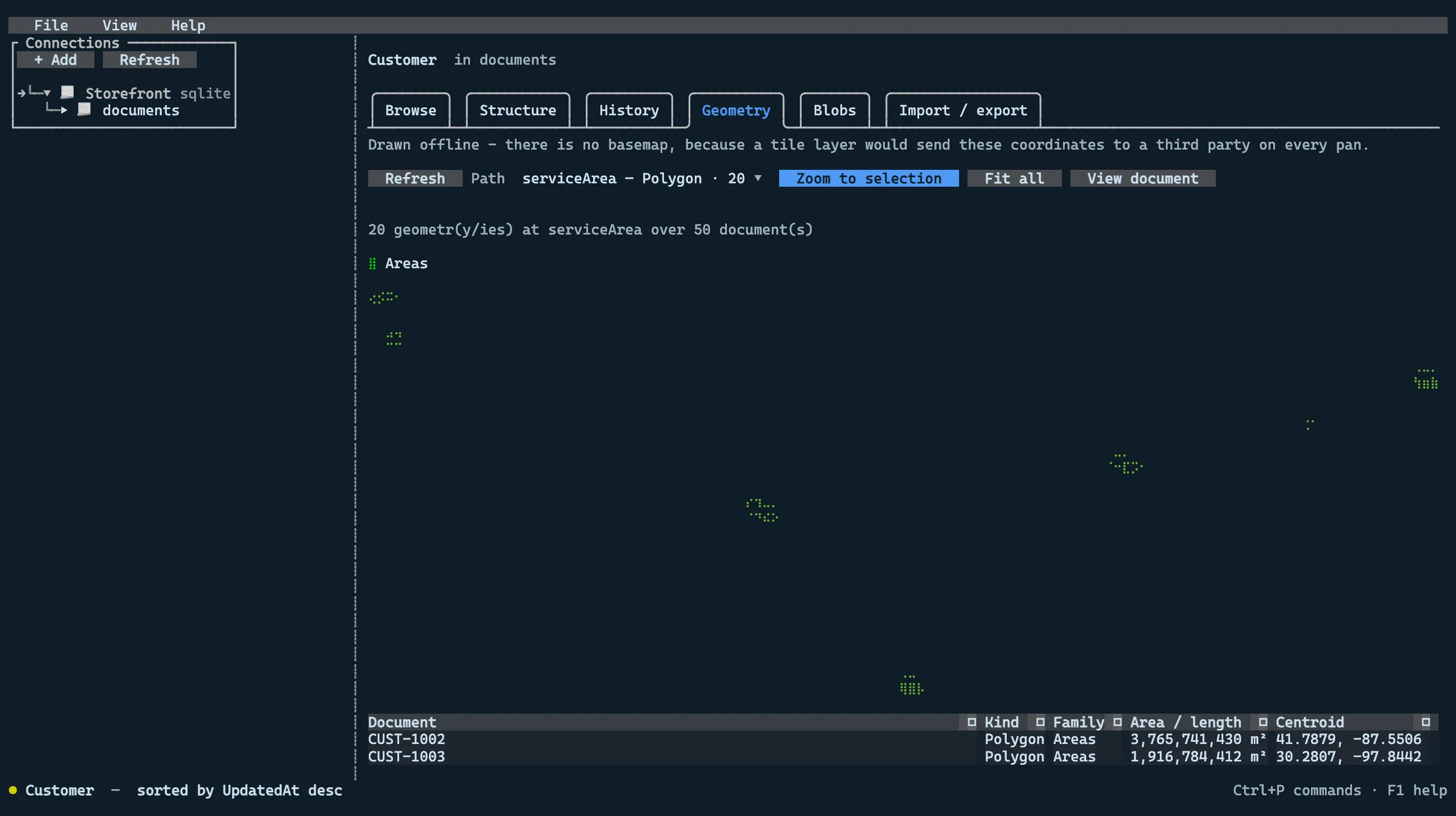
Drawn with braille cells — U+2800’s eight dots give 2×4 subcells per character, so a full-width pane draws at roughly 240×120. Colour is by geometry family, capped at three, the same three the SVG map uses.
There is deliberately no basemap. Any tile layer means sending the coordinates of whatever is in the database to a third party on every pan, which is not a reasonable default for a tool that gets pointed at production.
Geometry is read from the document bodies, not the spatial sidecar: the sidecar holds bounding boxes for
R*Tree pruning, and the GeoJSON in Data is the value. Parsing goes through the library’s own converter,
so Centroid, Area and Length are the real OGC model rather than anything reimplemented here.
Full text
Section titled “Full text”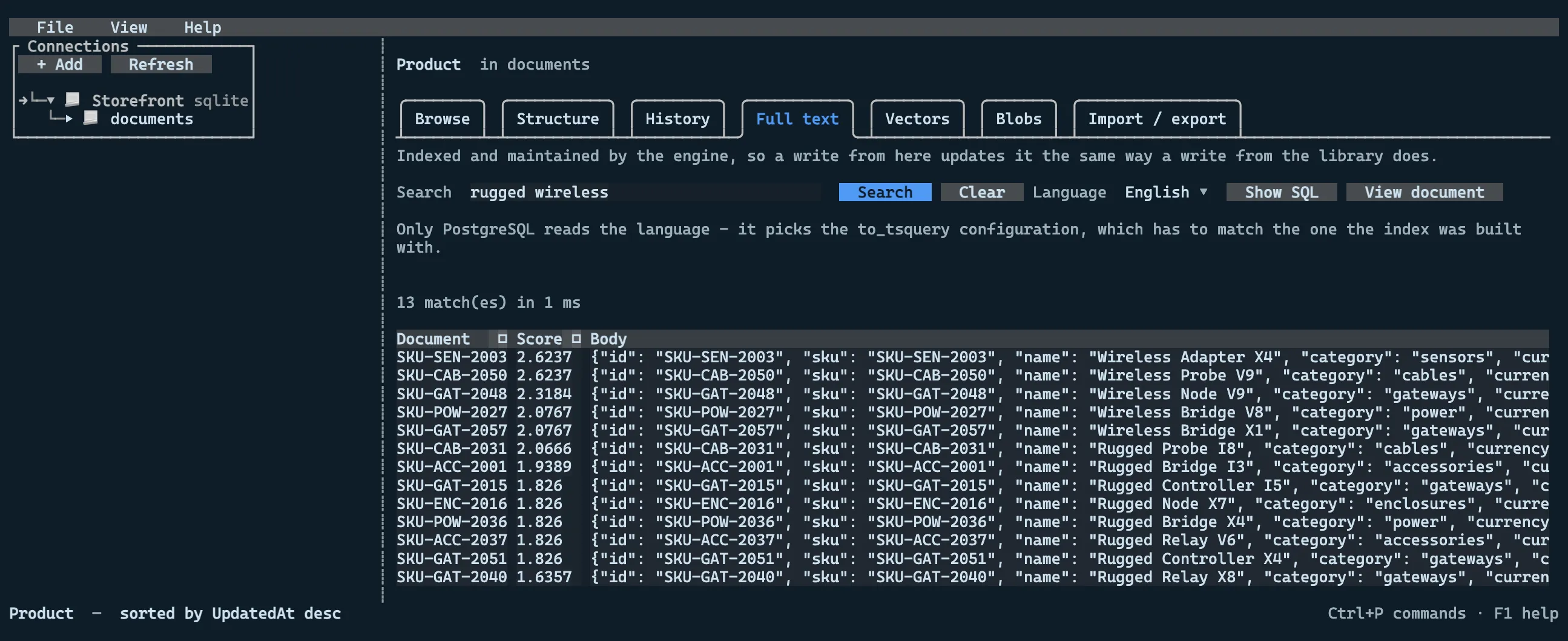
Ranked search through the provider’s own engine. Unlike every other sidecar, a full-text index is maintained by the engine — FTS5 triggers, generated or computed columns, an on-commit CONTEXT index — so a write from here updates it exactly as a write from the library would.
Vectors
Section titled “Vectors”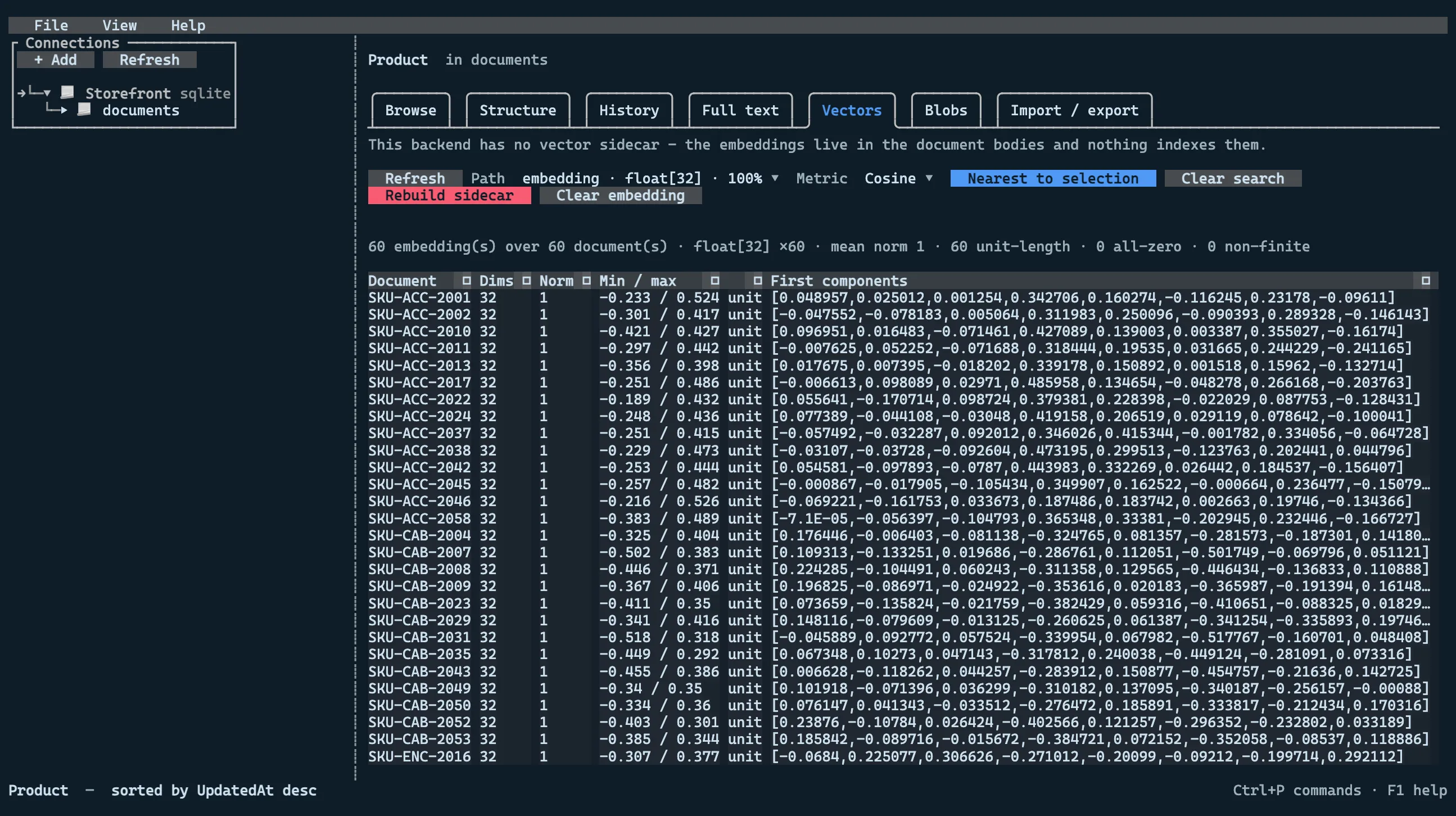
Embedding statistics, sidecar drift, and nearest-neighbour search. The search is exact — it scans the bodies and scores every one — which is the opposite of what the sidecar is for, and deliberately so: a tool that searched through the index could not tell you the index was wrong.
The document bodies are the source of truth and the sidecar is an index built from them, so anything reported as drift means a similarity search is currently returning wrong answers. Rebuild sidecar is how that is fixed.
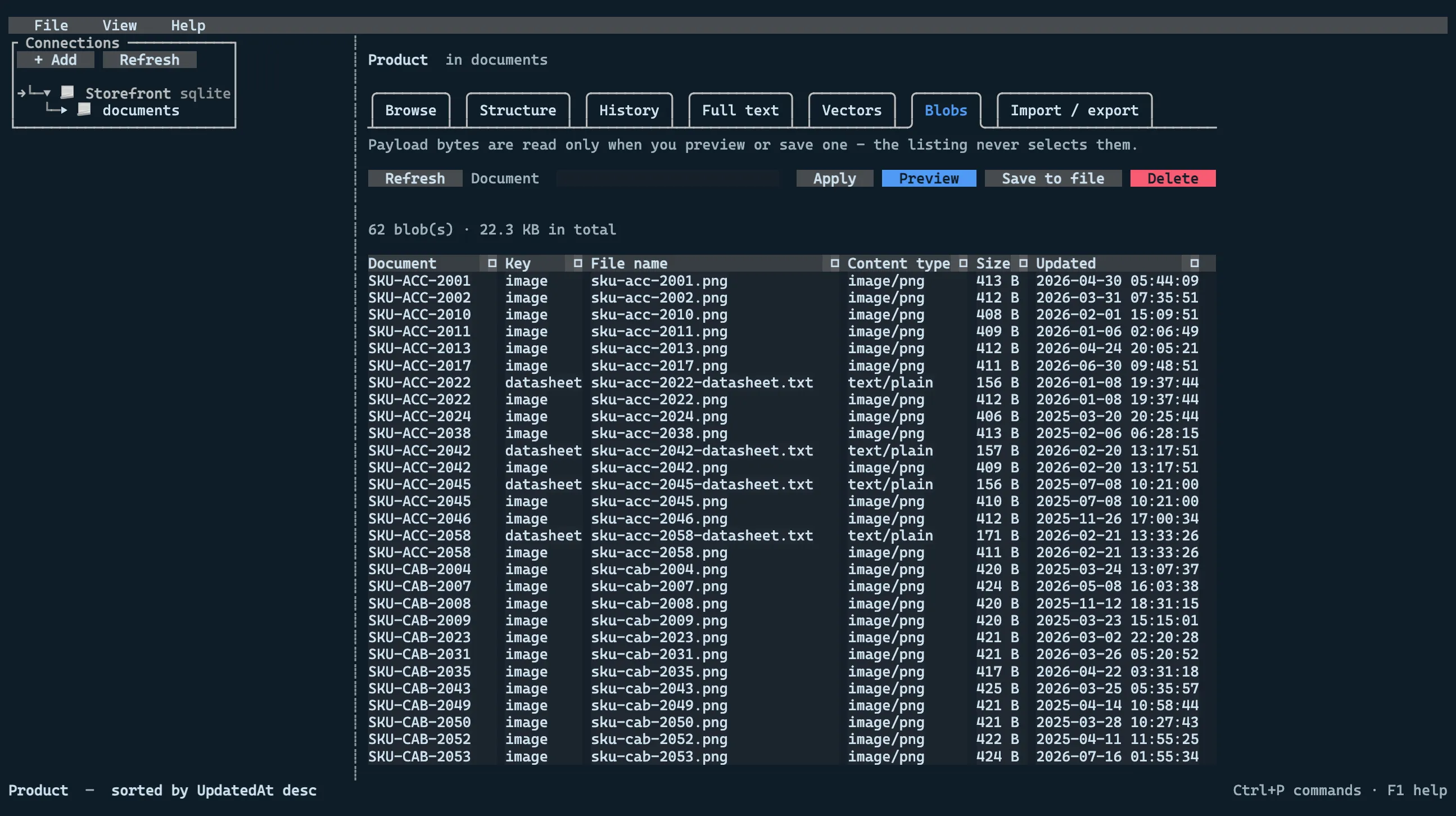
The listing never selects the payload column — a list of a hundred attachments should not move a hundred megabytes to render five columns of metadata. Bytes are read only when you preview or save one, and then they go to a file you name.
Text payloads preview inline; anything else is save-only, because a terminal has nothing useful to do with a JPEG.
Import / export
Section titled “Import / export”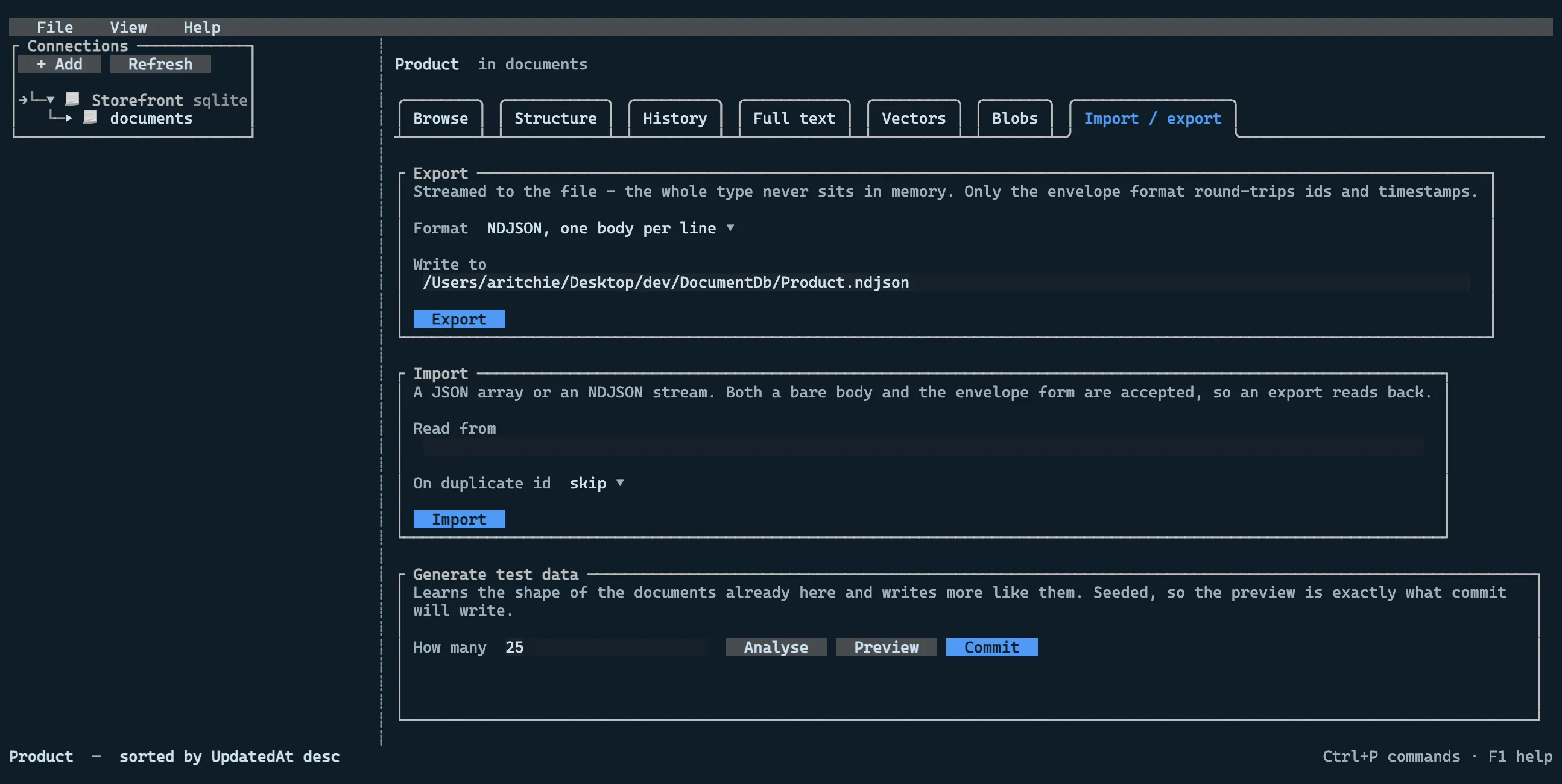
Export streams straight to the file, so exporting a million documents costs the same memory as exporting
ten. Only the envelope format round-trips ids and timestamps; the body formats carry what is inside
Data.
The generator learns from the documents already there — numbers from the observed range, dates from the observed span, categorical values from the set actually in use. It is seeded, so the preview is a promise: committing replays the same seed and writes the documents you were shown.
Query consoles
Section titled “Query consoles”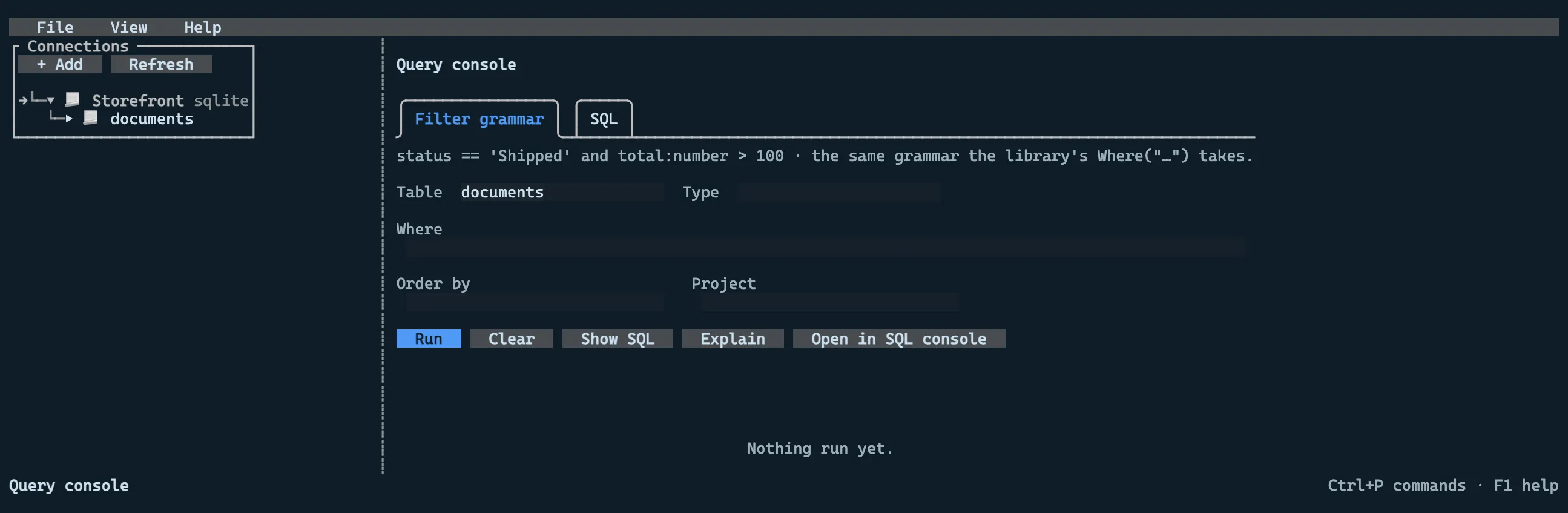
Two tabs, because a query belongs to the connection rather than to one type.
Filter grammar runs DocumentDb’s own string queries through the library’s parser and translator, so
what runs here is exactly what store.Collection(name).Where("…") would run in an application — and it
shows you the SQL it compiled to, which is the point of the console. Open in SQL console hands that
statement over so you can edit it.
SQL is the phpMyAdmin tab: whatever you type is what runs. There is no statement parsing and no
allow-list; the only guard is the read-only profile flag, which refuses anything that is not a SELECT.
@name placeholders work on every backend because each provider’s connection rewrites them.
Both offer Explain, and the filter console additionally names the paths a query filtered on that have no index — paired with the plan, because the plan says whether it matters and the paths say what to do about it.
The assistant
Section titled “The assistant”Configured per connection, exactly as on the web, and reading the same settings. It is read-only by construction rather than by instruction: the write paths are never registered as tools, so there is no function for a model to call however it is asked.
There is deliberately no --ai-key. A command line lands in ps output, shell history and CI logs, so
the key comes from ShinyDocDbMyAdmin__Ai__ApiKey or the settings file instead — see configuring the
assistant from the host. Passing --ai-provider
makes the assistant configuration host-owned: the settings screen shows it read-only.
--no-ai (or ShinyDocDbMyAdmin:DisableAi) removes the feature rather than hiding it — nothing behind it
is registered, so the tab cannot appear.
See AI assistant for what it can read and what that means.
Aspire AppHost
Section titled “Aspire AppHost”Aspire 13.5 added interactive terminal sessions, which is what this front end needs to be modelled as a
resource at all: Shiny.DocumentDb.Aspire.Hosting runs the tool next to the stores the AppHost already
models, and you attach to it from the CLI.
#pragma warning disable ASPIRETERMINAL001var pg    = builder.AddPostgres("pg").AddDatabase("ordersdb");var store = pg.AsDocumentStore("orders");
builder.AddDocumentDbAdminTerminal()       .WithReference(store)       .WithStartupProfile(store)       .WaitFor(pg);
Then, once per repository:
aspire config set features.terminalCommandsEnabled true # the terminal commands are behind a flagaspire terminal ps # sessions, their size and peer countaspire terminal attach documentdb-terminal # Ctrl+B D detaches, Ctrl+B T takes controlWithReference is the same call a consuming service makes — the tool reads the ConnectionStrings:{name}
Shiny:DocumentDb:{name}:Providerpair the hosting integration emits, so the store arrives as a host-provided connection.WithStartupProfilepasses--profile, so attaching lands you on that database rather than on the connection list.
The tool has to be installed: globally (dotnet tool install -g ShinyDocDbMyAdmin.Tui), or in the
repository’s local manifest, which is the form worth using for a shared repo —
AddDocumentDbAdminTerminal(tool: DocumentDbAdminTerminalTool.Local) runs it through dotnet tool run,
so a fresh clone gets it at the pinned version from dotnet tool restore.
| Call | What it does |
|---|---|
AddDocumentDbAdminTerminal(name, tool, workingDirectory, configureTerminal) |
Adds the resource. configureTerminal sizes the pseudo-terminal — the default is 160x45, up from Aspire’s 120x30, which cuts the explorer pane off the document grid. |
WithStartupProfile(name) / WithStartupProfile(store) |
Opens straight into a connection instead of the list. |
WithDataDirectory(path) |
Moves the tool’s own state for this run. |
WithReadOnly() |
Blocks every write path for every host-provided connection. |
WithoutAi() |
Removes the assistant entirely. |
What it does and does not replace
Section titled “What it does and does not replace”Locally it replaces the container front end outright, and it is the better fit for a file-backed store: the tool is a process on your machine, so a SQLite or SQLCipher file at a host path is simply reachable — no bind mount, no rewriting the connection string to a container path.
It is not something that deploys. Aspire’s terminal sessions are a dev-loop feature — the CLI attaches
to a live pseudo-terminal on the machine running the AppHost — and a dotnet tool on a developer’s machine
is not a deployment target either, so the resource is excluded from the manifest. An admin UI that goes
wherever the AppHost goes is still AddDocumentDbAdmin, which is a container.
Configuration
Section titled “Configuration”The same keys as the web front end, read from the environment or from an optional
~/.shinydocdbmyadmin/appsettings.json:
| Setting | Default | What it does |
|---|---|---|
ShinyDocDbMyAdmin:DataDirectory |
~/.shinydocdbmyadmin |
Profiles, the secret key, preferences |
ShinyDocDbMyAdmin:SecretKey |
generated into the data directory | The key secrets are encrypted under |
ShinyDocDbMyAdmin:ReadOnly |
false |
Marks every host-provided connection read-only |
ShinyDocDbMyAdmin:DisableAi |
false |
Removes the assistant entirely |
Logs go to ~/.shinydocdbmyadmin/shinydocdb.log, truncated at each start. They cannot go to the console —
the console is the frame buffer, and one stray line from a background task tears the render.
Running it from a clone
Section titled “Running it from a clone”dotnet run --project src/ShinyDocDbMyAdmin.Tui