


Introducing Shiny.AppDeviceBridge — Ship Your App on Your Schedule, Test Device Features Without the Device

Shiny.AppDeviceBridge is a new set of libraries that put a web app, such as Blazor WebAssembly, React, Vue or anything else that builds to static files, inside a .NET MAUI app. The app serves the web app from the device and updates it from your own server. The web app gets the device through typed bridges: GPS, Bluetooth LE, Wi-Fi, notifications, health, the camera, contacts and more. It is available today in beta.

It is built around four problems:
- Store release cycles. Every fix waits for App Store and Google Play review, and then for users to update.
- Slow inner loops. Rebuilding and redeploying a native app to see a CSS change.
- Device features you can’t reproduce at your desk. A Wi-Fi network dropping, a permission the user denied, a GPS walk around the block, a Bluetooth device that shows up three seconds late.
- Web apps stop when the app does. A job, a geofence or a push arrives while no page is running.
This idea isn’t new — the plumbing is
Section titled “This idea isn’t new — the plumbing is”Putting a web app in a native shell has been done for years: Cordova, Capacitor and, in .NET, a few takes of its own. The idea isn’t the interesting part. Two things underneath it are.
A real HTTP server, not a message channel. The page is served by
Shiny.Net.HttpServer — HTTP/1.1, HTTP/2 and HTTP/3, running anywhere .NET runs,
including inside .NET MAUI where ASP.NET Core cannot. That brings routing, middleware, DI scopes, authentication,
authorization policies, sessions, WebSockets, Server-Sent Events, range requests, CORS, rate limiting and TLS with it.
So the web app gets a genuine origin instead of file:// quirks, and a bridge is an ordinary HTTP endpoint: readable in
the network tab, callable from curl, guarded by a real policy.
More of the device than we’ve seen anywhere else. Twenty-six bridges ship in the beta — GPS, geofences, motion, Bluetooth LE, Wi-Fi, notifications, push, health, camera, photos, contacts, calendar, speech, jobs, HTTP transfers, network discovery, OBD-II, wearables, app links, desktop tray and more — each one typed end to end in both C# and TypeScript, and each one simulated without a device.
Ship on your schedule, not the store’s
Section titled “Ship on your schedule, not the store’s”The native app becomes a thin, stable shell: the WebView, the bridges and a public key. Your UI and most of your logic live in the web app, and the web app updates from your server.
builder .UseMauiApp<App>() .UseAppDeviceBridge( bridge => bridge .Configure(o => o.AppId = "field-app") .AddAppSupportBridge() .AddLocationBridges() .AddBluetoothLEBridge() .AddWifiBridge(), webApp => { webApp.UseBaseline(typeof(App).Assembly, "webapp.zip", "1.0.0"); // runs offline on first launch webApp.UpdateServer = new Uri("https://api.example.com/webapps"); webApp.PublicKey = """ -----BEGIN PUBLIC KEY----- ... -----END PUBLIC KEY----- """; } );public class App : Application{ protected override Window CreateWindow(IActivationState? state) => new(new WebAppHostPage());}The server is a few lines of ASP.NET Core, and publishing a release is copying a zip into a folder:
builder.Services.AddWebAppReleases(o =>{    o.SigningKey = builder.Configuration["WebApps:SigningKey"];   // PEM, from your secret store    o.ReleasesDirectory = "/srv/webapps";});
app.MapWebAppReleases("/webapps");
/srv/webapps/field-app/ app.json { "minimumVersion": "1.2.0" } 1.2.0.zip 1.3.0-beta.1.zip 1.3.0-beta.1.json { "channel": "beta", "minimumHostVersion": "2.1", "platforms": ["ios", "android"] }At launch the app asks the server whether the installed version is still acceptable:
| Situation | Result |
|---|---|
Below minimumVersion |
the update is required and installs before the app shows. Use it for a broken release. |
| A newer release | it downloads in the background and applies on the next launch, or when the page calls POST /_bridge/host/apply-update. |
| A release that needs a newer native app | skipped. minimumHostVersion stops a web build that depends on a new bridge from reaching an app that doesn’t have that bridge. |
| Offline, or the server is down | the app serves the newer of the bundled and installed builds. It always starts. |
Every release is signed with ECDSA P-256. Before it can be served, the app checks it against the public key compiled into the app, then checks its SHA-256 and size. Old releases are never reinstalled. The app serves the release straight out of its zip from a loopback Shiny.Net.HttpServer, without extracting it.
Updates are optional. Without an UpdateServer, the app serves the zip compiled into it. That’s a complete setup on
its own, and gives you the rest of this post: hot reload, typed bridges and the simulator.
Is this allowed?
Section titled “Is this allowed?”Yes, within the rules both stores already publish. The downloaded content is HTML and JavaScript running in the
platform’s WebView. Apple’s guideline 2.5.2 and section 3.3.1(B) of the Developer Program License Agreement allow that
as long as updates don’t change the app’s primary purpose. Google Play’s policy against downloading executable code
excludes JavaScript running in a WebView. The native capabilities (the bridges) ship in the binary and go through review
like any other code. Ship a complete baseline, and use minimumHostVersion rather than sending web features to an app
that can’t support them. See App Store review.
The device, as typed clients
Section titled “The device, as typed clients”Every native capability is a bridge: a package on the app side, and HTTP endpoints under /_bridge on the same origin
as the page, plus one Server-Sent Events stream for events. Each bridge’s .Client package declares a
[BridgeClient] interface, and a source generator implements it. The native bridge serializes the same contracts, so
the page and the device always agree on the shape of the data.
builder.Services .AddWebAppHostClient() .AddWifiBridgeClient() .AddGpsBridgeClient();@inject IWifiBridge Wifi@inject IGpsBridge Gps
var network = await Wifi.GetCurrentNetworkAsync(); // null when not on Wi-Fi
await using var readings = await Gps.OnReadingAsync(r =>{ position = r; return Task.CompletedTask;});Not using Blazor? The TypeScript clients in @shinyorg/appdevicebridge are generated from the same declarations:
import { WifiBridge } from "@shinyorg/appdevicebridge";
const network = await new WifiBridge().getCurrentNetwork();
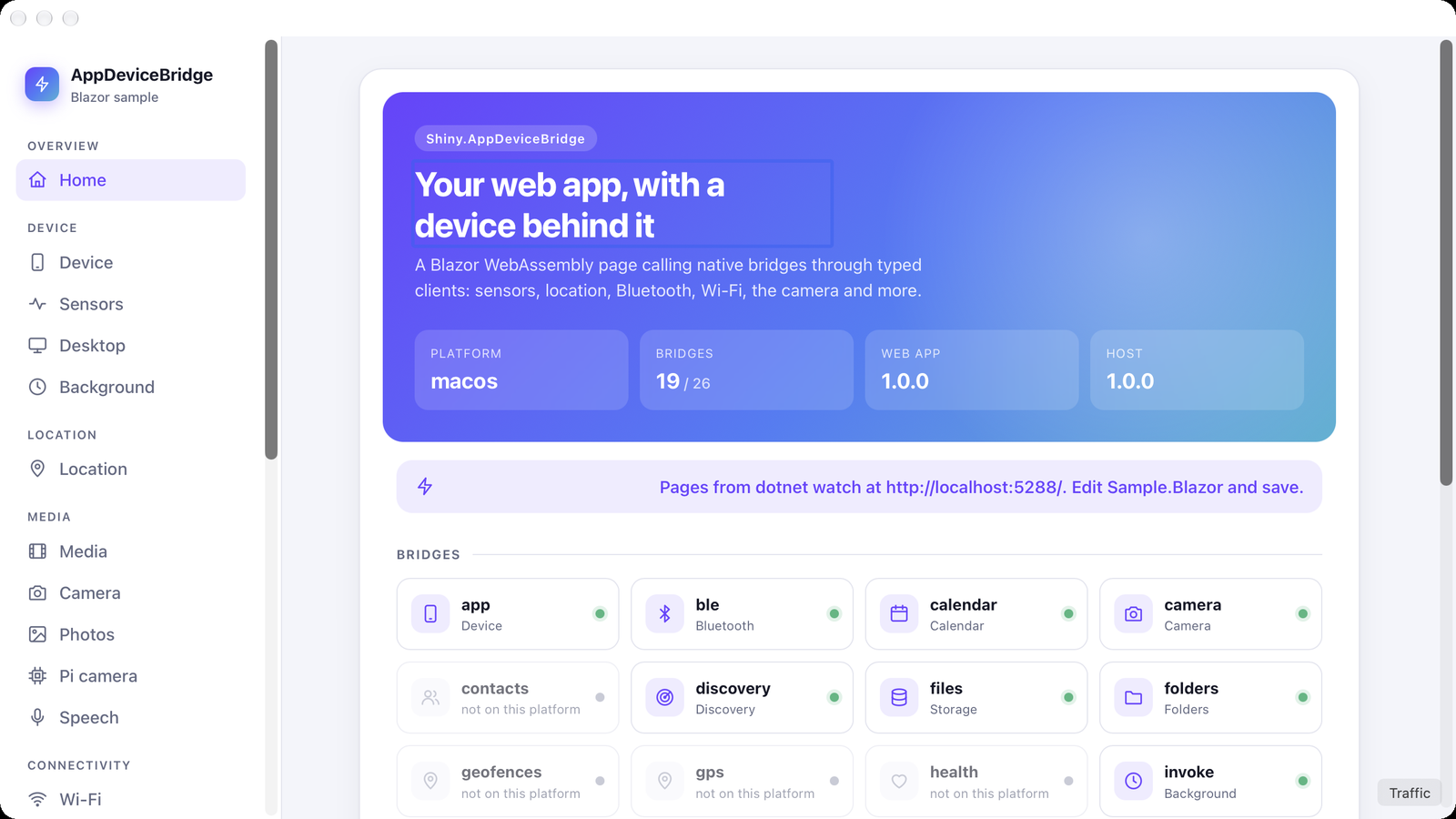
Where a platform has no implementation, the bridge answers 501 and GET /_bridge/host reports it as unsupported, so
the page can adapt instead of crashing. Here is the Blazor sample running in the macOS (AppKit) head. Contacts, GPS,
geofences and health are greyed out because macOS doesn’t have them:
The bridges are guarded. Every route requires AppDeviceBridgePolicies.Bridges, which by default admits only callers on
the device itself, plus the WebView’s launch session. Opening a bridge to a remote caller is a policy you write on
purpose. See Security.
Background work, with or without a page
Section titled “Background work, with or without a page”A page in a WebView only runs while the app is in front. Mobile apps do real work in the background, though: a scheduled sync, a geofence the user just crossed, a push, a notification tap, a download that finished overnight. AppDeviceBridge hands each of those to the web app, whether or not a page is open.
| Situation | What happens |
|---|---|
| A page is open and listening | the call goes to the page, which has 2 seconds to accept it and then posts its result. |
| No page, or it doesn’t accept in time | the call runs in background.js from the web app’s zip, inside an embedded JavaScript engine (Jint). |
| Never both | once the page accepts a call, it owns it. |
Register the sources on the bridge builder:
bridge => bridge .AddWebAppJob("sync", job => job.WithInternet(InternetAccess.Any)) .AddGeofenceBridge() .AddPushBridge(o => o.DispatchToWebApp = true) .AddNotificationsBridge()Handle them in the page, in C# from Blazor or in JavaScript from anything else:
await nativeCalls.HandleAsync("job:sync", AppDeviceBridgeJsonContext.Default.JobRun, MyJson.Default.SyncResult, async job =>{ await SyncAsync(); return new SyncResult(RanIn: "page");});And in background.js at the root of the zip, for when there is no page:
appdevicebridge.on("job:sync", async ({ name }) => { const token = await (await fetch("/_bridge/settings/secure/token")).json(); const data = await fetch("https://api.example.com/sync", { headers: { Authorization: `Bearer ${token}` } }); await fetch("/_bridge/files/data/content?path=sync.json", { method: "PUT", body: await data.text() });});| Source | Handler |
|---|---|
| Background job | job:{name} |
| GPS reading delivered in the background | gps |
| Geofence transition | geofence |
| Motion activity delivered in the background | motion |
| Push | push.received, push.entry |
| Notification tapped | notification.entry |
| HTTP transfer finished | transfer.completed, transfer.failed |
background.js gets appdevicebridge.on, console and fetch. Relative URLs go to the host’s own /_bridge, so a
background handler reads and writes the same settings and files the page uses, and can send a notification. It has no DOM
and no timers, keeps no state between calls, and gets 25 seconds and 64 MB per call. It ships in the web app’s zip, so
your background logic updates over the air with everything else.
A Blazor app writes its background handler in JavaScript: Jint doesn’t run WebAssembly, and a hidden WebView is exactly what iOS suspends. The handler stores its results through the bridge, and the Blazor app reads them when it next opens. The OS still decides when jobs run: at best every 15 minutes on Android, and less predictably on iOS. See Native calls & background.
Hot reload inside the real app
Section titled “Hot reload inside the real app”In a Debug build, set DevServer and the app loads its pages from dotnet watch on your machine. The bridges,
settings, files and session stay on the device.
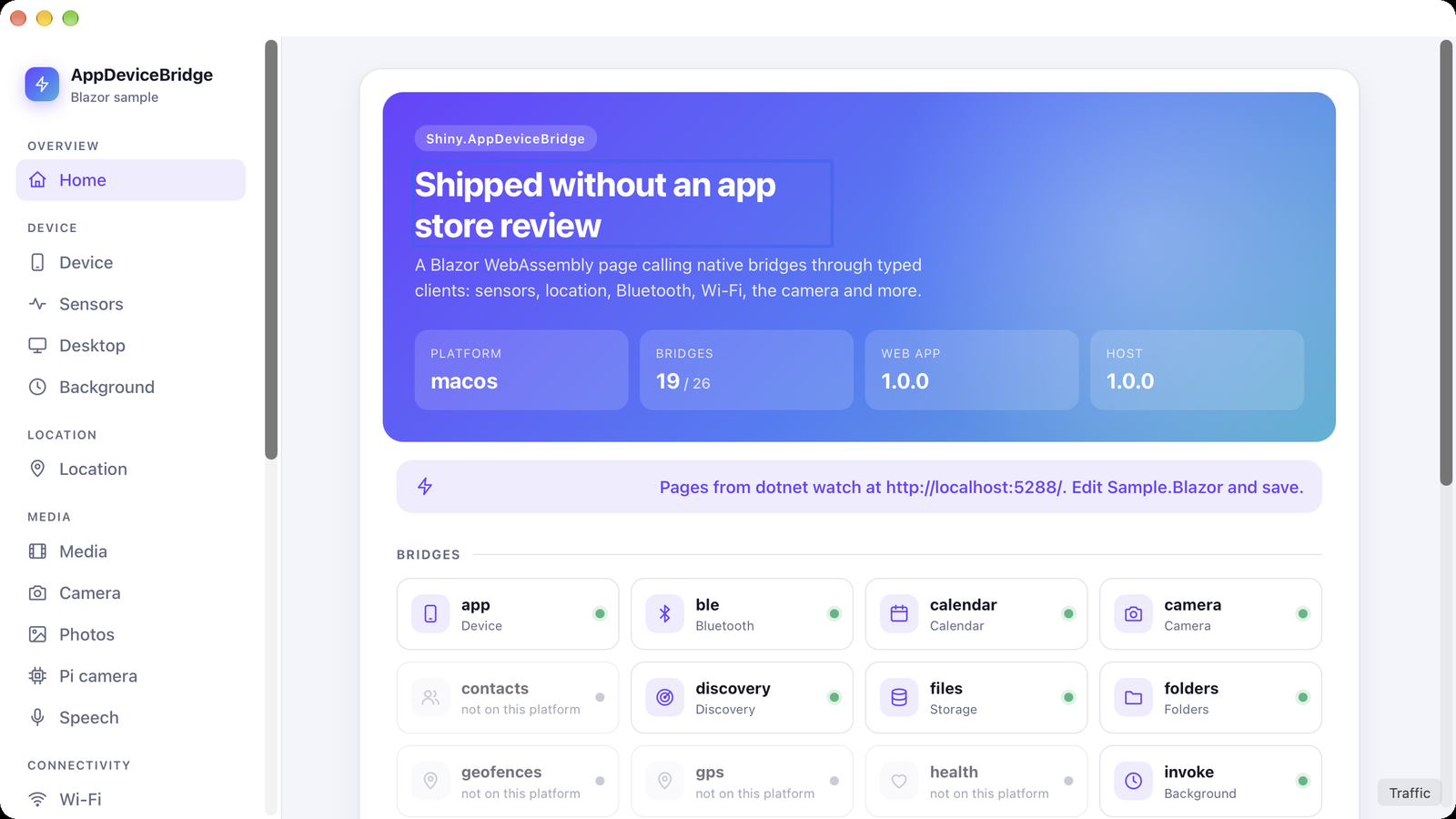
#if DEBUGwebApp.DevServer = new Uri("http://localhost:5288");#endifcd MyApp.Webdotnet watch run --launch-profile deviceStart the app from your IDE as usual. Edit a .razor file, save, and the change appears in the running app. The native
app isn’t rebuilt, and the page keeps its http://127.0.0.1:5780 origin, so its bridge calls still reach the real
hardware.
| Before | After a save |
|---|---|
|
 |
| Target | Dev server | Hot reload |
|---|---|---|
| Android emulator | http://10.0.2.2:5288 (default) |
yes |
| iOS simulator, Mac Catalyst, macOS, Windows, Linux | http://localhost:5288 (default) |
yes |
| Android over USB | adb reverse tcp:5288 tcp:5288 |
yes, with the socket ports reversed too |
| Any device over Wi-Fi | your machine’s LAN address | pages only; reload to see changes |
If dotnet watch isn’t running when the app starts, the app serves its embedded or installed build as usual. See
Hosting.
Test device features without the device
Section titled “Test device features without the device”Hot reload shortens the loop, but you still need a phone that is on the right Wi-Fi, has granted the right permission,
and is walking the right route. shiny-bridge-sim removes that dependency.

dotnet tool install -g Shiny.AppDeviceBridge.Simulatorshiny-bridge-sim --dev-server http://localhost:5288 # or --app ./publish/wwwrootIt’s a terminal app that stands in for the native app. It runs the real bridge server, with the same guard, the same
bridge policy and the same event stream. Every device bridge is replaced by a simulated one built from its
[BridgeClient] interface, so it answers exactly the routes the typed clients call. You choose the answers.
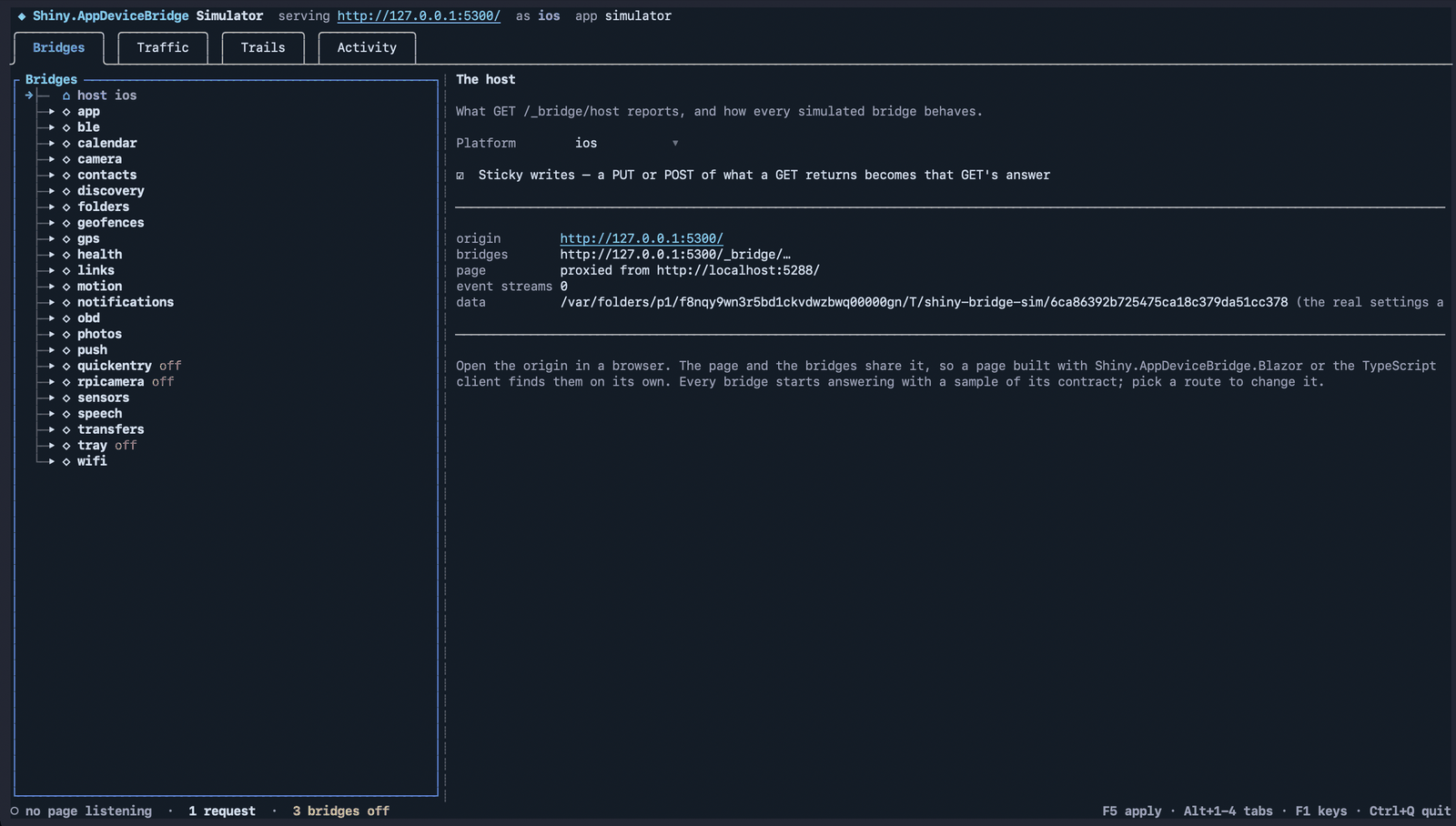
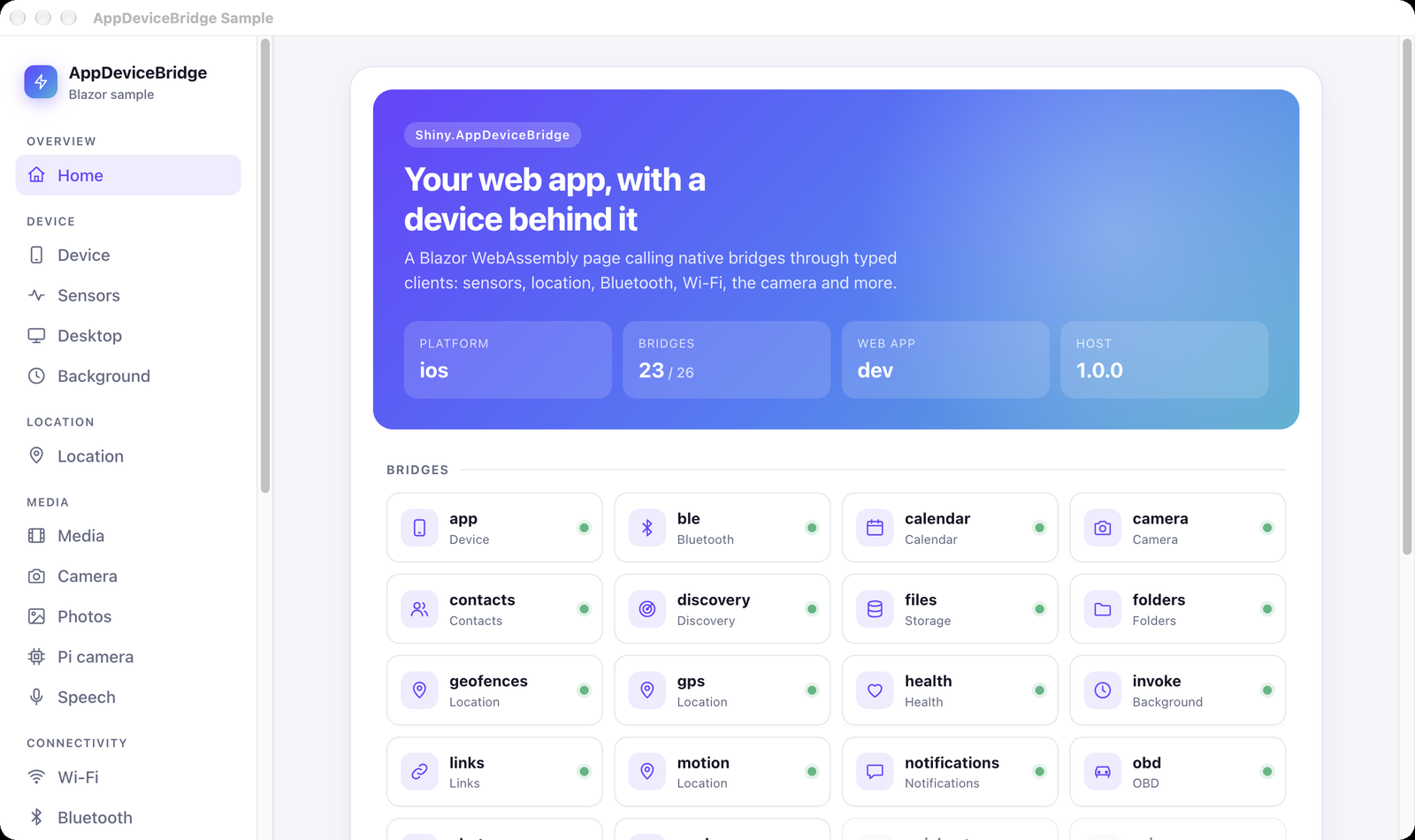
Open http://127.0.0.1:5299/ in any browser. The page and the bridges share that origin, so the page needs no
changes. Here is the same Blazor sample in Chrome on a Mac. It now reports iOS, and has 23 of 26 bridges, because the
simulator says so:
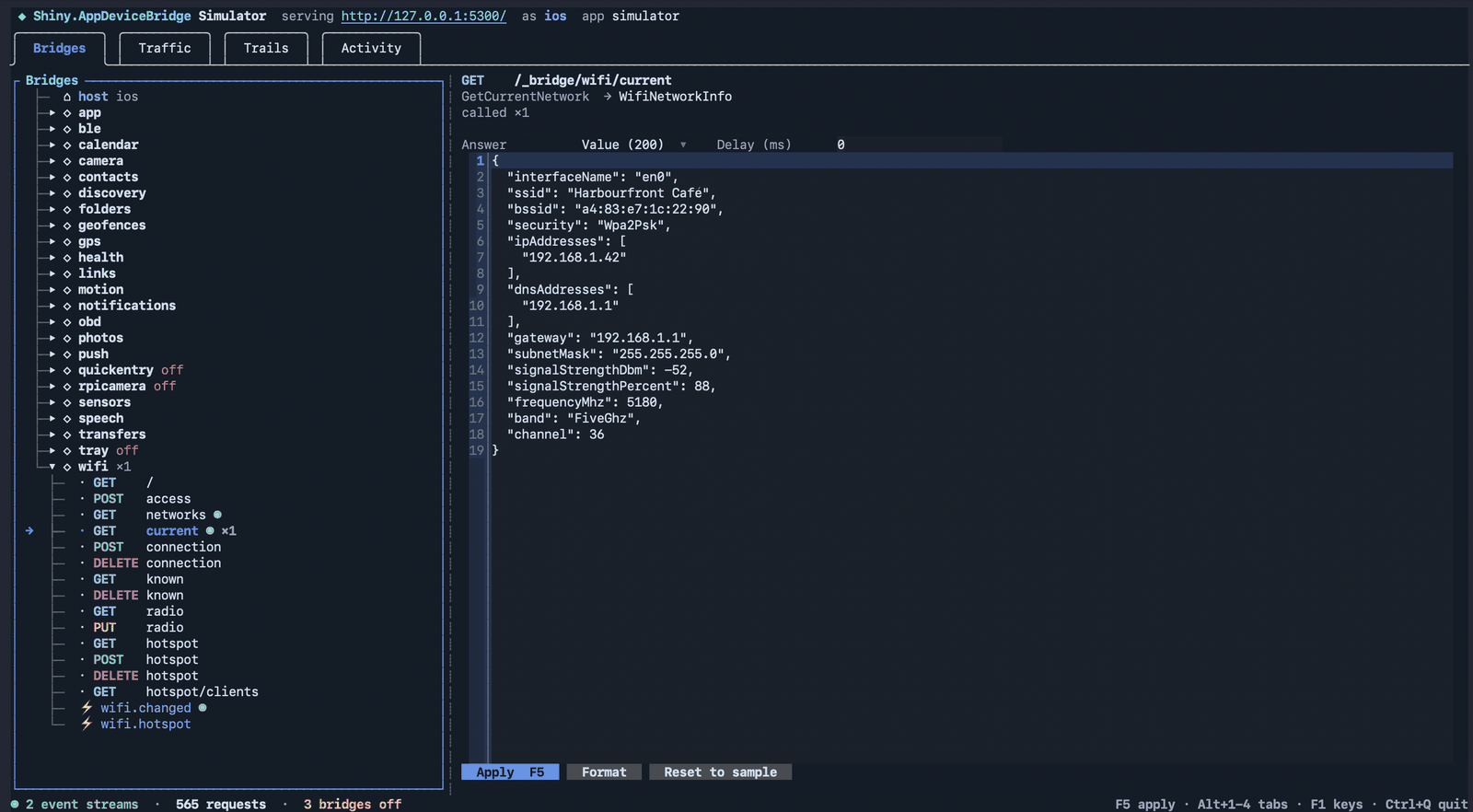
Set any answer, including the failures
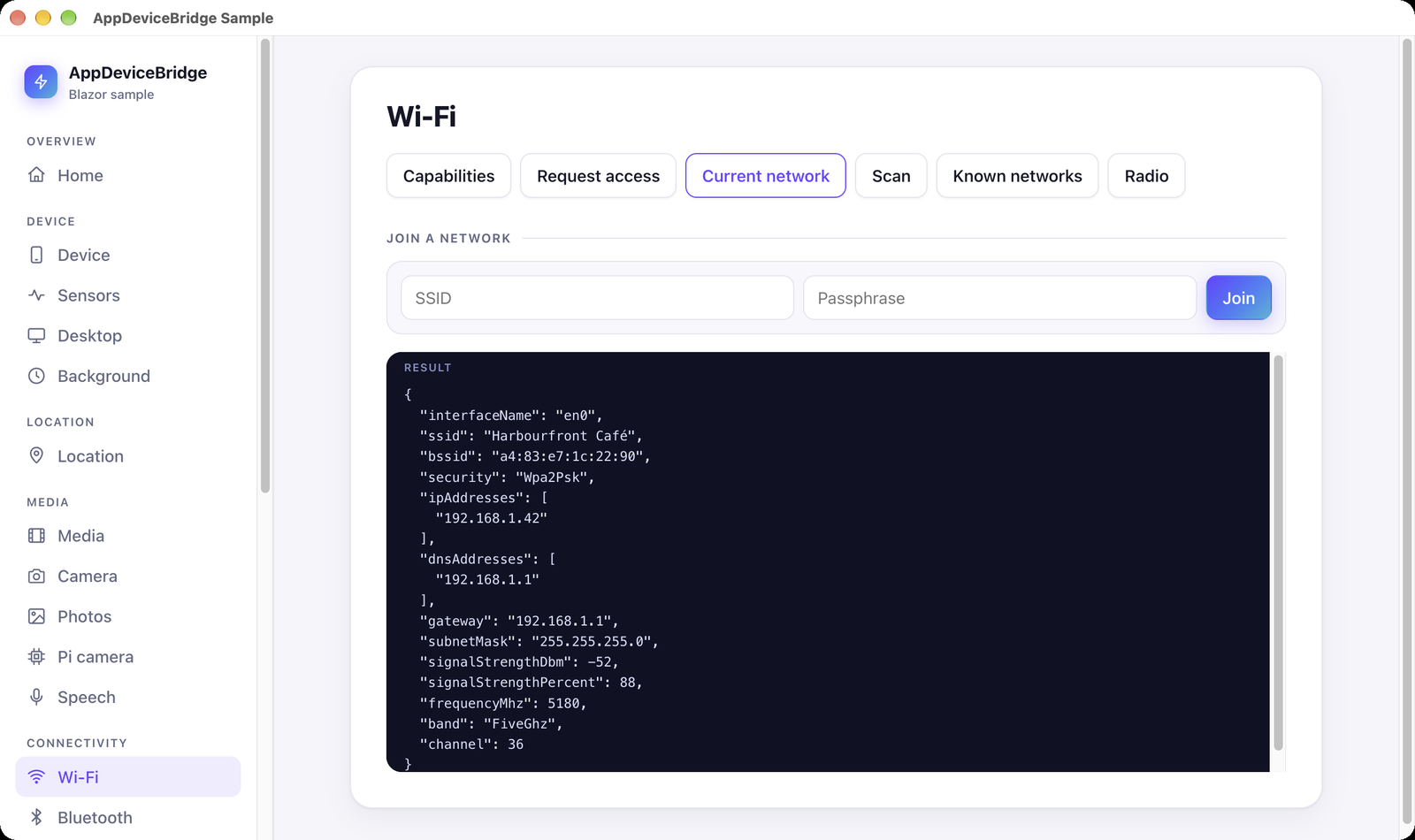
Section titled “Set any answer, including the failures”Pick a route and set what it returns: a value checked against its contract, a 204 null, or any error the bridges use,
such as 501 not_supported or 403 access_denied, with an optional delay. The page’s client gets a BridgeException
with that status and code, just as it would from a real device. Test the permission-denied screen, the loading spinner
and the “not on Wi-Fi” state without touching a phone.
| The route in the simulator | What the page gets |
|---|---|
 |
 |
You can also fire any event at the page, switch a whole bridge off to see its 501 path, and change the platform the
host reports.
Trails: play a walk, replay a failure
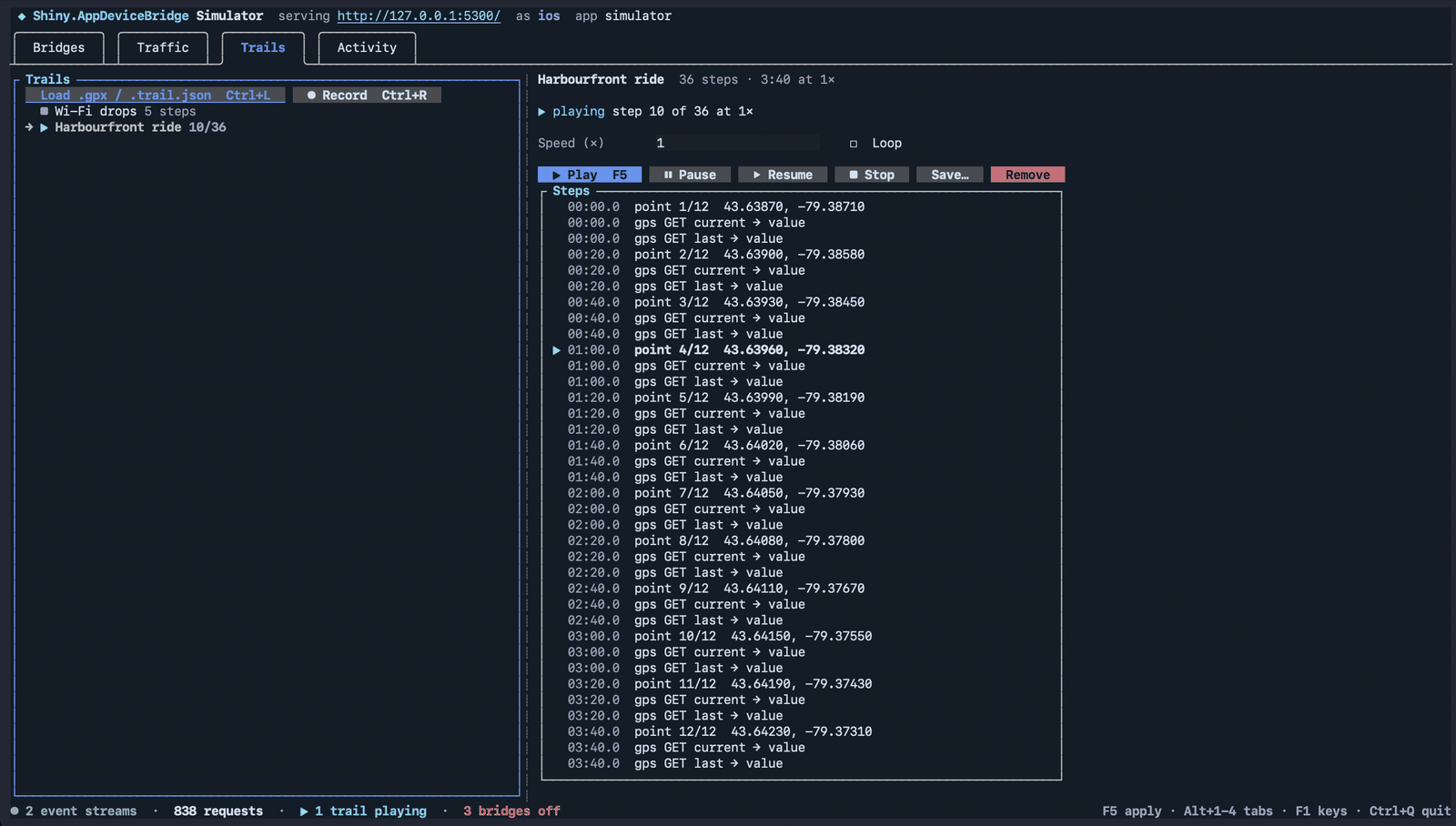
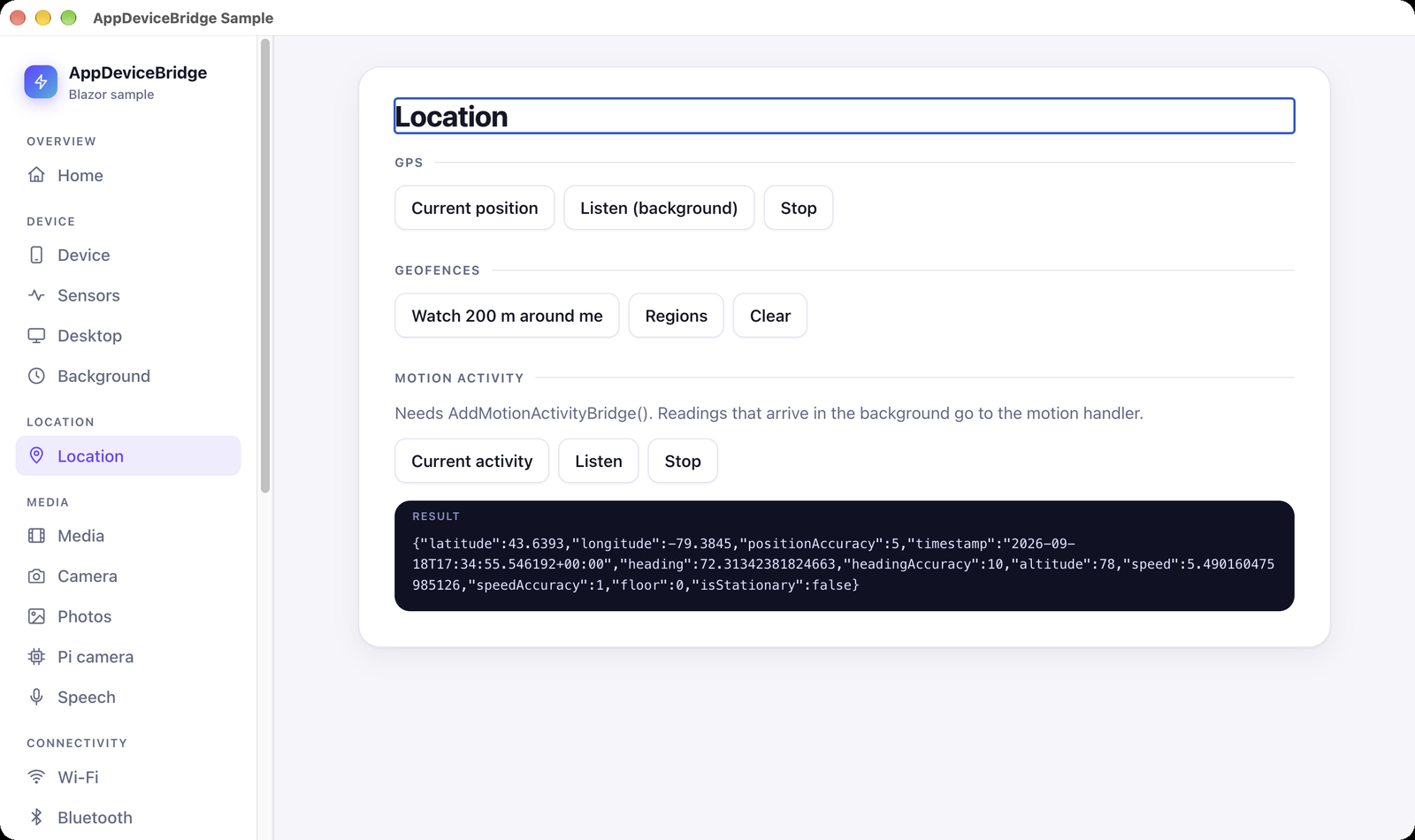
Section titled “Trails: play a walk, replay a failure”A trail is a timed script of those steps. A .gpx file plays as a GPS walk at its recorded pace. Each point is fired as
a gps.reading event and becomes what GET gps/current answers, so pages that poll and pages that listen see the same
walk. Ctrl+R records what you do in the Bridges tab as a trail you can replay.
| Playing a GPX ride | The page receiving it |
|---|---|
 |
 |
{ "name": "Lose Wi-Fi", "steps": [ { "delayMs": 0, "event": "wifi.changed", "payload": { "current": null } }, { "delayMs": 0, "bridge": "wifi", "route": "GET current", "mode": "null" }, { "delayMs": 5000, "bridge": "wifi", "route": "POST connection", "mode": "error", "status": 409, "code": "conflict" }, { "delayMs": 2000, "bridge": "ble", "supported": false } ]}See every call
Section titled “See every call”The Traffic tab shows every request the page made and the response it got, with full headers and bodies. It uses the same recorder as the in-app traffic monitor, which you can open over the web app in a Debug build.
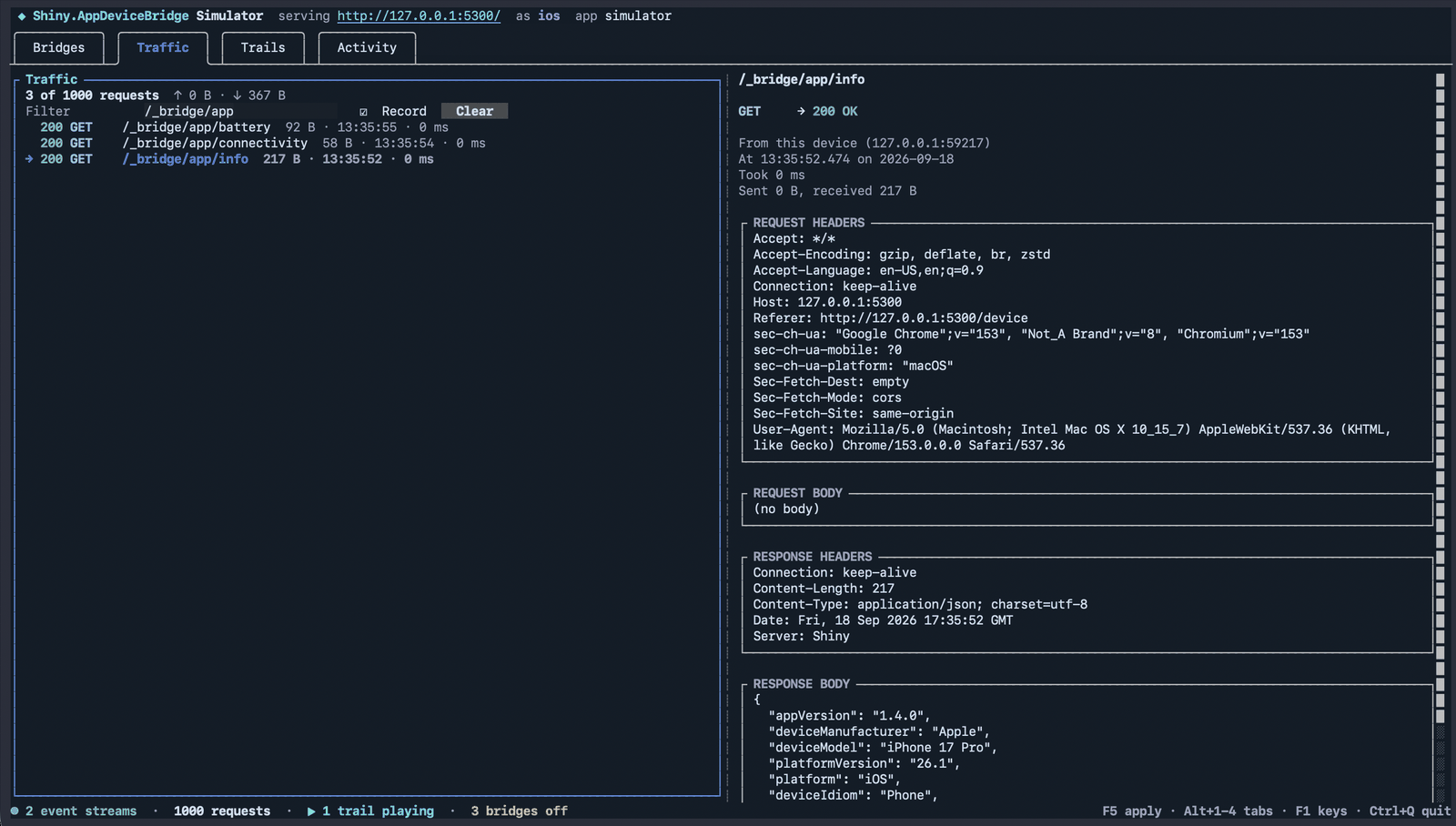
Ctrl+S saves a scenario: the platform, the bridges switched off, every route and event you changed, and every trail. Run it without the TUI in a pipeline and point your browser tests at it:
shiny-bridge-sim --scenario offline.scenario.json --trail walk.gpx --play walk --speed 4 --headlessOr use the real hardware from your desk
Section titled “Or use the real hardware from your desk”In a Debug build, the default bridge policy admits any caller that isn’t coming through a tunnel. You can point a
browser, curl or a script on your laptop at the phone’s LAN address and drive the real GPS, camera or Bluetooth
radio. The camera bridge goes further: a page anywhere can open the device’s camera, watch a live MJPEG viewfinder and
take photos. The desktop heads (Windows, macOS through AppKit, Linux through GTK4) run the same web app with the
bridges those platforms support, on the machine you’re already using.
Platforms
Section titled “Platforms”Android, iOS, Mac Catalyst and Windows, plus the maui-labs macOS (AppKit) and
Linux (GTK4) heads. A bridge either works on a platform or answers 501 there. The simulator runs anywhere .NET 10 does.
| Package | What it does |
|---|---|
|
UseAppDeviceBridge(bridge => …): the bridge server, started with the app, and the bridge builder, with UseShiny() and the UI thread done for you |
 |
UseAppDeviceBridge(bridge => …, webApp => …), WebAppHostPage: the web app in a WebView, over-the-air updates, the dev server proxy |
 |
AddWebAppHostClient(): the page-side client for Blazor WebAssembly |
 |
AddWebAppReleases, MapWebAppReleases: the signed release server |
|
shiny-bridge-sim: the terminal simulator |
Shiny.AppDeviceBridge.{Bridge} |
one package per bridge: AppSupport, Locations, BluetoothLE, Wifi, Notifications, Push, Health, Camera, Photos, Contacts, Calendar, Speech, Discovery, OBD, Desktop and more |
@shinyorg/appdevicebridge |
the TypeScript clients |
The full list is on the Getting Started page.
Get started
Section titled “Get started”- Getting Started: the packages, the app and the page
- Updates: the release server and the update rules
- Hosting: hot reload, mount points, WebView permissions and App Store review
- Simulator: every key, option and trail format
- Native calls & background: jobs, pushes, geofences and
background.js - Security: the bridge policy and remote access
The repository’s samples/ folder has the Blazor sample shown here, running in every MAUI head, plus a release server
and a simulator scenario with a GPX ride along Toronto’s harbourfront.