


Command Line Tool
Shiny.Net.HttpServer.CommandLine is a WebDAV mount with a command around it:
point it at a directory and it is served over HTTP. Open the address in a browser and you get a
file manager — browse, upload, rename, delete; open the same address in Finder,
Explorer or the GNOME and KDE file managers and the directory mounts as a drive. It installs as a
.NET tool and runs anywhere .NET runs — macOS, Linux and Windows.
dotnet tool install -g Shiny.Net.HttpServer.CommandLineshinyhttpserver Directory /Users/ada/projects/notes URL http://localhost:8080/ URL http://192.168.1.24:8080/ Operations read Mount WebDAV - Finder, Explorer and any WebDAV client can open the URL as a drive Auth none
█▀▀▀▀▀█ █▀▀▄▀▄ █▀▀▀▀▀█ █ ███ █ █▀██▄▄ ▀ █ ███ █ █ ▀▀▀ █ █ ▄ █▄▄ █ ▀▀▀ █ ▀▀▀▀▀▀▀ █▄▀ ▀ ▀▄▀ ▀▀▀▀▀▀▀ ▀▄▀███▀▄ █▄██▄▀▀▄▀▀▀▀▀▄ ▀ ▄▀▄▀▄█▄▀▀▀▀ ▀▄ ▀▀▄▀ ▀█ ▄▀▄▀ ▄▀▀▀▄ ▀█▄ ▀▀▀▄▀█▀ █ ▄█▀▄▀ █▀ █ ▀ ▀ █ ▀█ ▀ ▀▀ ▀ ▄ ▀▀█▀▄ █▀▀▀█▄█ █▀▀▀▀▀█ ▄▄▄▄ ▄█ ▀ ██▀██ █ ███ █ █▄▄███▄██▀███▀█▄▄ █ ▀▀▀ █ ▀ ▀ █ ▄▀▄▄▄▄▀ █ ▀▀▀▀▀▀▀ ▀ ▀ ▀ ▀ ▀▀▀▀▀▀▀▀
Scan http://192.168.1.24:8080/
Ctrl+C to stopThat is the plain banner, which is what --no-tui prints and what a redirected run gets. In a
terminal the tool opens a dashboard instead: the same addresses and code, plus
every request as it arrives, uploads and downloads with live progress, and a form to change the
setup without restarting.
Reads are allowed, nothing else is, and there is no authentication until you ask for one. Those are the same defaults the mount itself has, for the same reasons.
The tool listens on every interface, because a directory only this machine can reach is not what it is for, and the QR code carries the address another device can actually open. Point a phone at it and the file manager is on the phone.
shinyhttpserver [<path>] [options]| Option | Default | Notes |
|---|---|---|
<path> |
. |
The directory to serve. Nothing outside it is reachable |
-p, --port <port> |
8080 |
|
-a, --address <address> |
0.0.0.0 |
An IP, any for every interface, or localhost to keep it on this machine |
--prefix <prefix> |
/ |
Where the directory is mounted; anywhere else, / redirects to it |
-m, --allow <ops> |
read |
read, create, update, delete, all — repeatable or comma separated |
-u, --user <user:password> |
none | Turns on Basic authentication. Repeat for more than one user |
--realm <realm> |
shinyhttpserver |
The realm in the browser’s login prompt |
--auth-changes-only |
off | Leaves reads open, requires a login to change anything |
--allow-insecure-auth |
off | Allows Basic over unencrypted, non-loopback connections |
--https |
off | Serves over TLS with a self-signed certificate generated at startup |
--tunnel |
off | Opens a public pinggy.io tunnel and shares that address instead of the LAN one |
--tunnel-token <token> |
none | A pinggy.io access token, which lifts the 60 minute cap. Implies --tunnel |
--hidden |
off | Includes dotfiles in listings and downloads |
--max-upload <size> |
64mb |
500k, 64mb, 2gb, or a plain byte count |
--no-qr |
off | Leaves the QR code out of the banner |
-v, --verbose |
off | Logs every request. In the dashboard, turns the log tab up to debug level |
--no-tui |
off | Prints the banner and a plain log instead of opening the dashboard |
The dashboard
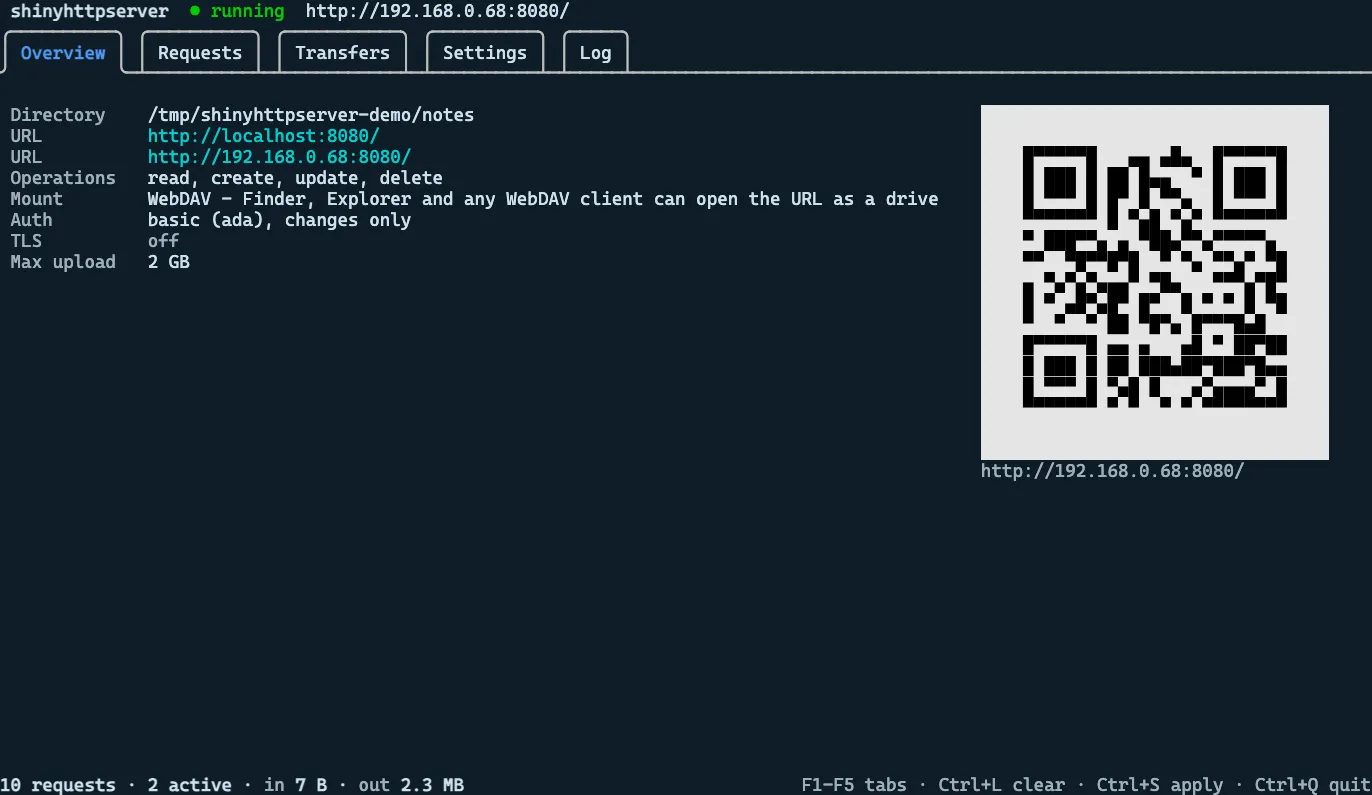
Section titled “The dashboard”Run in a terminal, shinyhttpserver opens a full-screen dashboard built on
XenoAtom.Terminal.UI. The flags are its starting
point, not the last word: everything they set can be changed while it runs.
| Tab | Key | Shows |
|---|---|---|
| Overview | F1 |
The addresses, the tunnel, what is allowed and who can log in, the same warnings the banner gives, and the QR code |
| Requests | F2 |
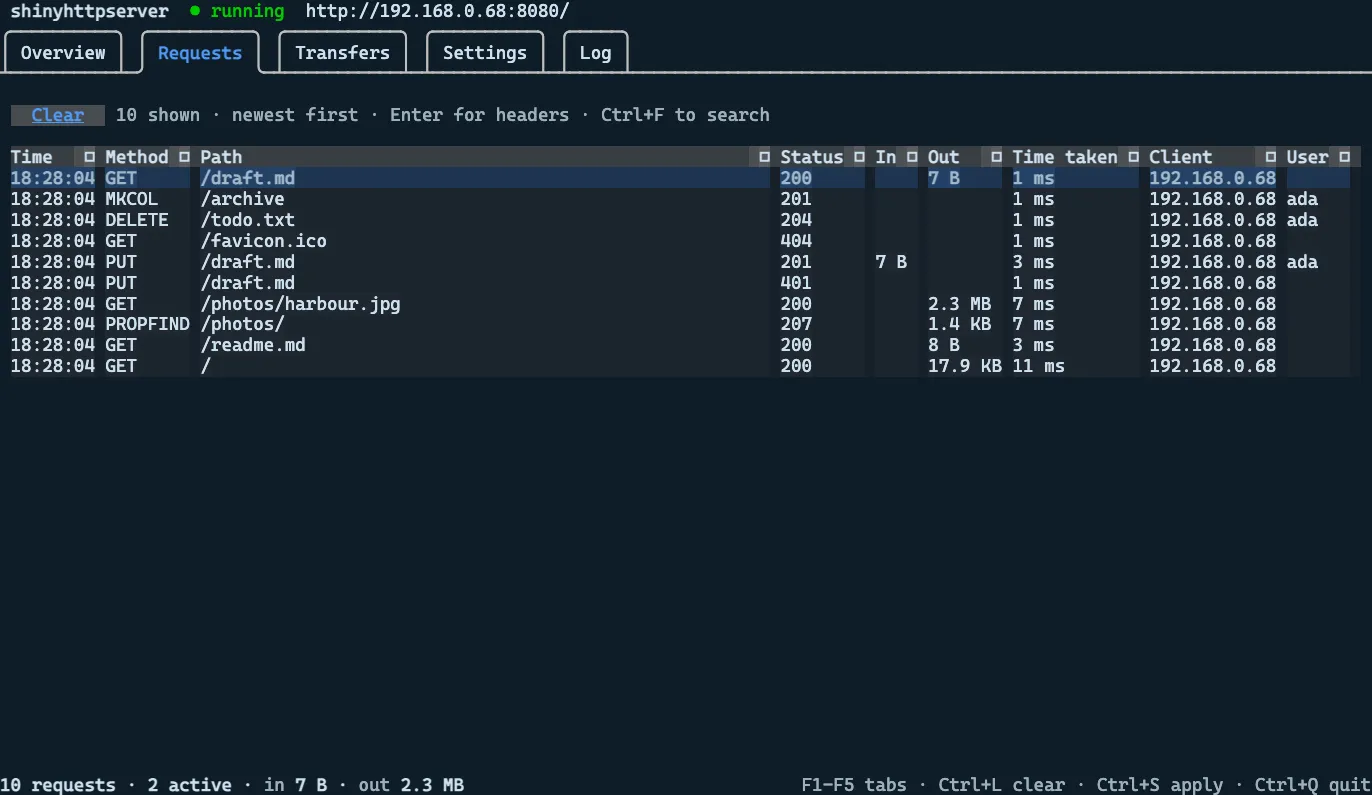
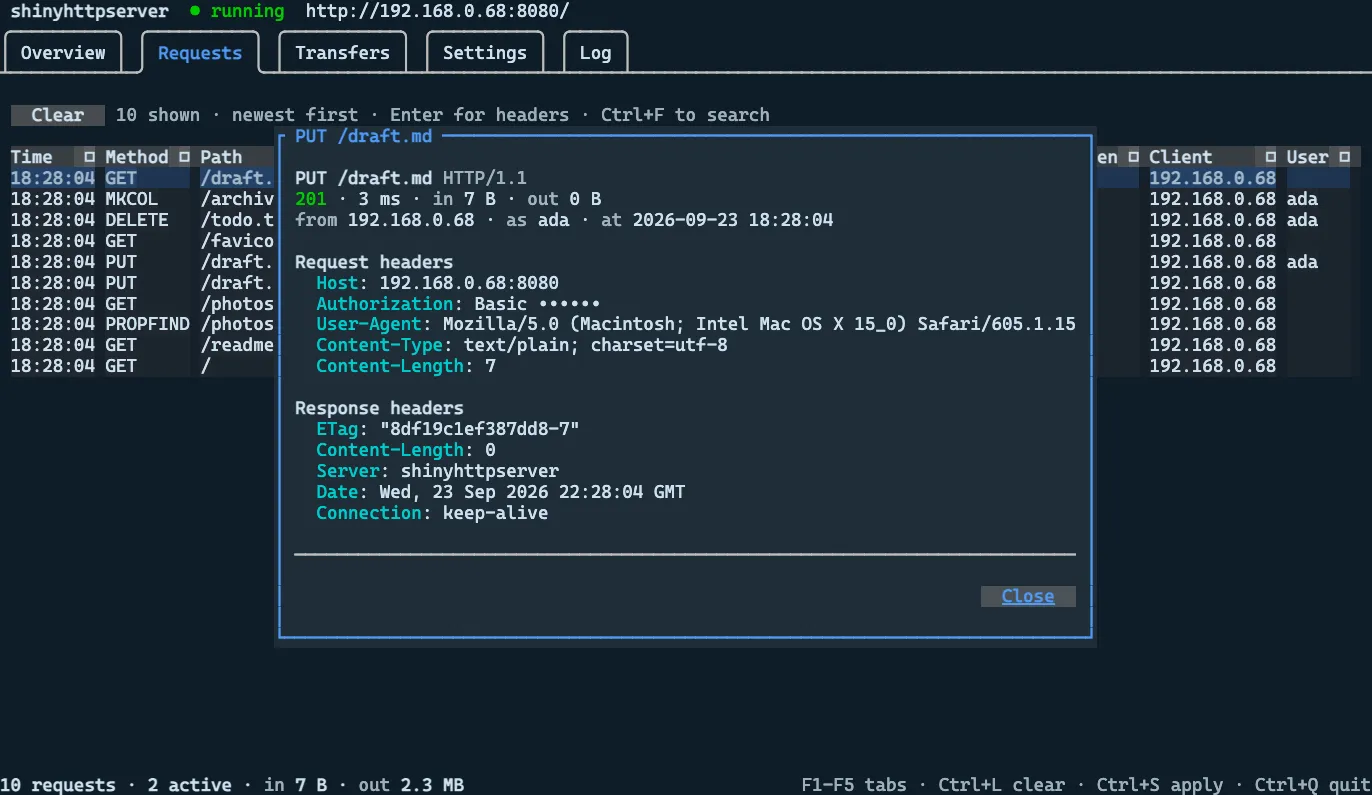
Every request answered, newest first: method, path, status, bytes in and out, time taken, client and user. Enter opens the full request and response headers; Ctrl+F searches; columns sort |
| Transfers | F3 |
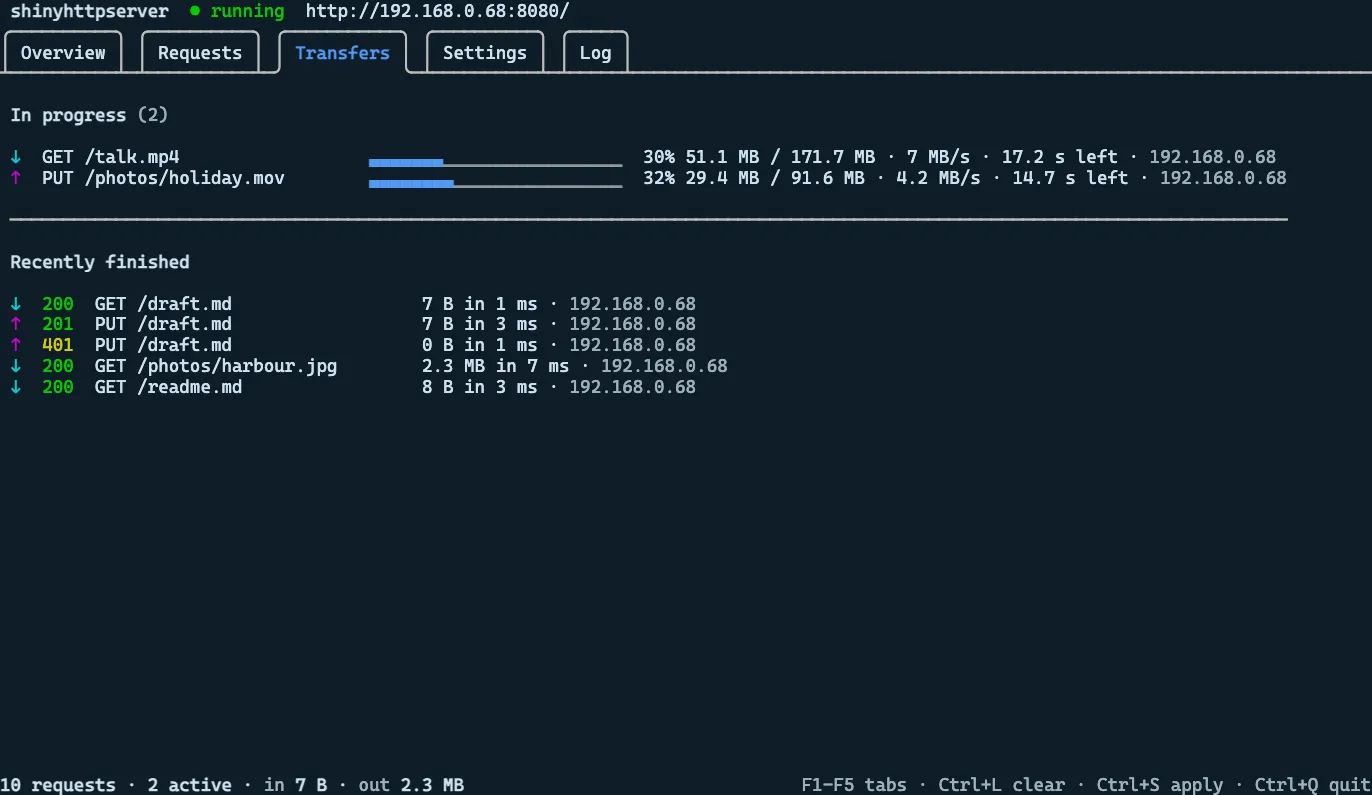
Uploads and downloads in flight, each with a progress bar, speed and time left, and the last few that finished |
| Settings | F4 |
Every option on the command line as a form. Ctrl+S applies it |
| Log | F5 |
The server’s own log, which would otherwise have gone to the console |
Ctrl+L clears the request log and its totals, and Ctrl+Q quits. The status bar keeps a running
count of requests, what is in flight, and bytes in and out.
What it records
Section titled “What it records”The monitor sits first in the pipeline, ahead of authentication, so a refused login is in the log
with everything else — a 401 is exactly what someone watching a server wants to see. Connections
through the tunnel are served by the same pipeline, so they are in it too, marked
tunnel. For those, the client shown is the last address in the tunnel’s X-Forwarded-For, since
the socket itself is the tunnel’s forward. On a direct connection the header is whatever the client
chose to send, so it is ignored there.
Byte counts are read as the handler reads the request and writes the response, over HTTP/1.1 and HTTP/2 alike. A download’s progress is what the server has handed to the connection. On a fast link that is what the client has, but a small file on a slow one can read 100% while it is still draining from the socket’s buffer.
Authorization headers are masked in the detail view: the scheme stays, the credential does not.
The log keeps the last 1,000 requests.
Changing the setup
Section titled “Changing the setup”The Settings tab reads its fields through the same parsers as the flags, so it accepts what the command line accepts and refuses it with the same message.
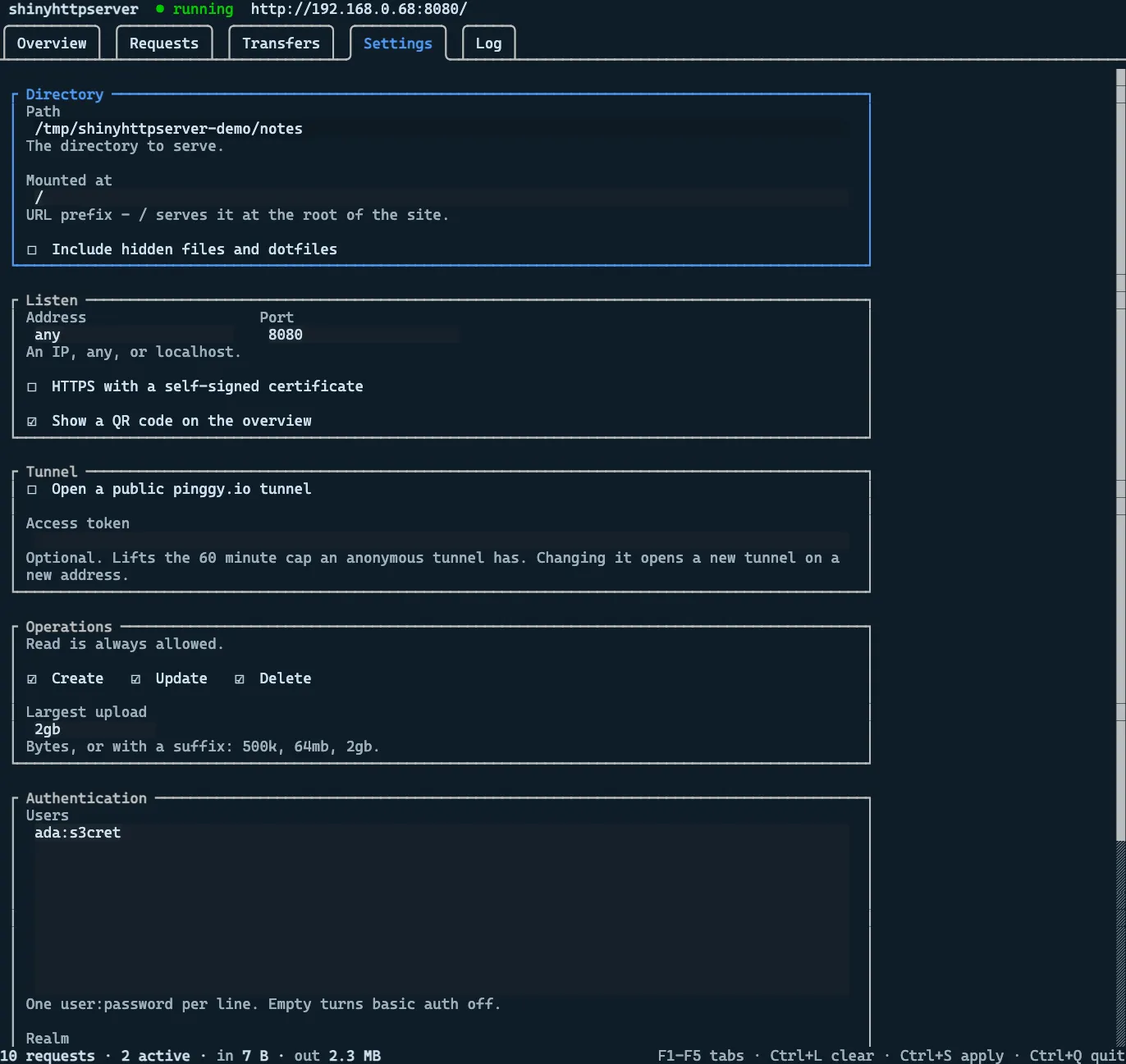
Applying a change does one of two things:
- The tunnel, its token, the QR code and the log level change in place. Opening or closing the tunnel leaves the server, and every transfer on it, alone. A new token is a new tunnel, on a new address.
- Anything else — the directory, address, port, prefix, operations, users, realm, TLS, hidden files, the upload limit — is baked into the server’s pipeline, so the server is rebuilt. If anything is in flight the dashboard says how many requests will be cut off and asks first. A rebuild waits up to three seconds for them to finish.
If the new settings will not start — the port is taken, say — the previous ones are started again, and the form goes back to what is running. The self-signed certificate is made once per run, so a browser that has already accepted it is not asked again because the port moved.
The file manager
Section titled “The file manager”The address opens in a browser as a file manager, and it offers exactly what -m allows:
| Needs | |
|---|---|
| Browse, with sizes and modification times | always |
| Download a file, on a button beside it | always |
| Upload, by drag and drop or from the file picker — a dropped folder is walked and recreated | create or update |
| New folder | create |
| Rename | update and delete |
| Delete | delete |
The default run has none of those buttons, because the default run allows nothing but reading. A
button that could only ever earn a 403 is worse than no button: it reads as a server that is
broken rather than one that is read-only.
Every action is a WebDAV verb against the same address — an upload is a PUT, a new folder a
MKCOL, a rename a MOVE, a delete a DELETE — so the page can do nothing the tool would not
accept from curl. It is one self-contained response, with no scripts, styles or fonts fetched from
anywhere, which is what makes it work on a phone over a tunnel with no other connectivity at all.
Mounting it as a drive
Section titled “Mounting it as a drive”The same address is a WebDAV mount, so an operating system can open it as a folder with no client to install:
| Platform | Details |
|---|---|
| macOS | Finder, Go ▸ Connect to Server, http://192.168.1.24:8080/ |
| Windows | Explorer, Map network drive, http://192.168.1.24:8080/, or net use * http://192.168.1.24:8080/ |
| Linux | GNOME Files or Dolphin, dav://192.168.1.24:8080/ |
| anything else | rclone, Cyberduck, or any WebDAV client library |
Windows and macOS both refuse to mount a WebDAV server read-write over plain HTTP with credentials,
and Windows wants TLS for Basic at all, so pair a mounted drive with --https or
--tunnel.
The QR code
Section titled “The QR code”The banner ends with a scannable QR code of the first address on the machine that another device can
reach — the LAN address, never localhost, because a phone cannot go there. The same URL is printed
underneath it in full, for anyone who would rather type it or paste it somewhere.
With --tunnel the code carries the public tunnel address instead. It is the better
one to scan by some distance: it opens on a phone that is not on this network at all, which the LAN
address does not.
It is drawn in half-block characters, two module rows to a text row, so an ordinary code fits a terminal window without wrapping. It is always drawn black on white whatever the terminal’s own colours are, since a reader needs dark modules on a light field and a dark theme would otherwise hand it the negative.
The code is left out when there is nothing useful to put in it or nowhere useful to draw it:
--no-qr-a localhost, or any loopback address — the server is only listening to this machine, unless--tunnelgave it a public address anyway- no non-loopback interface is up
- output is redirected to a file or a pipe, or the window is narrower than the code
--https changes nothing about the code beyond the scheme, but the certificate is self-signed, so
the phone will warn about it before it shows the listing.
The tunnel
Section titled “The tunnel”--tunnel opens a quick tunnel through pinggy.io and shares the public HTTPS
address it hands back:
shinyhttpserver --tunnel Directory /Users/ada/projects/notes URL http://localhost:8080/ URL http://192.168.1.24:8080/ Tunnel https://gyjjf-24-6-13-90.free.pinggy.net/ Operations read Auth none
! The tunnel is public: anyone holding the address can reach this directory, and the traffic passes through pinggy.io. An anonymous tunnel stops after 60 minutes.Nothing is installed and nothing is signed up for — the tool generates a throwaway key at startup, and the address is read back off the tunnel’s own session. The QR code carries the tunnel address, so a phone on cellular data opens the listing the same way one on the wifi does.
It is the same QuickTunnel the library exposes, which means the tunnel hands connections straight
to HttpServer.ServeAsync rather than dialling the local port. Two things follow from that:
--tunnel -a localhostis a real combination. Nothing is bound on the LAN; the directory is reachable through the tunnel and nowhere else.- A tunnelled connection counts as encrypted transport, so
-uworks over it without--allow-insecure-auth— the hop from the browser topinggy.iois TLS and the hop from there to this machine is the SSH connection.
shinyhttpserver -a localhost --tunnel -u ada:s3cret -m allAn anonymous tunnel stops after 60 minutes. --tunnel-token <token> passes a
pinggy access token instead, which lifts that, and implies --tunnel.
If the tunnel will not open — pinggy unreachable, the SSH connection refused — the tool says so and keeps serving on the local network, with the QR code falling back to the LAN address.
Operations
Section titled “Operations”read is always on. The rest map onto what the mount will accept:
| Operation | Allows |
|---|---|
read |
GET a file for its bytes, GET a collection for the file manager, PROPFIND, OPTIONS |
create |
PUT to a path that does not exist, MKCOL, and a COPY or MOVE onto a free name |
update |
PUT over a file that already exists, and a COPY or MOVE onto a name that is taken |
delete |
DELETE, and the source half of a MOVE |
shinyhttpserver # read-only, the defaultshinyhttpserver -m create # accept new files, never overwrite oneshinyhttpserver -m all # read, create, update, deleteThe mount has a single AllowWrite, so create and update are the same PUT to it — and the same
MKCOL, COPY and MOVE. The tool tells them apart itself: a write is checked against the file
system before the handler runs and refused with 403 when the operation it turns out to be was not
the one granted — so -m create cannot be talked into replacing a file, and -m update cannot be
talked into adding one. MOVE is judged by where it lands, since that is the end of it that writes.
Renaming needs update and delete: a MOVE writes at the destination and removes the source,
and the tool will not grant half of it.
Authentication
Section titled “Authentication”--user turns on Basic authentication and puts the whole mount
behind it:
shinyhttpserver -m all -u ada:s3cret -u grace:h0pper--auth-changes-only is RequireAuthorizationForChanges from the command line — reads stay open,
writes and deletes need the login:
shinyhttpserver -m all -u ada:s3cret --auth-changes-onlyBasic sends the password on every request, so on a non-loopback address over plain HTTP the tool
refuses to start rather than doing it quietly — and since it listens on every interface by default,
that is what -u on its own does. Serve it over TLS instead:
shinyhttpserver -a any --https -u ada:s3cret -m allThe certificate is generated at startup and self-signed, so clients will warn about it — curl -k,
or accept it once in the browser. --tunnel -a localhost is the other way out, and
the one with a certificate a phone will accept: nothing is bound on the LAN and every hop to the
tunnel is encrypted. --allow-insecure-auth sends the password in the clear anyway, on a network you
already trust.
Driving it
Section titled “Driving it”It is a WebDAV mount, so anything that speaks HTTP works — and PUT, DELETE
and GET need nothing WebDAV-specific at all:
curl -O http://localhost:8080/notes.md # download a filecurl -X PUT --data-binary @notes.md http://localhost:8080/notes.mdcurl -X DELETE http://localhost:8080/notes.mdcurl -X MKCOL http://localhost:8080/archivecurl -X MOVE -H 'Destination: /archive/notes.md' -H 'Overwrite: F' \ http://localhost:8080/notes.mdA machine-readable listing is PROPFIND, which answers 207 with a DAV:multistatus document:
curl -X PROPFIND -H 'Depth: 1' http://localhost:8080/A browser GET on a directory gets the file manager instead, since a person is
the one asking. Downloads go through the same code as every other
download, so byte ranges and conditional GETs work.